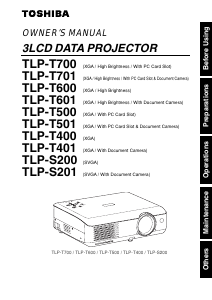
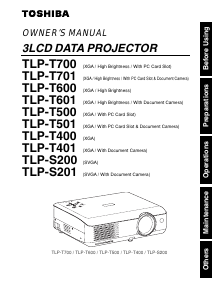
Manual Toshiba TLP-T501 Projector

Need a manual for your Toshiba TLP-T501 Projector? Below you can view and download the PDF manual for free in English. This product currently has 3 frequently asked questions, 0 comments and has 0 votes. If this is not the manual you want, please contact us.

Is your product defective and the manual offers no solution? Go to a Repair Café for free repair services.

Manual

Loading…
35
Operations
34
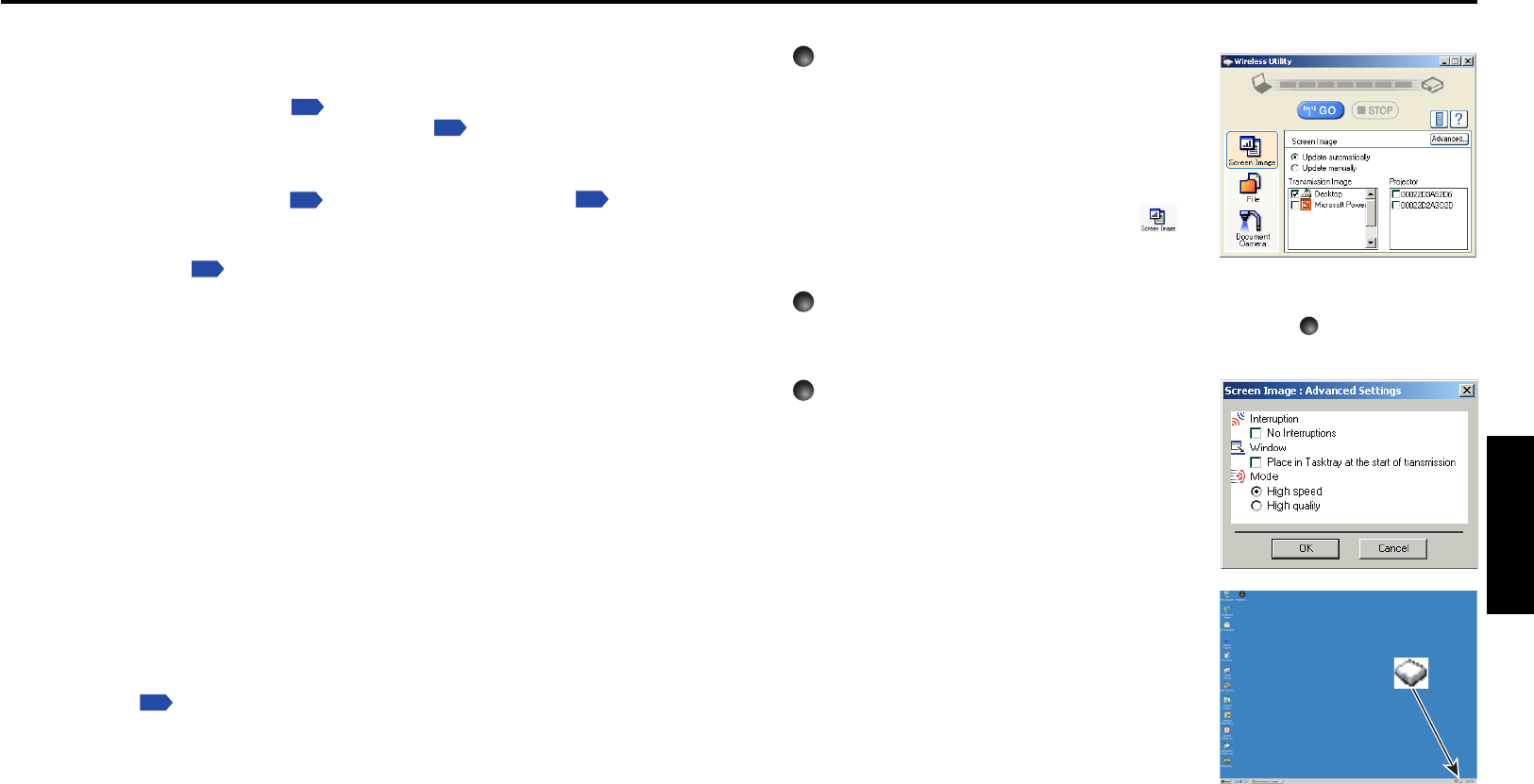
Displaying a computer’s screen via the projector
1
Launch the Wireless Utility software
application.
When the Wireless Utility launches, the Screen
image transmission mode window appears on the
computer screen.
To switch to the Screen image transmission mode
window from another mode (File or Document
camera), click on the Screen Image icon
.
2
Select Transmission mode.
Click on Update automatically or Update manually. See step
6
for the meanings of
Update automatically and Update manually.
3
Click on the Advanced button.
The Advanced Settings dialog appears. Set the
dialog as shown below, as necessary.
Interruption
Select the No Interruptions checkbox to prevent
other computer from sending interrupts to the
projector during your transmission.
Mode
Selecting High quality improves the quality of the
projected image, but lowers communication speed.
Selecting High speed has the opposite effect.
•Window
Select the Place in Tasktray at the start of
transmission checkbox to iconify the Wireless
Utility and place it in the computer’s tasktray
when transmission initiated.
To display the window, double click on this icon, or
right click and select Open from the popup menu.
Transmission can be started and stopped from this
popup menu in accordance with the preceding
instructions, without displaying the Wireless
utility window.
Preparation
Mount the supplied wireless LAN PC card into the projector, and select
PC card input
Referring to “Mounting a PC card,”
p.23
mount the supplied wireless LAN PC card, then
select PC card input in accordance with “Select input”
p.27
.
Projector settings
The factory settings can be used as-is. If necessary, conduct the following settings,
referring to “How to use the menu”
p.52
and “The PC card setting menu”
p.54
.
[Communication mode]:
Your projector is set to Ad-Hoc in the factory. See “How to Use the Projector
Configuration Tool”
p.59
if you would like to set the mode to Infrastructure. This
menu item is used only for channel confirmation and the mode change from
Infrastructure to Ad-Hoc.
[Channel]
This item cannot be changed currently. This is function for the future.
[Encryption]
Set the security encryption level. The higher the number of bits, the stronger the
encryption, and hence the harder it will be for a third party to decipher your
communications. However, setting higher encryption levels will slow down
communication speed.
[Key]
The key must be set for any encryption setting other than None. [64-bit] sets the key
length to 5 characters, [128-bit] to 13.
[Projector name]
This can be used to identify projectors when communicating with multiple projectors, or
if there is a possibility that another person who is out of communication range will be
using the same projector. It is recommended this is set to prevent wrong transmission.
Installing the applications
Install the applications on your computer, in accordance with “Installing the
applications”
p.24
.
Computer settings
Refer to instruction manuals of your computer or wireless LAN PC card to perform the
following settings.
Select Ad-Hoc (for some PC cards, this is Peer-to-Peer Group).
Set the Channel to channel assigned to the projector (in factory reset mode, this is set
to 10). (For some computers, you cannot set the channel in Ad-Hoc mode. For this
case, use infrastructure communication mode.)
Set SSID (For some types of PC card, use Network Name instead) as the same as
projector’s SSID (at factory shipment, this is set to DPJ).
If Encryption and Key are set on the projector, set to the same values.
Using the wireless LAN PC card (Continued)
Download manual in English (PDF, 3.34 MB)
(Consider the environment and only print this manual if it is really necessary)

Loading…

Rating

Let us know what you think about the Toshiba TLP-T501 Projector by leaving a product rating. Want to share your experiences with this product or ask a question? Please leave a comment at the bottom of the page.
Are you satisfied with the Toshiba TLP-T501 Projector?
Yes No
Be the first to rate this product
0 votes

Join the conversation about this product

Here you can share what you think about the Toshiba TLP-T501 Projector. If you have a question, first carefully read the manual. Requesting a manual can be done by using our contact form.

More about this manual

We understand that it’s nice to have a paper manual for your Toshiba TLP-T501 Projector. You can always download the manual from our website and print it yourself. If you would like to have an original manual, we recommend you contact Toshiba. They might be able to provide an original manual. Are you looking for the manual of your Toshiba TLP-T501 Projector in a different language? Choose your preferred language on our homepage and search for the model number to see if we have it available.

Specifications

Brand Toshiba
Model TLP-T501
Category Projectors
File type PDF
File size 3.34 MB

All manuals for Toshiba Projectors
More manuals of Projectors

Frequently Asked Questions about Toshiba TLP-T501 Projector

Our support team searches for useful product information and answers to frequently asked questions. If you find an inaccuracy in our frequently asked questions, please let us know by using our contact form.

Can I power off my projector immediately after use? Verified

After using the projector the lamp is still very hot. It is best to leave the projector on after use, giving the internal fan time to do it's work and cool the lamp. This will extend the lifetime of the lamp.

This was helpful (214) Read more

What is keystone correction? Verified

A projector can often not be placed straight in front of a screen or wall. The projected image can become distorted because of this. This is the keystone effect. Keystone correction is a feature that addresses this distortion. Not all projectors offer keystone correction.

This was helpful (158) Read more

What is the contrast ratio? Verified

The contrast ratio tells how far the whitest white is from the blackest black. A contrast ratio of for example 400:1 means that the blackest black on screen is 400 times darker than the whitest white. A high contrast ratio contributes to the sharpness of the image.

This was helpful (104) Read more
Manual Toshiba TLP-T501 Projector

Related products

Related categories

×
Download