MDR-ZX780DC 4-596-342-11(1)
Operating Instructions US
Manuel d’instructions FR
© 2016 Sony Corporation
Printed in Malaysia
MDR-ZX780DC
Wireless
Noise Canceling
Stereo Headset
Casque
stéréo sans fil
réducteur de bruits
4-596-342-11(1)
Charging the unit/
Chargement de l’appareil
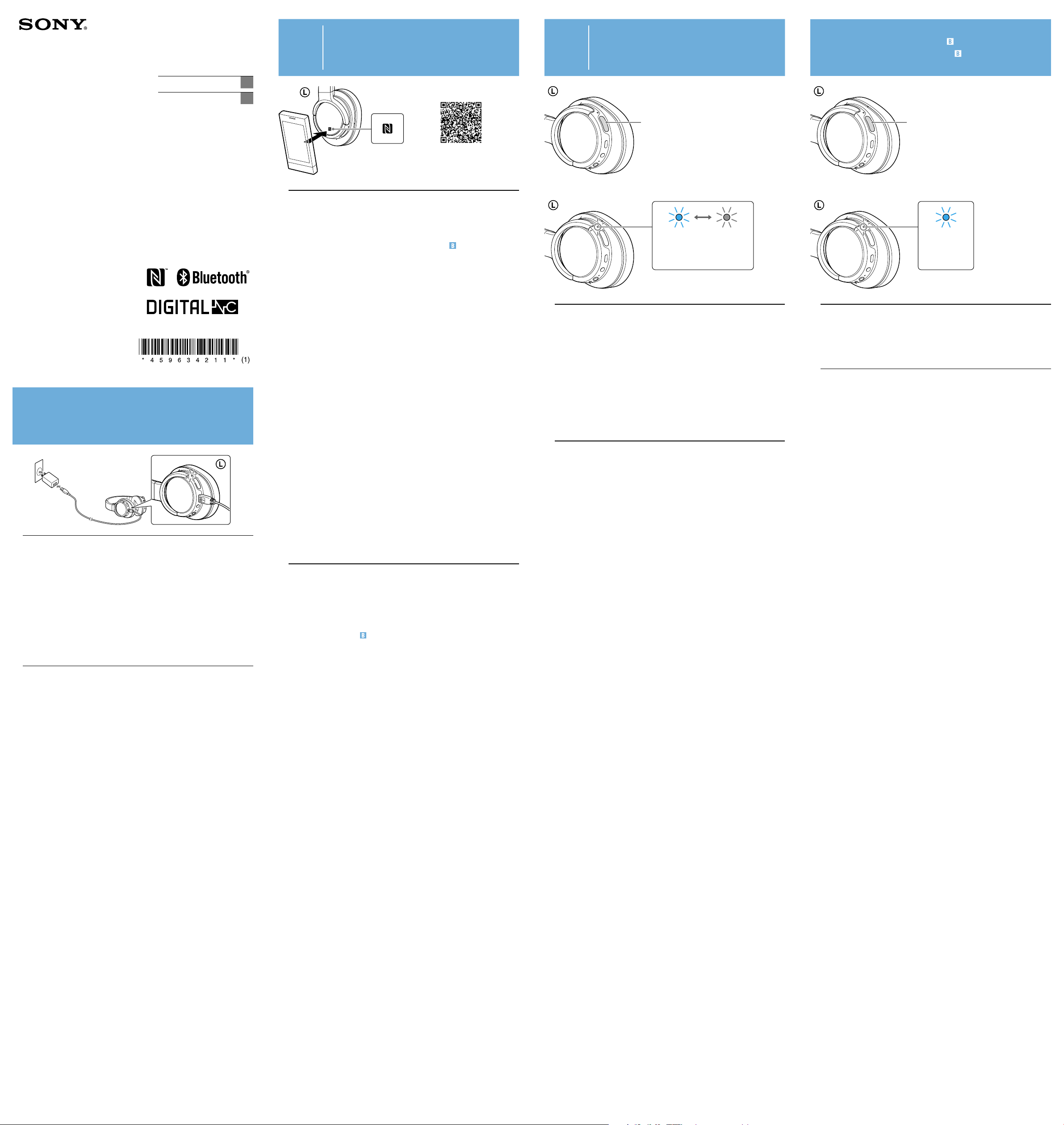
Connect the unit to an AC outlet using the USB charger and micro-
USB cable supplied.
When the unit and the AC outlet are connected, charging starts and the
indicator (red) lights up. Charging is completed in about 2.5hours at most and
the indicator (red) goes off automatically.
Hint
The unit can also be charged by a booted computer using the micro-USB cable
supplied.
Notes
Use the micro-USB cable supplied. You may not be able to charge the unit with other
cables.
Charging will not be completed properly if the computer enters into hibernation or
standby mode while connected to the unit. If this happens, change the settings of
the computer and charge the unit again.
Connectez l’appareil à une prise de courant à l’aide du chargeur
USB et du câble micro-USB fourni.
Lorsque l’appareil est connecté à la prise de courant, le chargement commence
et le témoin (rouge) s’allume. Le chargement dure environ 2,5heures au
maximum et le témoin (rouge) s’éteint automatiquement.
Astuce
L’appareil peut également être chargé par un ordinateur démarré à l’aide du câble
micro-USB fourni.
Remarques
Utilisez le câble micro-USB fourni. Il pourra s’avérer impossible de charger l’appareil
avec d’autres câbles.
Le chargement ne se termine pas correctement si l’ordinateur passe en mode veille
ou veille prolongée alors qu’il est branché à l’appareil. Dans une telle situation,
modifiez les paramètres de l’ordinateur et rechargez l’appareil.
A
One-touch connection with a smartphone (NFC)/
Connexion une touche avec un smartphone (NFC)
NFC Easy Connect/
Connexion NFC facile
By touching the unit with a smartphone, the unit is turned on automatically and
proceeds to pair and connect via BLUETOOTH.
Compatible smartphones
NFC-compatible smartphones with Android™ 2.3.3 or later installed (excluding
Android 3.x).
On the connection with other BLUETOOTH devices, see “
Pairing and
connecting with a BLUETOOTH device.”
NFC
NFC (Near Field Communication) is a technology enabling short-range wireless
communication between various devices, such as smartphones and IC tags.
Thanks to the NFC function, data communication - for example, BLUETOOTH
pairing - can be achieved easily by simply touching NFC compatible devices
together (i.e., at the N-Mark symbol or location designated on each device).
1 Set the NFC function of the smartphone to on.
For details, refer to the operating instructions supplied with the smartphone.
If your smartphone OS is Android 2.3.3 or later, and less than Android 4.1
(excluding Android 3.x): proceed to step 2.
If your smartphone OS is Android 4.1 or later: proceed to step 4.
2 Download and install the app “NFC Easy Connect.”
“NFC Easy Connect” is a free Android app you can download from Google
Play™.
Download the app by searching for “NFC Easy Connect” or access it by using
the two-dimensional code. Fees may be charged for downloading the app.
Note
The App may not be available in some countries and/or regions.
3 Start the app “NFC Easy Connect” on the smartphone.
One-touch connection is possible only when the app screen is displayed on
the smartphone.
4 Touch this unit with the smartphone.
Unlock the screen of the smartphone beforehand.
Touch the smartphone on the N marked part of this unit.
Keep touching the unit with the smartphone until the smartphone reacts.
Follow the on-screen instructions to complete the pairing and connection.
To disconnect, touch the smartphone again.
You can select the sound from other NFC compatible BLUETOOTH devices. For
details, refer to the Help Guide.
To connect the unit with the paired smartphone, perform step 4.
(When you are using the app “NFC Easy Connect,” perform steps 3 and 4.)
En mettant l’appareil en contact avec un smartphone, l’appareil est
automatiquement mis sous tension, puis procède au pairage et à la connexion
via BLUETOOTH.
Smartphones compatibles
Les smartphones compatibles NFC sur lesquels Android™2.3.3 ou ultérieur est
installé (sauf Android3.x).
Pour voir des informations sur la connexion à d’autres périphériques
BLUETOOTH, consultez «
Pairage et connexion avec un périphérique
BLUETOOTH».
NFC
NFC (Near Field Communication) est une technologie permettant d’établir
une communication sans fil à courte portée entre divers périphériques, tels
que des smartphones et des étiquettes électroniques. Grâce à la fonction
NFC, il est possible de communiquer des données facilement (par exemple
pairage BLUETOOTH) en mettant en contact des périphériques compatibles
NFC entre eux (sur le symbole N-Mark ou à l’emplacement conçu sur chaque
périphérique).
1 Activez la fonction NFC du smartphone.
Pour plus de détails, consultez le mode d’emploi fourni avec le smartphone.
Si l’OS de votre smartphone est Android2.3.3 ou ultérieur, et inférieur à
Android4.1 (sauf Android3.x): passez à l’étape2.
Si l’OS de votre smartphone est Android4.1 ou ultérieur: passez à l’étape4.
2 Téléchargez et installez l’application «Connexion NFC facile».
«Connexion NFC facile» est une application Android gratuite que vous
pouvez télécharger sur Google Play™.
Téléchargez l’application en recherchant «Connexion NFC facile» ou
accédez-y en utilisant le code 2D. Le téléchargement de l’application peut
être payant.
Remarque
Il est possible que l’application ne soit pas disponible dans certains pays et/ou
dans certaines régions.
3 Démarrez l’application «Connexion NFC facile» sur le
smartphone.
La connexion une touche est possible uniquement lorsque l’écran de
l’application est affiché sur le smartphone.
4 Mettez l’appareil en contact avec le smartphone.
Déverrouillez l’écran du smartphone au préalable.
Placez le smartphone sur la partie marquée d’un N sur l’appareil.
Maintenez le contact entre l’appareil et le smartphone jusqu’à ce que ce
dernier réagisse.
Suivez les instructions à l’écran pour terminer le pairage et la connexion.
Pour déconnecter, mettez de nouveau le smartphone en contact avec l’appareil.
Vous pouvez sélectionner le son d’autres périphériques BLUETOOTH
compatibles avec NFC. Pour plus de détails, consultez le Manuel d’aide.
Pour connecter l’appareil et le smartphone apparié, effectuez l’étape4.
(Lorsque vous utilisez l’application « Connexion NFC facile », effectuez les
étapes 3 et 4.)
B
Pairing and connecting with a BLUETOOTH device/
Pairage et connexion avec un périphérique
BLUETOOTH
POWER
Blue/
Bleu
Red/
Rouge
1 Place the BLUETOOTH device within 1 m (3 feet) of this unit.
2 Enter pairing mode on this unit.
Press and hold the POWER button for about 7 seconds.
Make sure that the indicator flashes blue and red alternately after you
release the button.
3 Perform the pairing procedure on the BLUETOOTH device to
detect this unit.
When the list of detected devices appears on the display of the BLUETOOTH
device, select “MDR-ZX780DC.”
If passkey input is required on the display of the BLUETOOTH device, input
“0000.”
4 Make the BLUETOOTH connection from the BLUETOOTH device.
1 Placez le périphérique BLUETOOTH dans un rayon de 1mètre
(3pieds) par rapport à l’appareil.
2 Entrez en mode de pairage sur l’appareil.
Maintenez le bouton POWER enfoncé pendant environ 7 secondes.
Vérifiez que le témoin clignote alternativement en bleu et en rouge lorsque
vous relâchez le bouton.
3 Effectuez la procédure de pairage sur le périphérique
BLUETOOTH pour détecter l’appareil.
Lorsque la liste de périphériques détectés apparaît sur l’écran du
périphérique BLUETOOTH, sélectionnez «MDR-ZX780DC».
Si un code est demandé sur l’écran du périphérique BLUETOOTH, saisissez
«0000».
4 Effectuez la connexion BLUETOOTH sur le périphérique
BLUETOOTH.
Connecting with the device paired in /
Connexion au périphérique apparié en
POWER
Blue/
Bleu
1 Turn on the unit.
Press and hold the POWER button for about 2seconds while this unit is
turned off.
Make sure that the indicator flashes blue after you release the button.
2 Make the BLUETOOTH connection from the BLUETOOTH device.
1 Mettez l’appareil sous tension.
Appuyez sur le boutonPOWER et maintenez-le enfoncé environ 2secondes
lorsque l’appareil est hors tension.
Vérifiez que le témoin clignote en bleu lorsque vous relâchez le bouton.
2 Effectuez la connexion BLUETOOTH sur le périphérique
BLUETOOTH.



Join the conversation about this product
Here you can share what you think about the Sony MDR-ZX780DC Headphone. If you have a question, first carefully read the manual. Requesting a manual can be done by using our contact form.