Manual Samsung SGH-X500 Mobile Phone

Need a manual for your Samsung SGH-X500 Mobile Phone? Below you can view and download the PDF manual for free in English. This product currently has 16 frequently asked questions, 0 comments and has 0 votes. If this is not the manual you want, please contact us.

Is your product defective and the manual offers no solution? Go to a Repair Café for free repair services.

Manual

Loading…
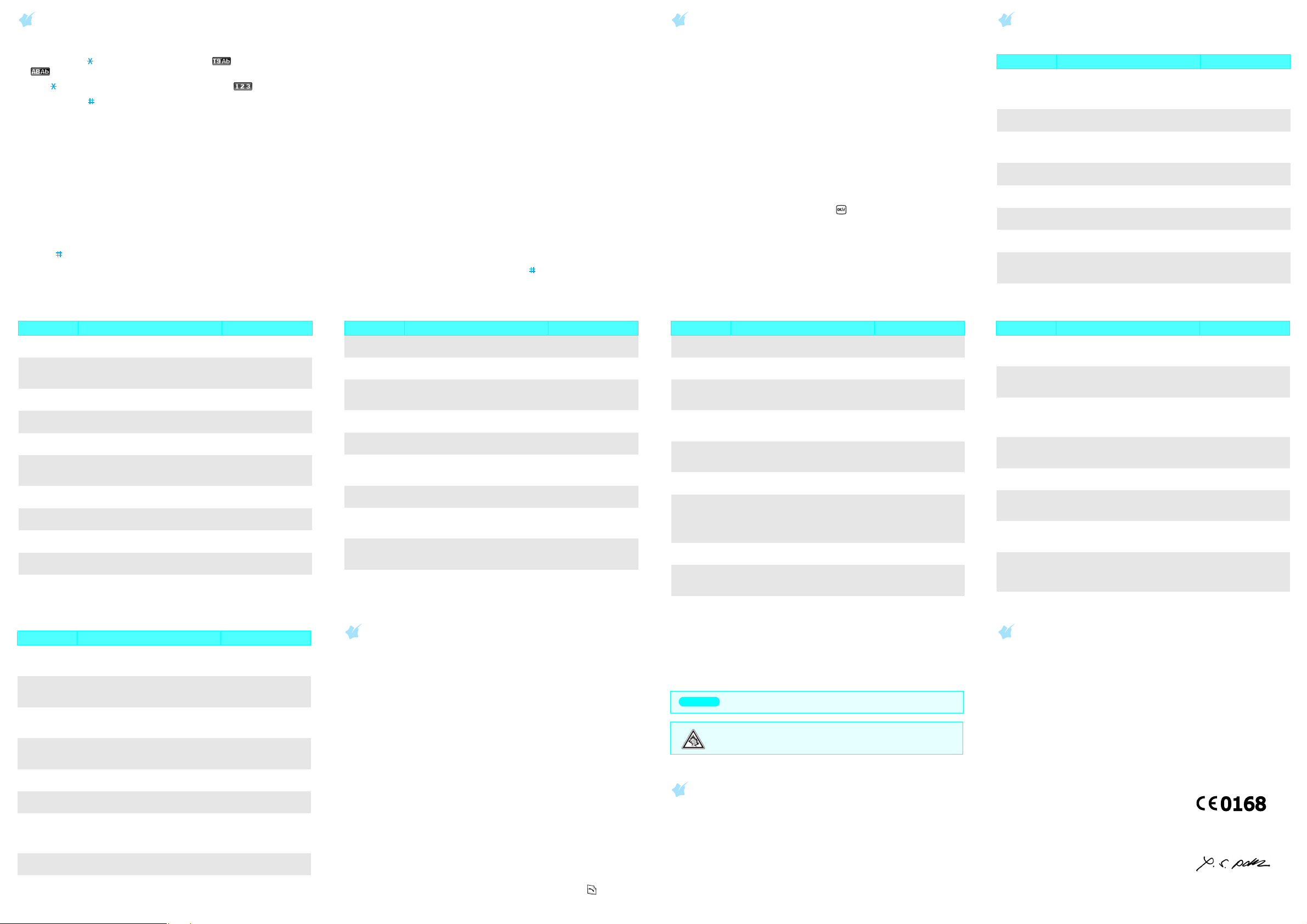
Declaration of Conformity (R&TTE)
Model description
: Portable Celluar Telephone (GSM 900/1800/1900) with Bluetooth
Model name
: SGH-X500
Manufactured at
: Samsung Electronics Co., Ltd, 94-1, Imsoo-Dong, Gumi City, Kyung-Buk,
Korea, 730-350
*
to which this declaration relates, is in conformity with the following
standards and/or other normative documents.
Safety
: EN 60950-1:2001
SAR
: EN 50360:2001
EMC
: EN 301 489-01 v1.4.1 (08-2002)
: EN 50361:2001
: EN 301 489-07 v1.2.1 (08-2002)
Network
: EN 301 511 v9.0.2 (03-2003)
: EN 301 489-17 v1.2.1 (08-2002)
: EN 300 328 v1.6.1 (11-2004)
We hereby declare that [all essential radio test suites have been carried out and that] the
above named product is in conformity to all the essential requirements of Directive 1999/5/
EC.
The conformity assessment procedure referred to in Article 10 and detailed in Annex[IV] of
Directive 1999/5/EC has been followed with the involvement of the following Notified
Body(ies):
BABT, Balfour House, Churchfield Road,
Walton-on-Thames, Surrey, KT12 2TD, UK
dentification mark: 0168
The technical documentation kept at:
Samsung Electronics QA Lab.
which will be made available upon request.
(Representative in the EU)
Place and date of issue
:
Samsung Electronics Euro QA Lab.
Blackbushe Business Park,Saxony Way,
Yateley, Hampshire,GU46 6GG, UK
2006.05.04
* It is not the address of Samsung Service Centre. For the address or the phone number of
Samsung Service Centre, see the warranty card or contact the retailer where you purchased
your phone.
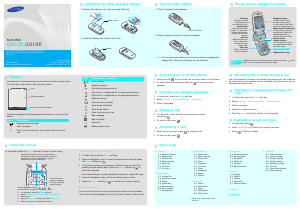
Entering text
Changing the text input mode
Press and hold to switch between T9 mode ( ) and AB mode
().
Press to change case or switch to Number mode ( ).
Press and hold to switch to Symbol mode.
T9 mode
1. Press
2
to
9
to start entering a word. Press each key once for one
letter.
Example: To enter “Hello” in T9 mode, press
4
,
3
,
5
,
5
, and
6
.
T9 predicts the word that you are typing, and it may change with each
key that you press.
2. Enter the whole word before editing or deleting characters.
3. When the word displays correctly, go to step 4. Otherwise, press
0
to
display alternative word choices for the keys that you have pressed.
4. Press to insert a space and enter the next word.
AB mode
Press the keys labelled with the character you want:
- once for the first character
- twice for the second character
- and so on.
For example, press
2
three times to enter “C” and
5
two times to enter
“K.
Number mode
Press the keys corresponding to the digits you want.
Symbol mode
Press the number keys corresponding to the symbol you want and press
the
OK
soft key. You can press
Up
or
Down
to display more symbols.
Tips for entering text
To move the cursor, press the Navigation keys.
To delete characters one by one, press
C
. To clear the display, press and
hold
C
.
To insert a space between characters, press .
To enter punctuation marks in T9 mode or AB mode, press
1
.
Sending an SMS message
1. In Idle mode, press the
Menu
soft key.
2. Select
Messages
Create message
Text message
.
3. Enter the message text.
4. Press the
Options
soft key and add items using the following options:
Insert
: add text templates, Phonebook contacts, or bookmark
items.
Add image
: add images.
Add animation
: add emoticons, or animated images.
Add melody
: add sounds.
Attach
: add scheduled items.
5. Press the
Options
soft key and select
Save and send
, or
Send only
.
6. Enter a destination number and press .
Quick feature reference
This section provides brief explanations of features on your phone.
Feature Description Select
View recent
calls
View the most recent calls you
have dialled, received, or missed.
Menu > Call log >
Recent contacts,
Missed calls, Dialled
calls, Received calls
Delete
recent calls
Delete the call logs in each call
type, or all logs at once.
Menu > Call log >
Delete all
Call time
display
View the duration of recent calls
you have dialled and received. Also
reset the time counter.
Menu > Call log >
Call time
Call cost
display
View the cost of your calls. Menu > Call log >
Call cost
Find a
contact
Search for contacts in Phonebook. Menu > Phonebook >
Contact list
Add a new
contact
Add a new contact to Phonebook. Menu > Phonebook >
Add new contact
Use caller
group
Organise your contacts in caller
groups.
Menu >Phonebook >
Group
Speed dial Assign speed dial numbers (2 to 9)
for eight of your most frequently
dialled numbers.
Menu > Phonebook >
Speed dial
My name
card
Create a name card and send it to
other people.
Menu > Phonebook >
My namecard
Check your
own phone
numbers
Check your phone numbers or
assign a name to them.
Menu > Phonebook >
Own number
Management Manage contacts in Phonebook. Menu > Phonebook >
Management
Java world Access the embedded Java games
and downloaded Java applications.
Menu > Applications >
Java world
Voice memo Record voice memos and listen
them.
Menu > Applications >
Voice recorder
World clock Set your local time zone and find
out the current time in another part
of the world.
Menu > Applications >
World clock
Alarm Set an alarm to sound at a specific
time.
Menu > Applications >
Alarm
Calculator Perform basic arithmetic functions. Menu > Applications >
Calculator
Converter Do conversions such as currency
and temperature.
Menu > Applications >
Converter
Timer Set a period of time for the phone
to count down.
Menu > Applications >
Timer
Stopwatch Measure elapsed time. Menu > Applications >
Stopwatch
Feature Description Select
Memo Create memos. Menu > Applications >
Memo
SIM service Use a variety of additional services
offered by your service provider.
Menu > Applications >
SIM AT
Access the
homepage
Connect to the network and load
the homepage of the wireless web
service provider.
Menu > Browser >
Home
Bookmarks Save URL addresses in order to
quickly access web pages.
Menu > Browser >
Bookmarks
Use http:// Manually enter a URL address and
access the associated web page.
Menu > Browser >
http://
WAP profile Select a connection profile to be
used for accessing the wireless
web.
Menu > Browser >
WAP profile
Clear cache Clear information stored in the
cache.
Menu > Browser >
Clear cache
Send SMS or
MMS
messages
Create and send messages to other
mobile phones.
Menu > Messages >
Create message
Read SMS or
MMS
messages
Read received, saved, or sent
messages.
Menu > Messages >
My messages > Inbox,
Drafts, Outbox
Message
templates
Preset template of frequently used
messages.
Menu > Messages >
Templates
Feature Description Select
Delete
messages
Delete messages in each message
box.
Menu > Messages >
Delete all
Messaging
options
Set options for using messaging
services.
Menu > Messages >
Settings
Message
memory
status
Check memory information for
messages.
Menu > Messages >
Memory status
Access
media files
Access images, videos, sounds,
and other files in your phone’s
memory.
Menu > My files
My files
memory
status
Check the amount of memory in
use for images, videos, sounds,
and other files.
Menu > My files >
Memory status
Calendar Keep track of daily or monthly
schedules.
Menu > Calendar
Bluetooth Connect the phone wirelessly to
other Bluetooth devices and
exchange data with them, talk
hands-free, or control the phone
remotely.
Menu > Bluetooth
Time and
date
Set the current time and date
manually.
Menu > Settings >
Time and date
Display
language
Select a language to be used for
the display text.
Menu > Settings >
Phone settings >
Language
Feature Description Select
Greeting
message
Enter the greeting message to be
displayed when the phone is
switched on.
Menu > Settings >
Phone settings >
Greeting message
Menu
shortcuts
Set the Navigation keys as
shortcuts to access your favourite
menus directly.
Menu > Settings >
Phone settings >
Shortcuts
Volume key Set whether the phone mutes the
call ringer or rejects a call if you
press and hold the Volume keys
when a call comes in.
Menu > Settings >
Phone settings >
Volume key
Extra
settings
Set the automatic redialling feature
or the answering method.
Menu > Settings >
Phone settings > Extra
settings
Display
settings
Change settings for the display and
backlight.
Menu > Settings >
Display settings
Select
ringtone and
volume
Select a ringtone for incoming
calls, or a volume level.
Menu > Settings >
Sound settings >
Incoming call
Select key
tone
Select a tone which the phone
sounds when you press a key.
Menu > Settings >
Sound settings >
Keypad tone
Select
Message
tone
Select the alert ringtone for
incoming SMS, MMS, and broadcast
messages, or set how often you are
informed of a new message.
Menu > Settings >
Sound settings >
Message tone
Feature Description Select
Power on/off
tone
Select the melody that the phone
sounds when it is switched on or
off.
Menu > Settings >
Sound settings >
Power on/off
Folder tone Select the tone that the phone
sounds when you open or close the
phone.
Menu > Settings>
Sound settings >
Folder tone
Set Quiet
mode
Set how the phone acts to alert you
to a specific event while in Quiet
mode.
Menu > Settings>
Sound settings >
Quiet mode
Set extra
tones
Set additional tones for the phone. Menu > Settings >
Sound settings >
Extra tones
Network
services
Access network services offered by
your service provider.
Menu > Settings >
Network services
Security Protect the phone against
unauthorised use.
Menu > Settings >
Security
Connection
settings
Create and customise the profiles
containing the settings for
connecting your phone to the
network.
Menu > Settings >
Connection settings
Reset the
phone
Reset the phone to the factory
default settings.
Menu > Settings >
Reset settings
Feature Description Select
Important safety precautions
Read these guidelines before using your wireless phone. Failure to comply with
them may be dangerous or illegal.
Drive safely at all times
Do not use a hand-held phone while driving; park the vehicle first.
Switching off when refueling
Do not use the phone at a refueling point (service station) or near fuels or
chemicals.
Switching off in an aircraft
Wireless phones can cause interference. Using them in an aircraft is both illegal
and dangerous.
Switching off near all medical equipment
Hospitals and health care facilities may be using equipment that could be sensitive
to external RF energy. Follow any regulations or rules in force.
Interference
All wireless phones may be subject to interference, which could affect their
performance.
Special regulations
Follow any special regulations in force in any area and always switch off your
phone whenever it is forbidden to use it.
Water resistance
Your phone is not water-resistant. Keep it dry.
Sensible use
Use only in the normal position (held to the ear). Avoid unnecessary contact with
the antenna when the phone is switched on.
Emergency calls
Key in the emergency number for your present location, then press . Do not
end the call until given permission to do so.
Small children and your phone
Keep the phone and all its parts including accessories out of reach of small
children.
Accessories and batteries
Use only Samsung-approved batteries and accessories, such as headsets and PC
data cables. Use of any unauthorised accessories could damage you or your phone
and may be dangerous.
Qualified service
Only qualified service personnel may repair your phone.
SAR information
Your wireless phone is a radio transmitter and receiver. It is designed and
manufactured not to exceed the emission limits for exposure to radio frequency
(RF) energy set by the European Union (EU) Council. These limits are part of
comprehensive guidelines and establish permitted levels of RF energy for the
general population. The guidelines are based on the safety standards that were
developed by independent scientific organizations through periodic and through
evaluation of scientific studies.
The standards include a substantial safety margin designed to assure the safety of
all persons, regardless of age and health.
The exposure standard for wireless phones employs a unit of measurement known
as Specific Absorption Rate (SAR). The SAR limit set by the EU Council is 2.0 W/kg.
The highest SAR value for this model phone was 0.858W/kg.
Risk of explosion if a battery is replaced by an incorrect type.
Dispose used batteries according to the manufacturer’s instructions.
At very high volume, prolonged listening to a headset can damage your
hearing.
CAUTION
Yong-sang Park / S. Manager
Download manual in English (PDF, 1.22 MB)
(Consider the environment and only print this manual if it is really necessary)

Loading…

Rating

Let us know what you think about the Samsung SGH-X500 Mobile Phone by leaving a product rating. Want to share your experiences with this product or ask a question? Please leave a comment at the bottom of the page.
Are you satisfied with the Samsung SGH-X500 Mobile Phone?
Yes No
Be the first to rate this product
0 votes

Join the conversation about this product

Here you can share what you think about the Samsung SGH-X500 Mobile Phone. If you have a question, first carefully read the manual. Requesting a manual can be done by using our contact form.

More about this manual

We understand that it’s nice to have a paper manual for your Samsung SGH-X500 Mobile Phone. You can always download the manual from our website and print it yourself. If you would like to have an original manual, we recommend you contact Samsung. They might be able to provide an original manual. Are you looking for the manual of your Samsung SGH-X500 Mobile Phone in a different language? Choose your preferred language on our homepage and search for the model number to see if we have it available.

Specifications

Brand Samsung
Model SGH-X500
Category Mobile Phones
File type PDF
File size 1.22 MB

All manuals for Samsung Mobile Phones
More manuals of Mobile Phones

Frequently Asked Questions about Samsung SGH-X500 Mobile Phone

Our support team searches for useful product information and answers to frequently asked questions. If you find an inaccuracy in our frequently asked questions, please let us know by using our contact form.

My SIM card doesn't fit my mobile phone, why is that? Verified

There are several SIM card sizes, regular, micro and nano. It is possible to use an adapter or to have the SIM card made smaller.

This was helpful (1533) Read more

Can I use my mobile phone while charging it? Verified

Yes, you can use your mobiele phone while charging it. The charging process will go slower when you do this.

This was helpful (1354) Read more

What is a PUK code? Verified

PUK stands for Personal Unblocking Code and is needed to unblock your phone after entering an incorrect PIN code three times. If the PUK is no longer available it can often be requested from the provider.

This was helpful (790) Read more

My phone is in good condition, but when I call people the have trouble hearing me, why is that? Verified

It is possible that dirt has amassed in the grid of the microphone, muting the sound. The best way to clean this is with compressed air. When in doubt, have this done by a professional.

This was helpful (684) Read more

When I connect my device to the charger it charges bad or not at all, why is that? Verified

It is possible that dirt has amassed in the opening where the charger is connected, preventing it from making proper contact. The best way to clean this is with compressed air. When in doubt, have this done by a professional.

This was helpful (376) Read more

Is it necessary to drain my lithium-ion battery before recharging it again? Verified

No, this is not necessary. With older batteries this was the case. Lithium-ion batteries can be charged after use and be taken off the charger when needed.

This was helpful (370) Read more

What does IMEI stand for? Verified

IMEI stands for International Mobile Equipment Identity and is a (often) unique number that is used to identify mobile devices such as tablets and smartphones and protect them against theft.

This was helpful (332) Read more

When I connect a headphone to my device it doesn't work properly, what can I do? Verified

It is possible that dirt has amassed in the opening where the headphone is connected, preventing it from making proper contact. The best way to clean this is with compressed air. When in doubt, have this done by a professional.

This was helpful (291) Read more

Does bluetooth work through walls and ceilings? Verified

A bluetooth signal will work through walls and ceiling, unless these are made from metal. Depending on the thickness and the material of the wall the signal can lose in strength.

This was helpful (273) Read more

The battery of my phone runs out quickly when I am outside, why is that? Verified

Lithium-ion batteries can't handle low temperatures. If the outside temperatures are close to freezing, the battery will get depleted faster than normal, even without using the phone. When the phone has returned to room temperature, it will probably show a battery percentage close to what it was.

This was helpful (263) Read more

What can I best use to clean the screen of my mobile device? Verified

It's best to use a microfiber cloth, possibly with a specialized detergent. Never use kitchen towels or other paper cloths, these will leave scratches!

This was helpful (246) Read more

What is the best way to store a lithium-ion battery for a long period? Verified

The best way to store a lithium-ion battery is at a temperature between 5 and 45 degrees Celcius. It's also a good idea make sure the battery is about 67% charged before it is stored away.

This was helpful (241) Read more

What does VoIP mean? Verified

VoIP stands for Voice over IP (Internet Protocol) and is a technology that transports speech over the internet or other IP-networks.

This was helpful (240) Read more

Under what conditions will my lithium-ion battery function optimally? Verified

Lithium-ion batteries function optimally at a temperature between 5 and 45 degrees Celcius. With very cold or warm weather you may notice that the battery will drain quicker. Charging is not recommended at temperatures lower than 5 or higher than 45 degrees Celcius.

This was helpful (237) Read more

Do I need to clean the screen of my device before I apply a screen protector? Verified

Yes, a screen protector attaches best to grease and dust free surfaces.

This was helpful (231) Read more

How can I perform a hard reset on my Samsung mobile phone? Verified

On most models you can use the following combination: Press the on/off button, the volume+ button and the home button all at the same time while starting up your phone. IMPORTANT: Doing this will erase all data. These can't be recovered.

This was helpful (119) Read more
Manual Samsung SGH-X500 Mobile Phone

Related products

Related categories

×
Download