Manual Samsung GT-E1160I Mobile Phone

Need a manual for your Samsung GT-E1160I Mobile Phone? Below you can view and download the PDF manual for free in English. This product currently has 16 frequently asked questions, 0 comments and has 0 votes. If this is not the manual you want, please contact us.

Is your product defective and the manual offers no solution? Go to a Repair Café for free repair services.

Manual

Loading…

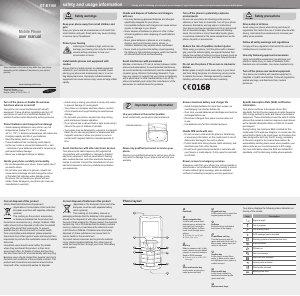
Install the SIM card and battery
1. Remove the battery cover and battery then insert
the SIM card.
2. Insert the battery and replace the battery cover.
Charge the battery
1. Plug the supplied travel adapter.
2.Whenchargingisnished,unplugthetraveladapter.
Do not remove the battery while the phone is connected
to the travel charger. Otherwise, the phone may be
damaged.
Instructional icons
Note: notes, usage tips, or additional information
Followed by: the order of options or menus you
must select to perform a step; for example: In Menu
mode, select Messages→Create new message
(represents Messages, followed by Create new
message)
[ ]
Square brackets: phone keys; for example: [
]
(represents the Power/Menu exit key)
< >
Angled brackets: softkeys that control different
functions at each screen; for example: <OK>
(represents the OK softkey)
Turn your phone on or off
To turn your phone on,
1. Press and hold [
].
2. Enter your PIN and press <OK> (if necessary).
If you remove the battery, the time and date will be
reset.
To turn your phone off, repeat step 1 above.
Access menus
To access your phone's menus,
1. In Idle mode, press <Menu> to access Menu mode.
2. Use the Navigation key to scroll to a menu or option.
3. Press <Select>, <Save>,ortheConrmkeyto
conrmthehighlightedoption.
4. Press <Back> to move up one level; Press [
] to
return to Idle mode.
When you access a menu requiring the PIN2, you must •
enter the PIN2 supplied with the SIM card. For details,
contact your service provider.
Samsung is not responsible for any loss of passwords •
or private information or other damages caused by
illegal software.
Make a call
1. In Idle mode, enter an area code and a phone
number.
2. Press [
] to dial the number.
3. To end the call, press [
].
Answer a call
1. When a call comes in, press [ ].
2. To end the call, press [
].
Adjust the volume
To adjust the volume of the ringtone
1. In Menu mode, select Settings→Proles.
2.Scrolltothephoneproleyouareusing.
Ifyouareusingthesilentorofineprole,youarenot
allowed to adjust the volume of the ringtone.
3. Press <Options>→Edit →Volume →Call alert.
4. Scroll left or right to adjust the volume level.
5. Press <Save>.
To adjust the volume of voice during a call
While a call is in progress, press the Navigation key up
or down to adjust the volume.
Innoisyenvironments,youmayhavedifcultyhearing
the calls while using the speakerphone feature. For better
audio performance, use the normal phone mode.
Change your ringtone
1. In Menu mode, select Settings→Proles.
2.Scrolltotheproleyouareusing.
Ifyouareusingthesilentorofineprole,youarenot
allowed to change the ringtone.
3. Press <Options>→Edit →Call ringtone.
4. Select a ringtone.
Toswitchtoanotherprole,selectitfromthelist.
Call a recently dialed number
1. In Idle mode, press [ ].
2. Scroll left or right to a call type.
3. Scroll up or down to a number or name.
4.PresstheConrmkeytoviewdetailsofthecallor
[
] to dial the number.
Enter text
To change the text input mode
Press and hold [• ] to switch between T9 and ABC
modes.
Press [•
] to change case or switch to Number
mode.
Press [•
] to switch to Symbol mode.
Press and hold [•
] to select an input mode or
change the input language.
T9 mode
1. Press appropriate alphanumeric keys to enter an
entire word.
2. When the word displays correctly, press [0] to insert
a space. If the correct word does not display, press
the Navigation key up or down to select an alternate
word.
ABC mode
Press an appropriate alphanumeric key until the
character you want appears on the display.
Number mode
Press an appropriate alphanumeric key to enter a
number.
Symbol mode
Press an appropriate alphanumeric key to enter a
symbol.
To move the cursor, press the Navigation key.•
To delete characters one by one, press <• Clear>.
To delete all of the characters, press and hold <Clear>.
To insert a space between characters, press [• 0].
To enter punctuation marks, press [• 1].
Add a new contact
Your phone is preset to save contacts to the phone
memory. To change the memory location, in Menu mode,
select Settings→Application→Phonebook→Save
new contacts to→amemorylocation.
1. In Idle mode, enter a phone number and press
<Options>.
2. Select Create contact.
3. Select a number type (if necessary).
4. Enter contact information.
5.PresstheConrmkeytoaddthecontacttomemory.
Send and view messages
To send a text message
1. In Menu mode, select Messages→Create new
message.
2. Enter a recipient number and scroll down.
3. Enter the message text.
Enter text
4.PresstheConrmkeytosendthemessage.
To view text messages
1. In Menu mode, select Messages→Inbox.
2. Select a text message.
Make fake calls
You can simulate an incoming call when you want to get
out of meetings or unwanted conversations.
To make a fake call,
In Idle mode, press and hold the Navigation key •
down.
When the keys are locked, press the Navigation key •
down four times.
Activate the mobile tracker
When someone inserts a new SIM or USIM card in your
phone, the mobile tracker feature will automatically send
the contact number to two recipients to help you locate
and recover your phone. To activate the mobile tracker,
1. In Menu mode, select Settings→Security→
Mobile Tracker 2.0.
2. Press <OK> to set a phone lock password.
3. Enter a new 4-to 8-digit password and press <OK>.
4. Enter the new password again and press <OK>.
5. Select Settings.
6. Enter a new 8-digit password for the mobile tracker
and press <OK>.
7. Enter the new password again and press <OK>.
8. Scroll left or right to On.
9.ScrolldownandpresstheConrmkeytoopenthe
recipient list.
10.PresstheConrmkeytoopenyourcontactlist.
11.ScrolltoacontactandpresstheConrmkey.
12. Select a number (if necessary).
13 Press <Options>→Save to save the recipients.
14. Scroll down and enter the sender's name.
15. Press <Options>→Save→<Accept>.
To change the password for the mobile tracker, select
Change Mobile tracker 2.0 Password.
Activate and send an SOS message
In an emergency, you can send SOS messages to your
family or friends for help.
To activate the SOS message
1. In Menu mode, select Messages→Settings→
SOS messages→Sending options.
2. Scroll left or right to On.
3.ScrolldownandpresstheConrmkeytoopenthe
recipient list.
4.PresstheConrmkey to open your contact list.
5. Select a contact.
6. Select a number (if necessary).
7. Press <Options>→Save to save the recipients.
8. Scroll down and set the number of times to repeat
the SOS message.
9. Press <Save>→<Yes>.
To send an SOS message
1. With the keys locked, press [ ] four times to send
an SOS message to preset numbers.
The phone switches to SOS mode and sends the
preset SOS message.
2. To exit SOS mode, press [
].
Listen to the FM radio
1. In Menu mode, select FM radio.
2.PresstheConrmkeytostarttheradio.
3. Press <Yes> to start automatic tuning.
The radio scans and saves available stations
automatically.
ThersttimeyouturnontheFMradio,youwillbe
prompted to start automatic tuning.
4. Control the FM radio using the follwing keys:
Key Function
Conrm Turn the FM radio on or off
Navigation
Left/Right: Tune a radio station; Select a •
saved radio station (press and hold)
Up/Down: Adjust the volume•
5.ToturnofftheFMradio,presstheConrmkey.
The volume through mono earphones is very low or •
virtually inaudible. Use stereo earphones only.
Listen to the FM radio without the headset when the •
radio signal is strong and when the current radio
signal is weak, use the supplied headset.
Listening to the FM radio without the headset may •
reduce battery charge more quickly.
The battery cover serves as the antenna for the FM •
radio. Handle the battery cover with care and keep the
contact points clean.
Set and use alarms
To set a new alarm
1. In Menu mode, select Alarms.
2. Select an empty alarm location.
3. Set alarm details.
4. Press <Save>, or press <Options>→Save.
To stop an alarm
When the alarm sounds,
Press <• OK>ortheConrmkeytostopthealarm
without snooze.
Press <• OK>ortheConrmkeytostopthealarmwith
snooze, or press <Snooze> to silence the alarm for
the snooze period.
To deactivate an alarm
1. In Menu mode, select Alarms.
2. Select the alarm you want to deactivate.
3. Scroll left or right to Off.
4. Press <Save>.
Activate the torch light
The torch light feature helps you see in dark places.
To activate the torch light, press and hold the Navigation
key up in Idle mode.
To deactivate the torch light, press and hold the
Navigation key up in Idle mode.
Battery cover
Battery
SIM card
To AC power outlet
Download manual in English (PDF, 0.82 MB)
(Consider the environment and only print this manual if it is really necessary)

Loading…

Rating

Let us know what you think about the Samsung GT-E1160I Mobile Phone by leaving a product rating. Want to share your experiences with this product or ask a question? Please leave a comment at the bottom of the page.
Are you satisfied with the Samsung GT-E1160I Mobile Phone?
Yes No
Be the first to rate this product
0 votes

Join the conversation about this product

Here you can share what you think about the Samsung GT-E1160I Mobile Phone. If you have a question, first carefully read the manual. Requesting a manual can be done by using our contact form.

More about this manual

We understand that it’s nice to have a paper manual for your Samsung GT-E1160I Mobile Phone. You can always download the manual from our website and print it yourself. If you would like to have an original manual, we recommend you contact Samsung. They might be able to provide an original manual. Are you looking for the manual of your Samsung GT-E1160I Mobile Phone in a different language? Choose your preferred language on our homepage and search for the model number to see if we have it available.

Specifications

Brand Samsung
Model GT-E1160I
Category Mobile Phones
File type PDF
File size 0.82 MB

All manuals for Samsung Mobile Phones
More manuals of Mobile Phones

Frequently Asked Questions about Samsung GT-E1160I Mobile Phone

Our support team searches for useful product information and answers to frequently asked questions. If you find an inaccuracy in our frequently asked questions, please let us know by using our contact form.

My SIM card doesn't fit my mobile phone, why is that? Verified

There are several SIM card sizes, regular, micro and nano. It is possible to use an adapter or to have the SIM card made smaller.

This was helpful (1533) Read more

Can I use my mobile phone while charging it? Verified

Yes, you can use your mobiele phone while charging it. The charging process will go slower when you do this.

This was helpful (1354) Read more

What is a PUK code? Verified

PUK stands for Personal Unblocking Code and is needed to unblock your phone after entering an incorrect PIN code three times. If the PUK is no longer available it can often be requested from the provider.

This was helpful (790) Read more

My phone is in good condition, but when I call people the have trouble hearing me, why is that? Verified

It is possible that dirt has amassed in the grid of the microphone, muting the sound. The best way to clean this is with compressed air. When in doubt, have this done by a professional.

This was helpful (684) Read more

When I connect my device to the charger it charges bad or not at all, why is that? Verified

It is possible that dirt has amassed in the opening where the charger is connected, preventing it from making proper contact. The best way to clean this is with compressed air. When in doubt, have this done by a professional.

This was helpful (376) Read more

Is it necessary to drain my lithium-ion battery before recharging it again? Verified

No, this is not necessary. With older batteries this was the case. Lithium-ion batteries can be charged after use and be taken off the charger when needed.

This was helpful (370) Read more

What does IMEI stand for? Verified

IMEI stands for International Mobile Equipment Identity and is a (often) unique number that is used to identify mobile devices such as tablets and smartphones and protect them against theft.

This was helpful (332) Read more

When I connect a headphone to my device it doesn't work properly, what can I do? Verified

It is possible that dirt has amassed in the opening where the headphone is connected, preventing it from making proper contact. The best way to clean this is with compressed air. When in doubt, have this done by a professional.

This was helpful (291) Read more

Does bluetooth work through walls and ceilings? Verified

A bluetooth signal will work through walls and ceiling, unless these are made from metal. Depending on the thickness and the material of the wall the signal can lose in strength.

This was helpful (273) Read more

The battery of my phone runs out quickly when I am outside, why is that? Verified

Lithium-ion batteries can't handle low temperatures. If the outside temperatures are close to freezing, the battery will get depleted faster than normal, even without using the phone. When the phone has returned to room temperature, it will probably show a battery percentage close to what it was.

This was helpful (263) Read more

What can I best use to clean the screen of my mobile device? Verified

It's best to use a microfiber cloth, possibly with a specialized detergent. Never use kitchen towels or other paper cloths, these will leave scratches!

This was helpful (246) Read more

What is the best way to store a lithium-ion battery for a long period? Verified

The best way to store a lithium-ion battery is at a temperature between 5 and 45 degrees Celcius. It's also a good idea make sure the battery is about 67% charged before it is stored away.

This was helpful (241) Read more

What does VoIP mean? Verified

VoIP stands for Voice over IP (Internet Protocol) and is a technology that transports speech over the internet or other IP-networks.

This was helpful (240) Read more

Under what conditions will my lithium-ion battery function optimally? Verified

Lithium-ion batteries function optimally at a temperature between 5 and 45 degrees Celcius. With very cold or warm weather you may notice that the battery will drain quicker. Charging is not recommended at temperatures lower than 5 or higher than 45 degrees Celcius.

This was helpful (237) Read more

Do I need to clean the screen of my device before I apply a screen protector? Verified

Yes, a screen protector attaches best to grease and dust free surfaces.

This was helpful (231) Read more

How can I perform a hard reset on my Samsung mobile phone? Verified

On most models you can use the following combination: Press the on/off button, the volume+ button and the home button all at the same time while starting up your phone. IMPORTANT: Doing this will erase all data. These can't be recovered.

This was helpful (119) Read more
Manual Samsung GT-E1160I Mobile Phone

Related products

Related categories

×
Download