At the Registration screen, select Check this box to register now and follow the on-screen instructions, or do not select this option and register
later.
Upon completion of the installation, you have the option to Run Profile Editor, which will give you a view of the programming environment. If you
do not wish to see the Profile Editor at this point, just uncheck the box and click on Finish to complete the installation.
Important Information
Driver updates
From time to time there may be updates to the driver and programming software for this product. You can check for the latest software updates
by visiting the Saitek website (www.saitek.com) and clicking on Downloads. A drop down menu will appear. Select Drivers and Software.
Technical Support
Nearly all the products that are returned to us as faulty are not faulty at all - they have just not been installed properly. If you experience any
difficulty with this product, please first visit our website www.saitek.com. The technical support area will provide you with all the information you
need to get the most out of your product and should solve any problems you might have.
If you do not have access to the internet, or if the website cannot answer your question, please contact your local Saitek Technical Support Team.
We aim to offer quick, comprehensive and thorough technical support to all our users so, before you call, please make sure you have all the
relevant information at hand.
To find your local Saitek Technical Support Center, please see the separate Technical Support Center sheet that came packaged with this
product.
Information for Customers in the United States
FCC Compliance and Advisory Statement
Warning: Changes or modifications to this unit not expressly approved by the party responsible for compliance could void the user's authority to
operate the equipment.
This device complies with Part 15 of the FCC Rules. Operation is subject to the following two conditions:
1 This device may not cause harmful interference, and;
2 This device must accept any interference received, including interference that may cause undesired operation.
NOTE: This equipment has been tested and found to comply with the limits for a Class B digital device, pursuant to Part 15 of the FCC Rules.
These limits are designed to provide reasonable protection against harmful interference in a residential installation. This equipment generates,
uses and can radiate radio frequency energy and, if not installed and used in accordance with the instructions, may cause harmful interference to
radio communications. However, there is no guarantee that interference will not occur in a particular installation. If this equipment does cause
harmful interference to radio or television reception, which can be determined by turning the equipment off and on, the user is encouraged to try
to correct the interference by one or more of the following measures:
• Reorient or relocate the receiving antenna;
• Increase the separation between the equipment and receiver;
• Connect the equipment into an outlet on a circuit different from that to which the receiver is connected;
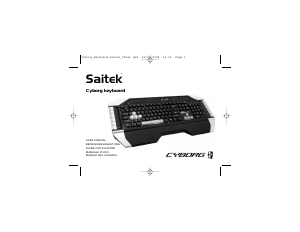
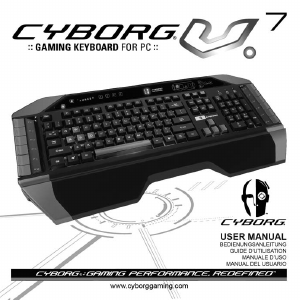
3. To change the lighting settings of your Cyborg keyboard, first select either Normal mode or Cyborg mode by pressing the Cyborg face on the
keyboard's control panel. In Normal mode you can only change the colour and the brightness of the whole keyboard (Game keys are not lit).
To change the colour of the lighting, press the colour icon and then press "+" or "-" to scroll through the colours. To change the brightness of
the lighting, press the brightness icon and then increase or decrease the brightness by pressing "+" or "-".
In Cyborg mode, you can change the lighting colour and brightness of specific areas of your keyboard. Select Cyborg mode by pressing the
Cyborg face. Now, select the part of the keyboard for which you want to change the lighting effects and change the colour by pressing the
colour icon on the control panel and then pressing "+" or "-" to scroll through the colours. To change the brightness of the lighting, press the
brightness icon and then increase or decrease the brightness by pressing "+" or "-". Each time you want to change the brightness of a
particular area of the keyboard, select the area by pressing the control panel, and then repeating the above steps to change colour or
brightness. The colour settings you choose will remain even after a system reboot or unplugging the keyboard.
Please note:
The Cyborg keyboard's 12 programmable keys and volume light indicators will not function until you have installed the keyboard drivers. Please
install the Cyborg keyboard drivers and Saitek Smart Technology software for complete functionality.
System Compatibility
PC running Windows XP/XP64/Vista (all versions)
Software installation for users of Windows® XP, XP64 and Vista (all versions)
A) Drivers Only
1. With your computer switched on, close down any programs that are currently running and insert the Installation CD into your CD-ROM drive.
2. When the Introduction Screen appears, click Install Software to continue. If the CD does not run automatically, select Start from the Windows®
Taskbar, then Run and type D:\Setup.exe and click OK - where D:\ is letter of your CD-ROM drive. For Vista users, the screen will ask Do you
want to run this file? Press Run. A screen will now appear saying A program needs your permission to continue. Press Continue.
3. When the Welcome screen appears, click Next to continue.
4. After reading the Disclaimer, select the I accept the terms of the Disclaimer option and click Next to continue.
5. At the Registration screen, select Check this box to register now and follow the on-screen instructions, or you can choose to select this option
later.
6. Click on Finish to complete the installation.
B) Drivers and Programming Software
Follow points 1 - 6 of the install procedure in A), then at the Software Setup screen, select Install the SST Programming Software and click Next.
For Vista users, the screen will once again ask Do you want to run this file? Press Run. A screen will now appear saying A program needs your
permission to continue. Press Continue.
In the following Software Setup screen, click Next and follow the on-screen instructions. At this point Vista users will be asked to install the Saitek
Magic Bus and XP users asked to install the Saitek Magic Mouse, HID-compliant mouse, Saitek Magic Keyboard and HID Keyboard Device
(these are what Windows calls the Programming elements of your Saitek controller). Continue to click on Next and Finish to accept the
installation until the Registration screen appears.




Join the conversation about this product
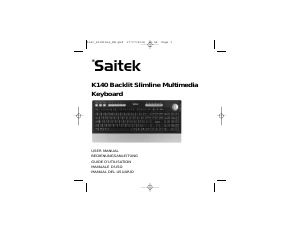
Here you can share what you think about the Saitek Cyborg Keyboard. If you have a question, first carefully read the manual. Requesting a manual can be done by using our contact form.