21 345678910
Your mobile
1
.....................
Keys and connectors1.1
Status icons
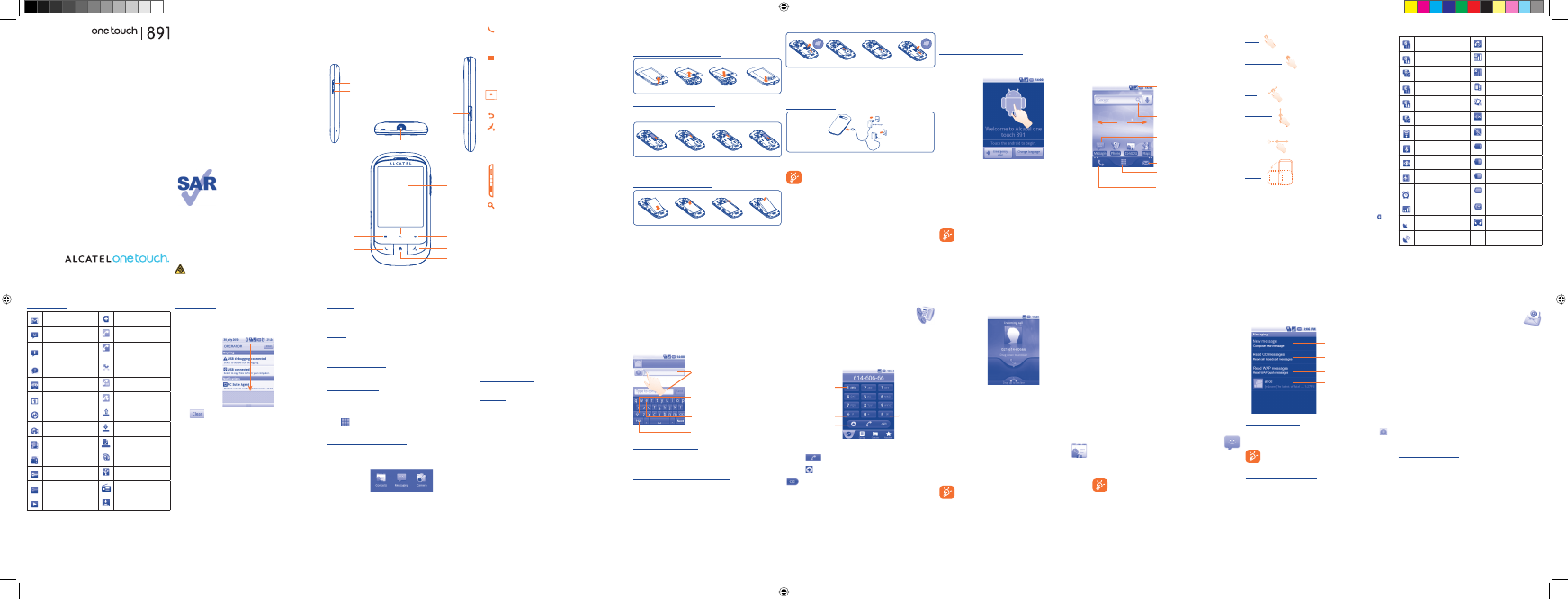
GPRS connected Speakerphone is on
GPRS in use Roaming
GPRS is disabled No signal
EDGE connected No SIM card installed
EDGE in use Vibrate mode
EDGE is disabled Ringer is silenced
Connected to a Wi-Fi
network
Phone microphone
is mute
Bluetooth is on Battery is very low
Connected to a Bluetooth
device
Battery is low
Airplane mode
Battery is partially
drained
Alarm is set Battery is full
Signal strength Battery is charging
GPS is on Headset connected
Receiving location data
from GPS
English - CJB23D0ALAAA
Pick up/Send a call•
Enter Call Log•
Return to ongoing call screen if the user navigates to other •
applications during call.
On Home screen, press to quick access to • Settings menu
or Notification panel; to launch quick search; to customize
your Home screen by adding applications or changing
wallpaper/theme.
On other screens, press to view options list.•
Short press: Return to the Home screen or back to the
central Home screen if it is extended.
Long press: Enter the recently used applications list.
Go back to the previous menu or screen.
Short press: End a call
Lock the screen
Light up the screen
Long press: When phone is off, power on the phone.
When phone is on, enter Phone options: Silent
mode, Airplane mode, Power off.
Press to adjust the Volume (in call/media playing mode)
Open Search bar for searching within an application, the
phone or web.
Notification icons
New Gmail message
More notifications are
hidden
New text or multimedia
message
Call in progress (green)
Problem with text or
multimedia message
delivery
Call in progress using
Bluetooth headset (blue)
New Google Talk
message
Missed call
New voicemail Call on hold
Upcoming event Call forwarding is on
Data is synchronizing Uploading data
Problem with sign-in or
synchronization
Downloading data
microSD card is full Download finished
No microSD card
installed
An open Wi-Fi network
is available
Connected to VPN
Phone is connected via
USB cable
Disconnected from VPN Radio is on
Song is playing System update available
Getting started1.2
Set-up1.2.1
Removing or installing the back cover
Inserting or removing the SIM card
You must insert your SIM card to make phone calls. Please power off your
phone and remove battery before inserting or removing the SIM card.
Place the SIM card with the chip facing downwards and slide it into its
housing. Make sure that it is correctly inserted. To remove the card, press
and slide it out.
Installing or removing the battery
Insert and click the battery into place, then close the phone cover.•
Unclip the cover, then remove the battery.•
Reposition
Touch and hold the item to be repositioned to activate the Move mode,
drag the item to desired position, then release. Hold the icon on the left or
right edge of the screen to drag the item to another Home screen page.
Remove
Touch and hold the item to be removed to activate the Move mode,
drag the item to the top of the Application tab, which will then turn red,
and release.
Wallpaper customization
Touch and hold an empty area or press Menu key and touch Wallpaper
on the Home screen to customize wallpaper.
Theme customization
Touch and hold an empty area or press Menu key and touch Themes on
the Home screen to customize themes.
Application tab1.3.6
Touch
from Home screen to enter applications list.
To return to the Home screen, press Home key.
Consult recently-used applications
To consult recently-used applications, you can press and hold the Home
key from Home screen. Touch an icon in the window to open the related
application.
Volume adjustment1.3.7
You can set ringer, media and phone ringtone volume to your preference
by Volume up/down key, or Settings menu.
Installing and removing the memory card (MicroSD card)
To release the microSD card holder, slide it in the direction of the
arrow and lift it. Then insert the microSD card with the golden contact
downward. Finally, turn down the microSD holder and slide it in the
opposite direction to lock it.
Charging the battery
Connect the battery charger to your phone and mains socket
respectively.
To reduce power consumption and energy waste, when battery
is fully charged, disconnect your charger from the plug; switch off
Wi-Fi, GPS, Bluetooth or background-running applications when
not in use; reduce the backlight time, etc.
Applications list1.4
The Applications list contains all pre-embedded and newly installed
applications.
To access the Applications list, touch Application tab from Home screen.
To return to Home screen, press Home key.
Normal mode and sort mode1.4.1
Applications can be managed in two modes. To switch between two
modes, press Menu key from applications list screen, and touch Switch
mode.
Normal mode (default)
All applications are listed in alphabetical order.
Sort mode
All applications are sorted by several categories.
Categories management1.4.2
(1)
There are 6 categories in total: 4 categories is predefined, 2 categories
can be added.
Press Menu key, and select Edit to enter edit mode. Within edit mode
you can now customize categories.
Power on your phone1.2.2
Hold down the End key until the phone powers on. It will take some
seconds before the screen lights up.
Set up your phone for the first time
The first time you power on the phone, you are required to touch
the Android logo to begin and then sign into your Google account to
synchronize email, contacts, calendar and other Google applications
(1)
.
Enter your user name and password, then touch • Sign in. If you forget
your password, you can go to http://www.google.com/ to retrieve it. If
you don’t own a Google Account, you are prompted to create one by
touching Create.
Read the setup information on the screen• .
Mark/Unmark the check box to choose whether you want to take •
advantage of Google's location service, then touch Next.
Set up the date and time, then touch • Next.
Touch • Finish setup.
This initial set up can be skipped and enabled via Settings\
Accounts & sync.
In power on screen without SIM card inserted, you can also connect
to a Wi-Fi network to sign into your Google account and to use some
features.
Text input
2
........................
Using Onscreen Keyboard2.1
Onscreen keyboard will display automatically when a program requires
entering text or numbers.
Touch to lock in capital letter input mode.
Touch to switch to symbol and numeric
keyboard.
Long press to enter an accent of the letter
Touch to enter text or numbers, touch
and hold for one or two seconds to
select input method.
Onscreen keyboard settings
Press Menu key from Home screen, select Settings\Language &
keyboard\Android keyboard, a series of settings are available for
your selection.
Adjust the onscreen keyboard orientation
Turn the phone sideways or upright to adjust the onscreen keyboard
orientation. You can also adjust it by settings (Press Menu key on Home
screen\Settings\Sound & display).
Text editing2.2
You can edit the text you have entered.
Touch and hold text you have entered•
Options list pops up•
Select the operation you need (• Select all, Select text, Cut all,
Copy all, etc.)
Power off your phone1.2.3
Hold down the End key from the Home screen until the phone options
appear, select Power off.
Home screen1.3
You can bring all the items (applications, shortcuts, folders and widgets)
you love or use most frequently to your home screen for quick access.
Press Home key to switch to Home screen.
Status bar
Status/Notification indicators •
Touch and Drag down to open notification •
panel.
Search bar
Touch n to enter text search screen.
Touch o to enter voice search screen.
Application tab
Touch to open applications list.
Touch to access Call log if you have
missed call(s), or access the tab you
exit last time.
Touch to access Messaging.
Touch an icon to open an application,
folder, etc.
n
o
Home screen is provided in an extended format to allow more space for
adding applications, shortcuts etc. Slide the Home screen horizontally left
and right to get a complete view of the Home screen. Small dots at the
lower left and right of the screen indicate which screen you are viewing.
Touch & hold the small dots or application tab can display the thumbnails
of extended home screen, touch the thumbnail to open it. Press Back key
or touch an empty area to return to Home screen. You can customize the
number of home screens by settings (Press Menu key on Home screen\
Settings\Sound & display).
Phone call
3
..................
Placing a call3.1
User can easily launch a call using Phone. Enter this menu using one of
the following two ways:
Touch Application tab from Home screen and select • Phone.
Press • Call key, then select Phone tab.
Touch to add to
Contacts
Touch and hold to add
2-sec pause
Touch and hold to
access Voicemail
Touch and hold
to add wait
Enter the desired number from keyboard directly or select a contact from
Contacts, Call log or Favorites by touching tabs, then press Call key
or touch
to place the call. The number you entered can be saved
to Contacts by pressing Menu key and touching Add to Contacts
or touch
.
If you make a mistake, you can delete the incorrect digits by touching
.
To hang up a call, press End key.
Using the touchscreen1.3.1
Touch
To access an application, touch it with your finger.
Touch and Hold
To enter the available options for an item, touch and hold the item. For
example, select a contact in Contacts, touch and hold this contact, options
list will then appear on screen.
Drag
Place your finger on the screen to drag an object to another location.
Slide/Swipe
Slide the screen to scroll up and down the applications, images, web
pages… at your convenience.
Flick
Similar to swiping, but flicking makes it move quicker.
Rotate
Automatically change the screen orientation from portrait to landscape by
turning the phone leftward to have a better screen view.
Status bar1.3.2
From status bar you can view both phone status (to the right side) and
notification information (to the left side). When the status bar is full, “
” icon
will appear, touch to display hidden icons. You can touch twice an empty
area on the Home screen to hide/show the Status bar.
Answering or rejecting a call3.2
When you receive an incoming call, drag down the green phone icon or
press Call key to answer. Hang up the call by pressing End key.
Consulting your call memory3.3
You can access your call memory by pressing the Call key from the Home
screen and touching Call log tab to view call history in categories of
Missed call, Dialed call and Received call.
Contacts
4
.....................
You can view and create contacts on your phone and synchronize these
with your Gmail contacts or other applications on the web or on your
phone.
When using Contacts for the first time you are required to
add new contacts to phone, import contacts from SIM card to
phone, or synchronize contacts from other application accounts
to phone.
Prolonged exposure to music at full volume on the music player
may damage the listener's hearing. Set your phone volume safely.
Use only headphones recommended by TCT Mobile Limited and
its affiliates.
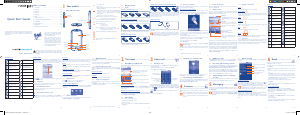
Quick Start Guide
For more information about how to use the phone, please go to www.
alcatelonetouch.com to download complete user manual. Moreover,
from the website you can also consult FAQ, realize software upgrade
via PC suite, etc.
Table of contents
1 Your mobile ................................................................................................3
2 Text input ................................................................................................. 15
3 Phone call ................................................................................................. 16
4 Contacts ................................................................................................... 17
5 Messaging.................................................................................................. 18
6 Email .......................................................................................................... 20
7 Getting connected ................................................................................. 21
8 Locate my location using GPS satellites ........................................... 23
9 Data backup ............................................................................................. 23
10 Factory data reset .................................................................................. 24
11 Applications ............................................................................................. 25
12 Making the most of your phone ......................................................... 25
www.sar-tick.com
This product meets applicable national
SAR limits of 2.0 W/kg. The specific
maximum SAR values can be found on
page 30 of this user guide.
When carrying the product or using it
while worn on your body, either use an
approved accessory such as a holster or
otherwise maintain a distance of 1.5 cm
from the body to ensure compliance with
RF exposure requirements. Note that the
product may be transmitting even if you
are not making a phone call.
Notification panel
Touch and drag down the Status bar or press Menu key and touch
Notifications to open the notification panel. Touch and drag up to close
it. From Notification panel, you can open items and other reminders
indicated by notification icons or view wireless service information.
Touch
to clear all event–based notifications (other ongoing
notifications will remain).
Search bar1.3.3
The phone provides a Search function which can be used to locate
information within applications, the phone or the web.
Lock/Unlock your screen1.3.4
To protect your phone and privacy, you can lock the phone screen by
creating a variety of patterns.
Personalize your home screen1.3.5
Add
Touch and hold an empty area or press Menu key and touch Add on
the Home screen, you can add shortcuts, widgets or folders to the
Home screen.
201211 13 14 15 16 17 18 19
Adding a contact4.1
Touch Application tab on the Home screen, select Contacts, then
press Menu key from contacts list screen and touch New contact.
Importing and exporting contacts4.2
From Contacts screen, press Menu key to open contacts list option menu,
touch Import/Export, then select Import from SIM card, Export to
SIM card, Import from SD card or Export to SD card.
To import/export a single contact from/to SIM card, touch the contact you
want to import/export, then press Menu key and touch OK to confirm.
To import/export all contacts from/to SIM card, mark Select all contacts
check box, then press Menu key and touch OK to confirm.
Synchronizing contacts in multiple 4.3
accounts
Contacts, data or other information can be synchronized from multiple
accounts, depending on the applications installed on your phone.
Messaging
5
...................
You can create, edit and receive SMS and MMS with this mobile phone.
To access this feature, touch Application tab from Home screen, then
select Messaging.
All messages you receive or send out can only be saved in phone
memory. To consult messages stored in SIM card, press Menu
key from Messaging screen, then touch Settings\Manage SIM
messages.
Write message5.1
On message list screen, touch New message to write text/multimedia
messages.
Touch to create new message
Touch to view cell broadcast
messages
Touch to view WAP messages
Touch to view the whole
message thread
Sending a text message
Enter mobile phone number of the recipient on To bar or touch
to
add recipients, touch Type to compose bar to enter the text of the
message. When finished, touch Send to send the text message.
An SMS of more than 160 characters will be charged as several
SMS. Specific letters (accent) will also increase the size of the
SMS, this may cause multiple SMS to be sent to your recipient.
Sending a multimedia message
MMS enables you to send video clips, images, photos, animations, slides and
sounds to other compatible mobiles and e-mail addresses.
An SMS will be converted to MMS automatically when media files (image,
video, audio, slides, etc.) are attached or Subject or email addresses
added.
Email
6
........................
Besides your Gmail account, you can also set-up external POP3 or
IMAP email accounts in your phone.
To access this function, touch Application tab from Home screen, then
select Email.
An email wizard will guide you through the steps to set-up an email
account.
Enter the email address and password of the account you want to •
set-up.
Touch • Next. If the account you entered is not provided by your
service provider in the phone, you will be prompted to go to the
email account settings screen to enter settings manually. Or you can
touch Manual setup to directly enter the incoming and outgoing
settings for the email account you are setting up.
Enter the account name and display name in outgoing emails.•
Touch • Done.
To add another email account, you can press • Menu key and touch
Add account to create.
To create and send emails
Press • Menu key from Inbox screen, and touch Compose.
Enter recipient(s)’s email address in • To field, and if necessary, press
Menu key and touch Add Cc/Bcc to include a copy or a blind copy
to the message.
Enter the subject and content of the message.•
Press • Menu key, touch Add attachment to send an attachment
to the receiver.
Finally, touch • Send.
If you do not want to send the mail right away, you can touch • Save
as draft or press Back key to save a copy.
Volume up
Volume down
Menu key
Call key
Search key
Back key
Touchscreen
End key
Home key
Micro-USB connector
Headset connector
(1)
Application availability depends on country and operator.
(1)
For more information, please view the complete user manual.



Join the conversation about this product
Here you can share what you think about the Alcatel One Touch 891 Soul Mobile Phone. If you have a question, first carefully read the manual. Requesting a manual can be done by using our contact form.