Manual Toshiba TLP-T501 Projector

Need a manual for your Toshiba TLP-T501 Projector? Below you can view and download the PDF manual for free in English. This product currently has 3 frequently asked questions, 0 comments and has 0 votes. If this is not the manual you want, please contact us.

Is your product defective and the manual offers no solution? Go to a Repair Café for free repair services.

Manual

Loading…
2120
Preparations
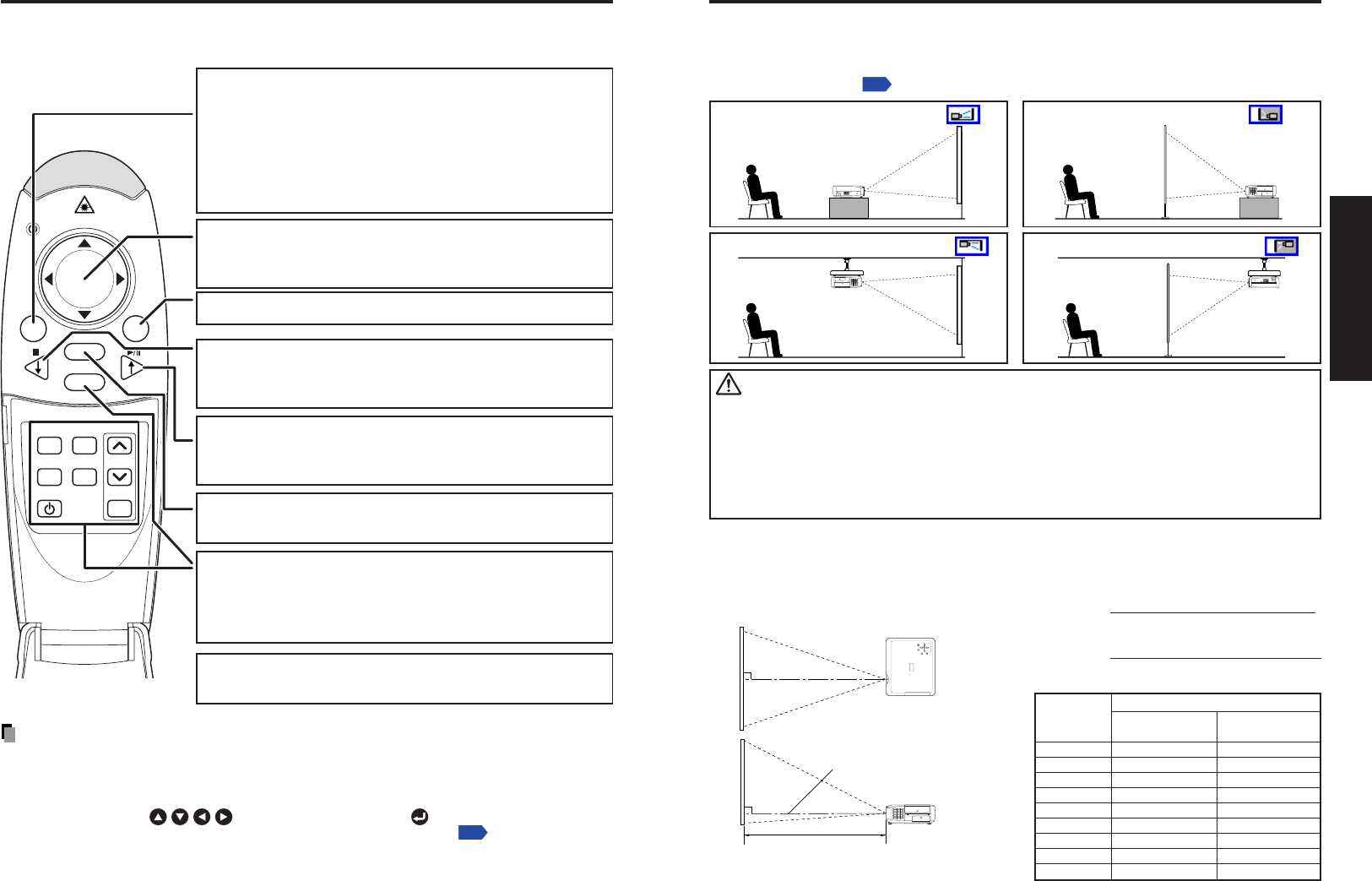
Switching operation modes
Operation modes should be switched between projector operation and computer operation.
ON/
STANDBY
AUTO
KEYSTONE
MUTE
AUTO SET FREEZE
INPUT
R-CLICK
PJ MODE LASER
VOL.
+
VOL.
-
MENU / ENTER
RESIZE
OFF
Notes
See page 51 for more information on operating a computer.
For the remainder of this manual, buttons, including those on the control panel (main unit
side), are referred to as follows:
Selection button
; MENU/ENTER button
With the exception of operating a PC with the remote control
p.51
, all buttons are
used in [PJ Mode].
Placement Styles
As shown in the figures below, this device can be placed in 4 different styles.
The factory setting is “floor-mounted front projection.” Set the placement style in the
default setting menu
p.53
, in accordance with your needs.
Projection Distance and Screen Size
Use the figures, table, and formula below to determine the screen size and projection
distance. (Screen sizes are approximate values for full-size picture and no keystone
adjustment)
90
°
ON/STANDBY
INPUT
FANTEMP LAMP ON
VOL.
+
VOL.
-
AUTO
KEYSTONE
MENU
AUTO SET
a
90
°
USB
COMPUTER
(
Y,P
B
/P
R
)
S-VIDEOVIDEO
VIDEO
R - AUDIO - L
AUDIO
MONITOR
CONTROL
12
Switching the remote control operation mode.
Pressing this button toggles the mode.
When this button is lit, the remote control is in [PJ Mode]
(Projector operation mode).
If no operations are made for 30 seconds, this light goes
out, and the remote switches back to [PC Mode] (Computer
operation mode).
[PJ Mode] : Functions as a select button.
If no menu is displayed, adjusts volume.
[PC Mode] : Functions as a mouse pointer control.
[PJ Mode] : Ends memory card slide display.
[PC Mode] : Functions as a down button. Used to go
forward on Microsoft
®
PowerPoint
®
slides, etc.
[PJ Mode] : Begins memory card slide display.
[PC Mode] : Functions as an up button. Used to go back on
Microsoft
®
PowerPoint
®
slides, etc.
[PJ Mode] : Functions as a MENU/ENTER button.
[PC Mode] : Functions as the right mouse button (R-CLIK).
Pressing displays a laser pointer, regardless of the mode.
Pressing one of these buttons automatically sets the remote
control to [PJ Mode].
If no operations are made for 30 seconds, and the remote
switches back to [PC Mode].
The L-CLICK (left click) button on the back of the remote
control functions when in [PC Mode].
Preparing and using the remote control (Continued)
Placement
Floor-mounted front projection
Floor-mounted rear projection
Ceiling-mounted front projection
Ceiling-mounted rear projection
CAUTION
Always obey the instructions listed in IMPORTANT SAFETY INSTRUCTIONS when
placing the unit.
If you wish to mount the projector on the ceiling, be sure to ask your dealer to do so.
Mounting the projector on a ceiling requires special ceiling brackets (sold separately)
and specialized knowledge. Improper mounting could cause the projector to fall,
resulting in an accident.
a is the distance (m) between the lens and
the screen, and corresponds to a range of
1.50 m to 11.74 m.
Screen
As seen from above
Lens center
As seen from the side
a (min length) =
projection size (inches) – 1.7971
25.395
a (max length) =
projection size (inches) – 1.4258
20.148
screen
projection distance a(m)
min length max length
size (cm)
(zooming max) (zooming min)
32 (81) 1.50
40 (102) 1.50 1.91
60 (152) 2.29 2.91
80 (203) 3.08 3.90
100 (254) 3.87 4.89
150 (381) 5.84 7.37
200 (508) 7.80 9.86
250 (635) 9.77
300 (762) 11.74
USB
COMPU
TER
(
Y,P
B
/
P
R
)
S-VIDE
OVIDEO
VIDEO
R
- AUDIO - L
AUDIO
M
ONITOR
CONTROL
1
2
USB
COMPUTER
(
Y,P
B
/P
R
)
S-VIDEO
VIDEO
VIDEO
R - AUDIO -
L
AUDIO
MONITOR
CONTROL
12
Download manual in English (PDF, 3.34 MB)
(Consider the environment and only print this manual if it is really necessary)

Loading…

Rating

Let us know what you think about the Toshiba TLP-T501 Projector by leaving a product rating. Want to share your experiences with this product or ask a question? Please leave a comment at the bottom of the page.
Are you satisfied with the Toshiba TLP-T501 Projector?
Yes No
Be the first to rate this product
0 votes

Join the conversation about this product

Here you can share what you think about the Toshiba TLP-T501 Projector. If you have a question, first carefully read the manual. Requesting a manual can be done by using our contact form.

More about this manual

We understand that it’s nice to have a paper manual for your Toshiba TLP-T501 Projector. You can always download the manual from our website and print it yourself. If you would like to have an original manual, we recommend you contact Toshiba. They might be able to provide an original manual. Are you looking for the manual of your Toshiba TLP-T501 Projector in a different language? Choose your preferred language on our homepage and search for the model number to see if we have it available.

Specifications

Brand Toshiba
Model TLP-T501
Category Projectors
File type PDF
File size 3.34 MB

All manuals for Toshiba Projectors
More manuals of Projectors

Frequently Asked Questions about Toshiba TLP-T501 Projector

Our support team searches for useful product information and answers to frequently asked questions. If you find an inaccuracy in our frequently asked questions, please let us know by using our contact form.

Can I power off my projector immediately after use? Verified

After using the projector the lamp is still very hot. It is best to leave the projector on after use, giving the internal fan time to do it's work and cool the lamp. This will extend the lifetime of the lamp.

This was helpful (214) Read more

What is keystone correction? Verified

A projector can often not be placed straight in front of a screen or wall. The projected image can become distorted because of this. This is the keystone effect. Keystone correction is a feature that addresses this distortion. Not all projectors offer keystone correction.

This was helpful (158) Read more

What is the contrast ratio? Verified

The contrast ratio tells how far the whitest white is from the blackest black. A contrast ratio of for example 400:1 means that the blackest black on screen is 400 times darker than the whitest white. A high contrast ratio contributes to the sharpness of the image.

This was helpful (104) Read more
Manual Toshiba TLP-T501 Projector

Related products

Related categories

×
Download