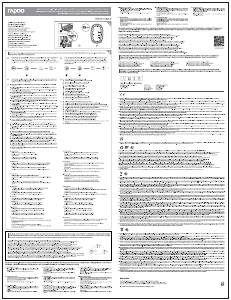
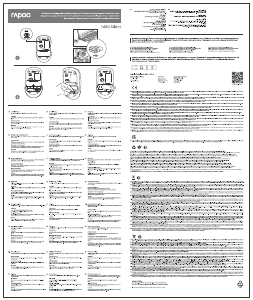
Three device lights stand for three different Bluetooth devices. There is no device light for 2.4G device.
1. When MT550 connects with a 2.4G device, 3 device lights are off.
2. When MT550 is trying to connect back with a device, the device light starts to blink rapidly.
3. When MT550 is pairing with a Bluetooth device, the device light starts to blink slowly.
4. When MT550 connects with a Bluetooth device, the device light stops blinking and remains steady for 6
seconds.
Drei Geräteleuchten stehen für drei verschiedene Bluetooth-Geräte. Es gibt keine Geräteleuchte für ein
2,4-GHz-Gerät.
1. Wenn MT550 eine Verbindung mit einem 2,4-GHz-Gerät herstellt, erlöschen 3 Geräteleuchten.
2. Wenn MT550 versucht, erneut eine Verbindung mit einem Gerät herzustellen, beginnt die Geräteleuchte
schnell zu blinken.
3. Wenn MT550 mit einem Bluetooth-Gerät gekoppelt wird, beginnt die Geräteleuchte langsam zu blinken.
4. Wenn MT550 eine Verbindung zu einem Bluetooth-Gerät herstellt, hört die Geräteleuchte auf zu blinken
und leuchtet 6 Sekunden lang.
Tres luces de dispositivo significan tres dispositivos Bluetooth diferentes. No hay luz de dispositivo para
dispositivo de 2,4 G.
1. Cuando MT550 se conecta con un dispositivo de 2,4G, las 3 luces de dispositivo se apagan.
2. Cuando su MT550 intenta volver a conectarse con un dispositivo, la luz de dispositivo comienza a
parpadear rápidamente.
3. Cuando su MT550 se está asociando con un dispositivo Bluetooth, la luz del dispositivo comienza a
parpadear lentamente.
4. Cuando su MT550 se conecta con un dispositivo Bluetooth, la luz del dispositivo deja de parpadear y
permanece constante durante 6 segundos.
Drie apparaatlampen staan voor drie verschillende Bluetooth-apparaten. Er is geen apparaatlamp voor het
2.4G-apparaat.
1. Wanneer MT550 verbinding maakt met een 2.4G-apparaat, zijn 3 apparaatlichten uit.
2. Wanneer de MT550 probeert terug te verbinden met een apparaat, begint de apparaatlamp snel te
knipperen.
3. Wanneer MT550 bezig is met koppelen met een Bluetooth-apparaat, knippert de apparaatlamp
langzaam.
4. Wanneer MT550 verbinding maakt met een Bluetooth-apparaat, stopt de apparaatlamp met knipperen
en blijft deze stabiel gedurende 6 seconden.
Три подсветки устройства обозначают три разных устройства Bluetooth. Для устройства 2.4G нет
подсветки.
1. При подключении МТ550 к устройству 2.4G отключаются 3 подсветки устройства.
2. При попытке MT550 повторно подключиться к устройству, подсветка устройства начинает
быстро мигать.
3. При сопряжении MT550 с устройством Bluetooth, подсветка устройства начинает мигать
медленно.
4. При подключении МТ550 к устройству Bluetooth подсветка устройства перестает мигать и не
возобновляется в течение 6 секунд.
Trois indicateurs lumineux d'appareils indiquent trois appareils Bluetooth différents. Il n'y a aucun
indicateur lumineux d'appareil pour les appareils 2.4G.
1. Lorsque la MT550 se connecte avec un appareil 2.4G, 3 indicateurs lumineux d'appareil sont éteints.
2. Lorsque la MT550 essaie de se reconnecter avec un appareil, l'indicateur lumineux d'appareil
commence à clignoter rapidement.
3. Lorsque la MT550 s'appaire avec un appareil Bluetooth, l'indicateur lumineux d'appareil commence à
clignoter lentement.
4. Lorsque la MT550 se connecte avec un appareil Bluetooth, l'indicateur lumineux d'appareil s'arrête de
clignoter et reste fixe pendant 6 secondes.
Tre spie del dispositivo indicano tre diversi dispositivi Bluetooth. Non vi è alcuna spia per il dispositivo
2.4G.
1. Quando l'MT550 si collega ad un dispositivo 2.4G, 3 spie del dispositivo sono spente.
2. Quando l'MT550 cerca di collegarsi di nuovo ad un dispositivo, la spia del dispositivo inizia a
lampeggiare rapidamente.
3. Quando l'MT550 è associato ad un dispositivo Bluetooth, la spia del dispositivo inizia a lampeggiare
lentamente.
4. Quando l'MT550 si collega ad un dispositivo Bluetooth, la spia del dispositivo cessa di lampeggiare e
rimane fissa per 6 secondi.
Multi-mode Wireless Mouse
/
Souris sans fil multi-mode
/
Kabellose Multimodus-Maus
Instruction
/
Instruction / Anweisungen
/
Istruzioni
/
Instrucción / Instructie / Инструкция
Device light
/
Indicateur lumineux d'appareil / Geräteleuchte
/
Spia dispositivo
/
Luz del dispositivo / Apparaatlamp / Подсветка устройства
Bluetooth 3.0 and 4.0
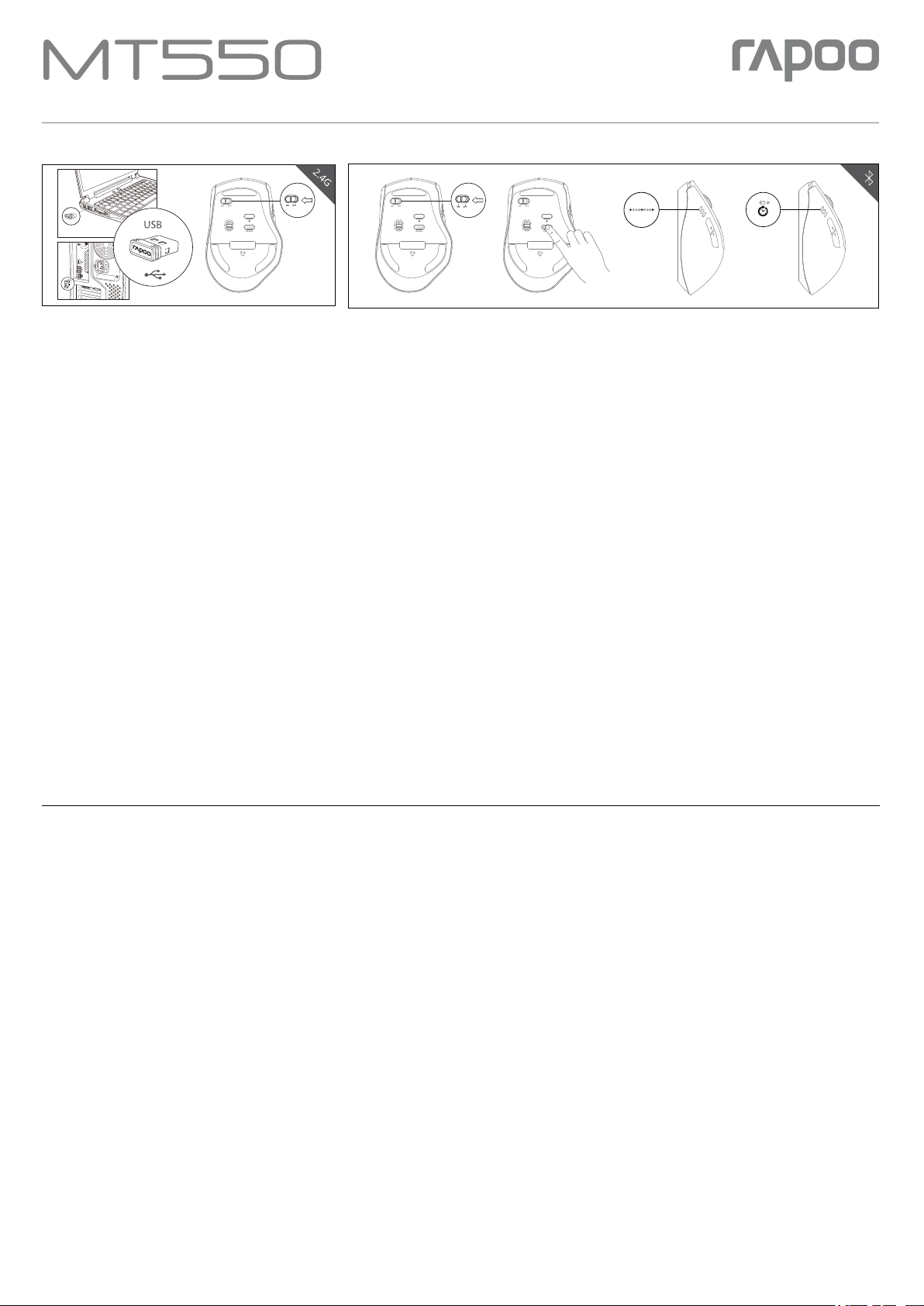
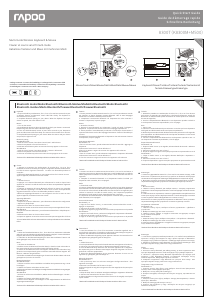
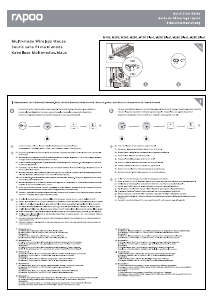
1. Turn on MT550. Device light starts to blink rapidly.
2. Press device switching button to select the channel on which your device
is connected.
3. Press Bluetooth pairing button. Device light starts to blink slowly.
4. Connect MT550 with your Bluetooth device. Blinking stops and remains
steady for 6 seconds.
5. Done.
Bluetooth 3.0 und 4.0
1. MT550 einschalten. Geräteleuchte beginnt schnell zu blinken.
2. Durch Drücken der Geräteumschalttaste zu dem Kanal, mit dem Ihr
Gerät verbunden ist, wechseln.
3. Bluetooth-Kopplung-Taste drücken. Geräteleuchte beginnt langsam
zu blinken.
4. MT550 mit Ihrem Bluetooth-Gerät verbinden. Hört auf zu blinken und
leuchtet 6 Sekunden dauerhaft.
5. Fertig.
Bluetooth 3.0 y 4.0
1. Encienda su MT550. La luz del dispositivo comenzará a parpadear
rápidamente.
2. Presione el botón de cambio del dispositivo para seleccionar el canal
en el que dicho dispositivo está conectado.
3. Presione el botón de asociación Bluetooth. La luz del dispositivo
comenzará a parpadear lentamente.
4. Conecte su MT550 con el dispositivo Bluetooth. El parpadeo se detendrá
y permanecerá fijo durante 6 segundos.
5. Hecho.
Bluetooth 3.0 и 4.0
1. Включите MT550. Подсветка устройства начнет быстро мигать.
2. Нажмите кнопку переключения на устройстве для выбора канала
подключения вашего устройства.
3. Нажмите кнопку сопряжения Bluetooth. Подсветка устройства
начнет мигать медленно.
4. Подключите MT550 к вашему устройству Bluetooth. Мигание
прекращается и не возобновляется в течение 6 секунд.
5. Готово.
Bluetooth 3.0 e 4.0
1. Accendere l'MT550. La spia del dispositivo inizia a lampeggiare
rapidamente.
2. Premere il tasto di commutazione del dispositivo per selezionare il
canale a cui collegare il dispositivo.
3. Premere il tasto di associazione Bluetooth. La spia del dispositivo
inizia a lampeggiare lentamente.
4. Collegare l'MT550 al dispositivo Bluetooth. Il lampeggio si arresta e
rimane fisso per 6 secondi.
5. Fine.
Bluetooth 3.0 en 4.0
1. Schakel MT550 in. Apparaatlamp begint snel te knipperen.
2. Druk op de knop voor het schakelen van het apparaat om het kanaal
waarmee uw apparaat is verbonden, te kiezen..
3. Druk op de knop voor de Bluetooth-koppeling. De apparaatlamp begint
langzaam te knipperen.
4. Verbind de MT550 met uw Bluetooth-apparaat. Het knipperen stopt
en blijft stabiel gedurende 6 seconden.
5. Gereed.
Bluetooth 3.0 et 4.0
1. Mettez en marche la MT550. L'indicateur lumineux d'appareil commence
à clignoter rapidement.
2. Appuyez sur le bouton de commutation d'appareil pour sélectionner
le canal sur lequel votre appareil est connecté.
3. Appuyez sur le bouton d'appairage Bluetooth. L'indicateur lumineux
d'appareil commence à clignoter lentement.
4. Connectez la MT550 avec votre appareil Bluetooth. Le clignotement
s'arrête et reste fixe pendant 6 secondes.
5. Terminé.
2.4G
1. Plug in Rapoo receiver.
2. Turn on MT550.
3. Done.
2.4G
1. Branchez le récepteur Rapoo.
2. Mettez en marche la MT550.
3. Terminé.
2,4 GHz
1. Rapoo-Empfänger anschließen.
2. MT550 einschalten.
3. Fertig.
2.4G
1. Collegare il ricevitore Rapoo.
2. Accendere l'MT550.
3. Fine.
2.4G
1. Enchufe el receptor Rapoo.
2. Encienda su MT550.
3. Hecho.
2.4G
1. Подключите к сети Rapoo приемник.
2. Включите MT550.
3. Готово.
2.4G
1. Sluit de Rapoo-ontvanger aan.
2. Schakel de MT550 in.
3. Gereed.
Quick Start Guide/Guide de démarrage rapide/Schnellstartanleitung


Join the conversation about this product
Here you can share what you think about the Rapoo MT550 Mouse. If you have a question, first carefully read the manual. Requesting a manual can be done by using our contact form.
reply | This was helpful (0) (Translated by Google)