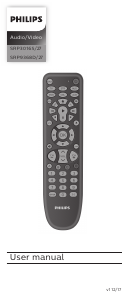
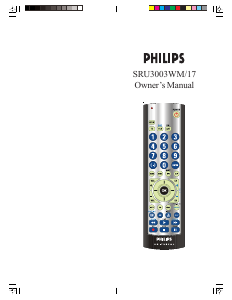
Manual Philips SRU3003WM Remote Control

Need a manual for your Philips SRU3003WM Remote Control? Below you can view and download the PDF manual for free in English. This product currently has 6 frequently asked questions, 0 comments and has 0 votes. If this is not the manual you want, please contact us.

Is your product defective and the manual offers no solution? Go to a Repair Café for free repair services.

Manual

Loading…
1918
Funciones de botones
Nota: el botón REC debe oprimirse DOS VECES para grabar
en su videocasetera. Para algunas marcas de
videocaseteras será necesario que oprima el botón REC una
sola vez y enseguida oprimirlo nuevamente durante tres
segundos.
Algunos botones del control remoto pueden tener funciones
con diferentes nombres en el aparato que está controlando.
Por ej, el canal anterior (PREV.CHAN) puede llamarse
RECALL, o ENTER puede llamarse DISPLAY. Estas
diferencias dependen de la marca y del modelo de su aparato.
Además, este control remoto puede operar únicamente las
funciones que existen en su producto. Por ejemplo, su
producto debe estar equipado con canal anterior
(PREV.CHAN) para que el botón de PREV.CHAN funcione.
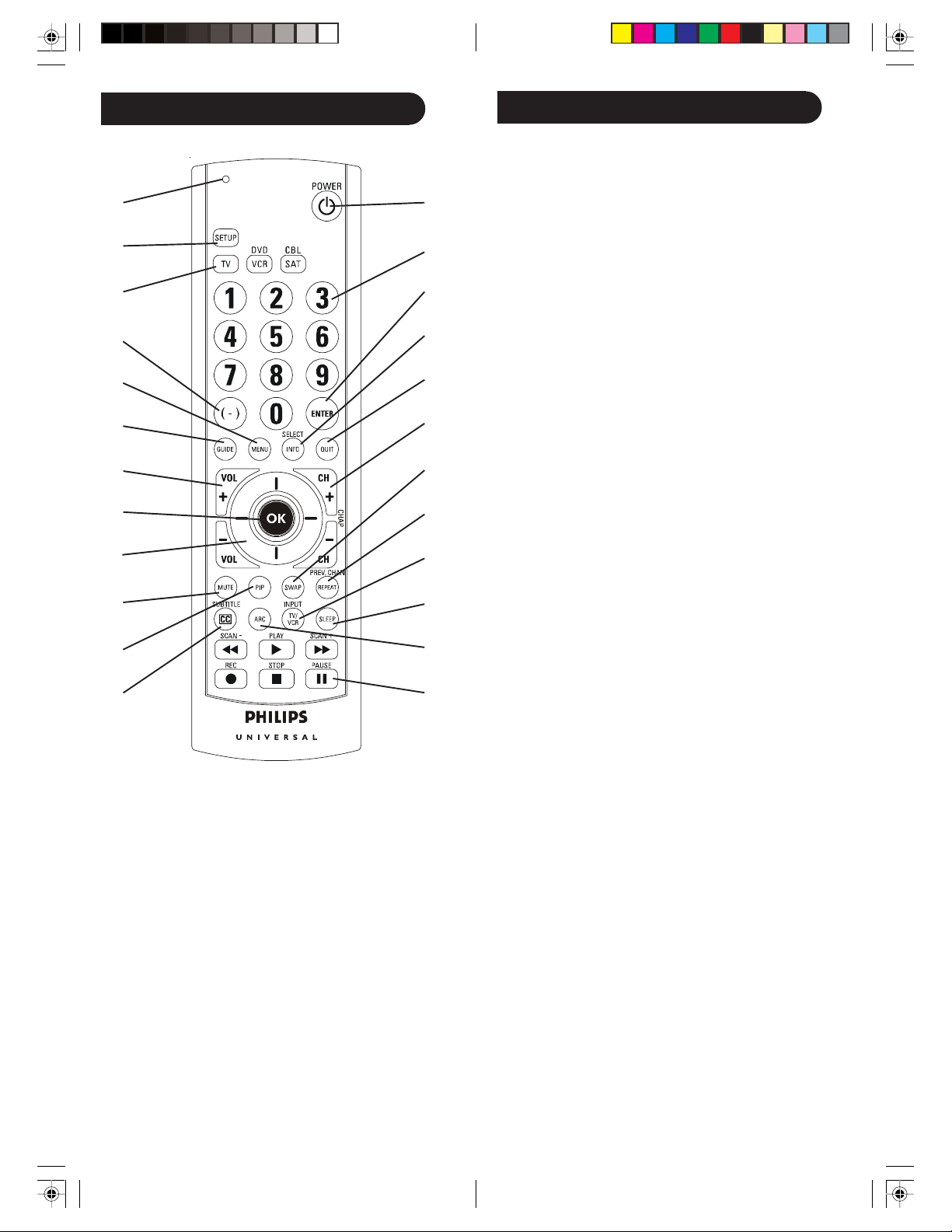
1. Indicador luminoso rojo se enciende cuando se presiona
cualquier botón.
2. SETUP (Búsqueda de código) Función emplea da para la
configuración del control remoto.
3 . TV, VCR/DVD, SAT/CBL Selecciona el equipo que se va a usar.
4. (-) se utiliza para seleccionar canales digitales de cable.
5. MENU Trae la pantalla del Menú de discos del DVD: Úselo
con los botones de navegación hacia arriba, abajo, izquierda
y derecha.
6. GUIDE (Guía) Presenta en pantalla la guía de
programación.
7. VOLUME UP/DOWN (Subir/bajar volumen) Cambia el
nivel de volumen del equipo, normalmente el del televisor.
8. OK (Aceptar) Se utiliza para la selección del Menú en
pantalla.
9. UP, DOWN, LEFT & RIGHT Botones de navegación
(arriba, abajo, izquierda y derecha).
10. MUTE (Silencio) apaga el sonido de la TV mientras que
permanece la imagen.
11. PIP TV (Picture-in-picture, Imagen en imagen) Controla
la presentación en la pantalla del televisor de una imagen
secundaria, en una ventana dentro de la imagen principal.
12. CC (SUBTITLE) [Trascripción del audio en pantalla
(subtítulos)] Activa y desactiva la función de trascripción
del audio en pantalla del televisor (si el televisor tiene esta
característica) o los subtítulos de DVD.
13. RECORD, PLAY, STOP, REW, FF, PAUSE (Grabar,
reproducir, parar, devolver, adelantar, pausa) los botones
de control de la videocasetera hacen funcionar este aparato
incluso cuando el control remoto esta en la modalidad de
TV. También ejecuta la función DVD Scan +/- (exploración
+/- de DVD).
14. ARC: el control de la relación de aspecto (del inglés,
Aspect Ratio Control) selecciona el formato de
visualización de la imagen mostrada, por ejemplo,
panorámico, zoom, etc.
15. SLEEP (Apagado automático) Apaga el televisor después
de un período de 1 a 99 minutos.
16. Botón de TV/VCR/INPUT (televisión, videocassetera,
entrada) Para algunos televisores, oprima este botón
repetidamente para seleccionar una de las fuentes disponibles
para recibir la imagen (antena, videocasetera, etc.).
17. PREV. CHAN (Canal anterior) Regresa al canal
seleccionado previamente, o botón para repetir el DVD.
18. SWAP (Alternar) permite alternar entre una pantalla y otra
al utilizar la función de imagen en imagen en el televisor.
19. CHANNEL UP/DOWN (Canal siguiente/anterior) Cambia de
canal. CHAPTER +/- (Capitulo +/-) Controla la selección de
pistas de DVD/CD, es decir, la pista de DVD/CD para subir/
bajar (en modalidades de DVD y SAT). Observe que los
botones de movimiento de la videocasetera también
controlan el DVD cuando está en la modalidad de DVD.
20. QUIT (Salir) Se utiliza para salir de las funciones del menú.
21. INFO/SELECT Trae la pantalla o el Menú de control del
TV, DVD o Satélite para indicar el numero de Capitulo/
Pista/Titulo, el tiempo restante/transcurrido, información
del sistema, etc.
22. ENTER (Ingresar) Se utiliza después del acceso directo de
canales para cambiar inmediatamente al canal
seleccionado.
23. NUMEROS oprima los números para la selección directa
de canales. Algunos aparatos requieren que se oprima Enter
después de la selección del canal.
24. POWER (Encendido) Enciende o apaga el equipo.
1.
2.
3.
4.
5.
6.
7.
8.
9.
10.
11.
12.
24.
23.
22.
21.
20.
19.
18.
17.
16.
15.
14.
13.
Download manual in English (PDF, 0.36 MB)
(Consider the environment and only print this manual if it is really necessary)

Loading…

Rating

Let us know what you think about the Philips SRU3003WM Remote Control by leaving a product rating. Want to share your experiences with this product or ask a question? Please leave a comment at the bottom of the page.
Are you satisfied with the Philips SRU3003WM Remote Control?
Yes No
Be the first to rate this product
0 votes

Join the conversation about this product

Here you can share what you think about the Philips SRU3003WM Remote Control. If you have a question, first carefully read the manual. Requesting a manual can be done by using our contact form.

More about this manual

We understand that it’s nice to have a paper manual for your Philips SRU3003WM Remote Control. You can always download the manual from our website and print it yourself. If you would like to have an original manual, we recommend you contact Philips. They might be able to provide an original manual. Are you looking for the manual of your Philips SRU3003WM Remote Control in a different language? Choose your preferred language on our homepage and search for the model number to see if we have it available.

Specifications

Brand Philips
Model SRU3003WM
Category Remote Controls
File type PDF
File size 0.36 MB

All manuals for Philips Remote Controls
More manuals of Remote Controls

Frequently Asked Questions about Philips SRU3003WM Remote Control

Our support team searches for useful product information and answers to frequently asked questions. If you find an inaccuracy in our frequently asked questions, please let us know by using our contact form.

How do I connect a universal remote control to my television? Verified

To connect your universal remote control, you need the model number and brand name of both the remote control and the television. There is a list of codes for brands and model numbers in the manual of the remote control .

This was helpful (7994) Read more

Why are there letters next to the numbers on the remote control? Verified

Certain television settings may require you to enter letters. There are usually three letters or other characters on a button. When letter input is required, you can press that button once for the first letter, press twice for the second letter and press 3 times for the third letter. This way, text can be written with a minimum number of buttons.

This was helpful (682) Read more

Will my remote control also work on other television models of the same brand? Verified

Often a remote control of a television will also work on similar models of the same brand. However, it is unusual that it will work on all models of that brand. Universal remote controls are more suited to do this.

This was helpful (524) Read more

What is the average range of an infrared remote control? Verified

An average infrared remote control had a range of around 3 to 6 meters. Also, the further away the device is, the harder it will be to aim.

This was helpful (412) Read more

A battery in my device is oxidized, can I still safely use it? Verified

Ja, the device can still be safely used. Firstly, remove the oxidizd battery. Never use bare hands to do this. Then clean the battery compartment with a cotton swab dipped in vinegar or lemon juice. Let it dry and insert new batteries.

This was helpful (372) Read more

Can I leave a replacable battery in a device for a long time? Verified

Replacable batteries can remain in a device for a long time if the device is in use. When a device is being stored for a long time it is advisable to remove the batteries to prevent oxidation.

This was helpful (271) Read more
Manual Philips SRU3003WM Remote Control

Related products

Related categories

×
Download