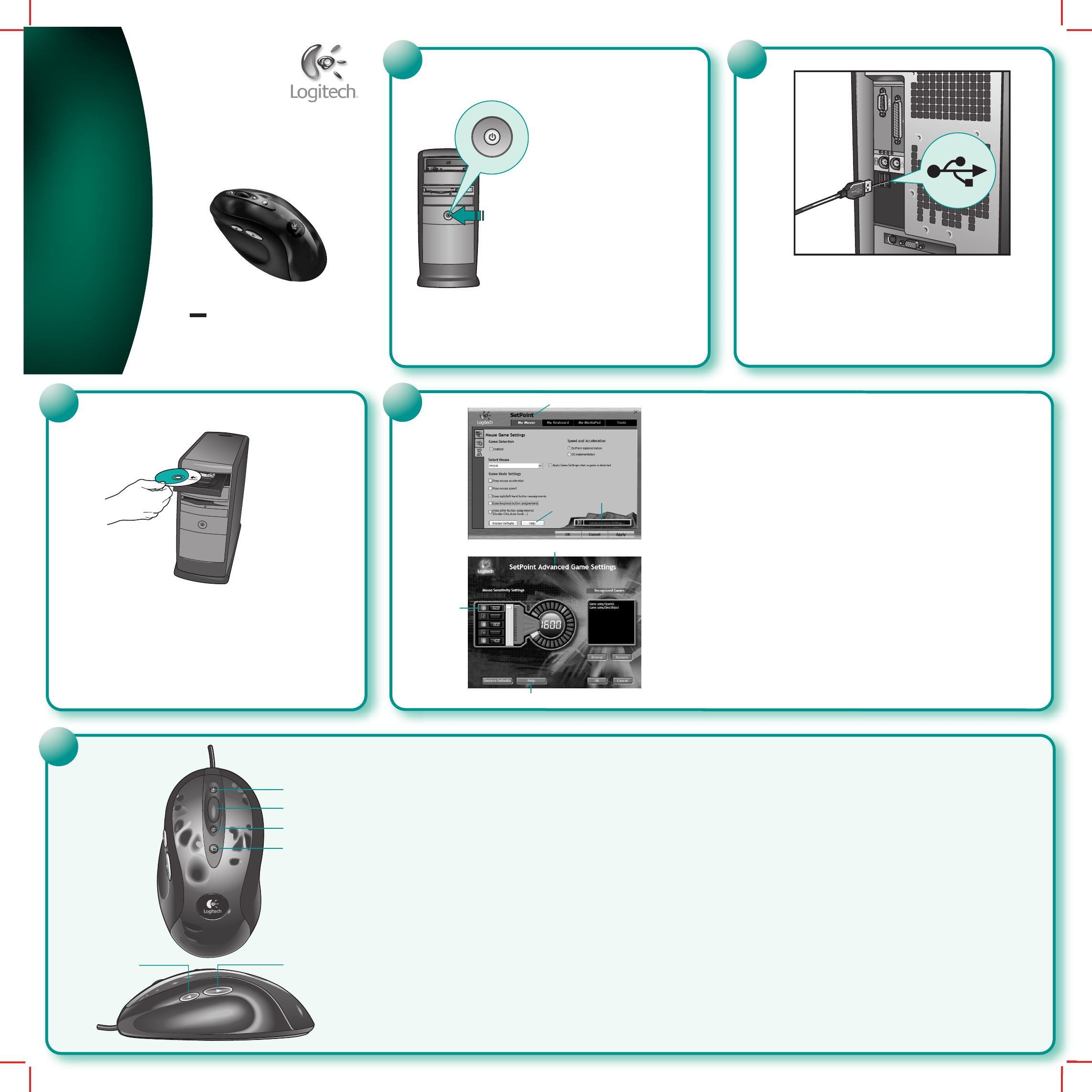
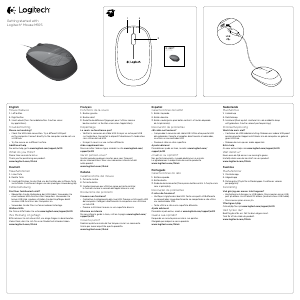
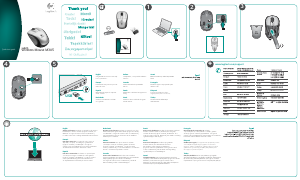
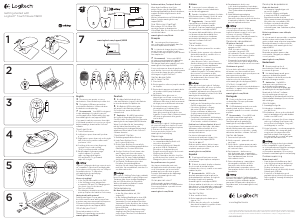
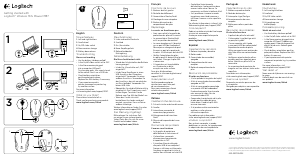
English Plug mouse USB cable into computer’s USB port.
Español Conecte el cable del ratón al puerto USB del ordenador.
Français Branchez le câble de la souris sur le port USB de l'ordinateur.
Português Ligue o cabo USB do rato à porta USB do computador.
1
2
3
4
5
6
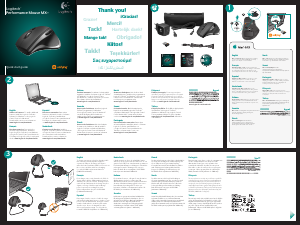
English 1. In-game dpi Increase. Press button to increase dpi of tracking sensitivity. 2. In-game dpi
decrease. Press button to decrease dpi of tracking sensitivity. 3. Scrolling and Zooming: Roll wheel up to
scroll up; roll wheel down to scroll down. To zoom, press wheel down, and then roll wheel up to zoom in;
roll wheel down to zoom out. Press any button to release zoom. (Not all applications support zooming.)
4. Application Switch Button: Press to switch between open documents. 5. Forward Button.
6. Back Button. Use both buttons with your web browser or with other applications.
Español 1. Aumento de dpi durante el juego. Pulse el botón para aumentar la sensibilidad
de seguimiento en dpi. 2. Disminución de dpi durante el juego. Pulse el botón para disminuir la sensibilidad
de seguimiento en dpi. 3. Desplazamiento y zoom: gire el botón rueda hacia delante para desplazarse
hacia arriba y hacia atrás para desplazarse hacia abajo. Para aplicar zoom, pulse el botón rueda y gírelo
hacia delante para ampliar la imagen; gírela hacia atrás para reducirla. Pulse un botón cualquiera para anular
la función de zoom. Tenga en cuenta que algunas aplicaciones no disponen de función de zoom.
4. Botón de cambio de aplicaciones: pulse para pasar de un documento abierto a otro. 5. Botón de avance.
6. Botón de retroceso. Utilice ambos botones con el navegador Web o con otras aplicaciones.
4
English In-play Sensitivity Switching. The mouse has out-of-box access to three levels of
tracking sensitivity — 1600 dpi, 800 dpi, and 400 dpi. 800 dpi is the default setting. Use the SetPoint
software that comes with the mouse (1) and its Advanced Game Settings feature (2) to configure up to
five personalized sensitivity levels between 400 dpi and 1600 dpi. Sensitivity levels require an ascending
order (3). Refer to the software help system (4) to learn how to choose sensitivity levels, and to learn
more about the mouse and its software.
Español Ajuste de sensibilidad durante el juego. De forma predeterminada, este ratón
ofrece acceso directo a tres niveles de sensibilidad de seguimiento: 1600 dpi, 800 dpi y 400 dpi.
La opción predeterminada es 800 dpi. Utilice el software SetPoint incluido con el ratón (1) y su función
Configuración de juego avanzada (2) para configurar hasta cinco niveles de sensibilidad
personalizada entre 400 dpi y 1600 dpi. Los niveles de sensibilidad requieren un orden ascendente (3).
Consulte el sistema de ayuda del software (4) para aprender a elegir los niveles de sensibilidad y para
obtener información adicional sobre el ratón y su software.
Français Réglage de la sensibilité en cours de partie. La souris offre un accès direct
à trois niveaux de sensibilité de suivi: 400 ppp, 800 ppp et 1600 ppp. 800 ppp est le réglage par défaut.
Utilisez le logiciel SetPoint fourni avec la souris (1) et sa fonction Paramètres de jeu avancés (2) pour
configurer jusqu'à cinq niveaux de sensibilité compris entre 400 ppp et 1600 ppp. Les niveaux de
sensibilité se règlent dans l'ordre croissant (3). Reportez-vous au système d'aide du logiciel (4) pour
savoir comment choisir les niveaux de sensibilité et pour en savoir plus sur la souris et son logiciel.
Português Alteração da sensibilidade no jogo. O rato tem acesso imediato a três níveis
de sensibilidade de rastreio — 1600 dpi, 800 dpi e 400 dpi. 800 dpi é a predefinição. Utilize o software
SetPoint que vem com o rato (1) e a funcionalidade Definições de jogo avançadas (2) para configurar
até cinco níveis de sensibilidade personalizada entre 400 dpi e 1600 dpi. Os níveis de sensibilidade
exigem uma ordem ascendente (3). Consulte o sistema de ajuda do software (4) para obter
informações sobre a escolha dos níveis de sensibilidade e sobre o rato e o respectivo software.
1
2
2
3
4
4
3
English To enjoy all the features of the mouse, you must install the software.
Español Para disponer de todas las funciones del ratón, debe instalar el software.
Français Pour profiter pleinement de toutes les fonctions de la souris, vous devez installer
le logiciel.
Português Para utilizar todas as funções do rato, deve instalar o software.
Français 1. Augmentation de la valeur en ppp pendant le jeu. Appuyez sur le bouton pour
augmenter la valeur en ppp de la sensibilité de suivi. 2. Réduction de la valeur en ppp pendant le jeu.
Appuyez sur le bouton pour réduire la valeur en ppp de la sensibilité de suivi. 3. Défilement et zoom:
faites tourner la roulette vers le haut pour faire défiler le contenu de l'écran vers le haut ou faites
tourner la roulette vers le bas pour faire défiler le contenu de l'écran vers le bas. Pour effectuer un
zoom avant, appuyez sur la roulette et faites-la tourner vers le haut. Pour effectuer un zoom arrière,
appuyez sur la roulette et faites-la tourner vers le bas. Appuyez sur un bouton de la souris pour
interrompre le zoom. (La fonction de zoom n'est pas prise en charge par toutes les applications.)
4. Bouton de changement d'application: appuyez sur ce bouton pour passer d'un document
ouvert à un autre. 5. Bouton Suivant. 6. Bouton Précédent. Vous pouvez utiliser les deux boutons
avec votre navigateur Web ou d'autres applications.
Português 1. Aumento de dpi no jogo. Prima o botão para aumentar o dpi da sensibilidade
de rastreio. 2. Diminuição de dpi no jogo. Prima o botão para diminuir o dpi da sensibilidade
de rastreio. 3. Deslocar e utilizar o zoom: Desloque a roda para cima para deslocar o ecrã para cima;
desloque a roda para baixo para deslocar o ecrã para baixo. Para utilizar o zoom, prima a roda
e rode-a para cima para ampliar; rode-a para baixo para reduzir. Prima qualquer botão para deixar de
utilizar o zoom. (Nem todas as aplicações suportam o zoom.) 4. Botão de mudança de aplicações:
Prima para alternar entre documentos abertos. 5. Botão de avançar. 6. Botão de retrocesso.
Utilize os dois botões com o browser da Web ou outras aplicações.


Join the conversation about this product
Here you can share what you think about the Logitech MX518 Mouse. If you have a question, first carefully read the manual. Requesting a manual can be done by using our contact form.