www.logitech.com/support
M/N:C-U0003
5
,
IC: 4418A-CU0003
FCC ID: JNZCU0003
M/N:C-U0007
5
,
IC: 4418A-CU0007
FCC ID: JNZCU0007
English
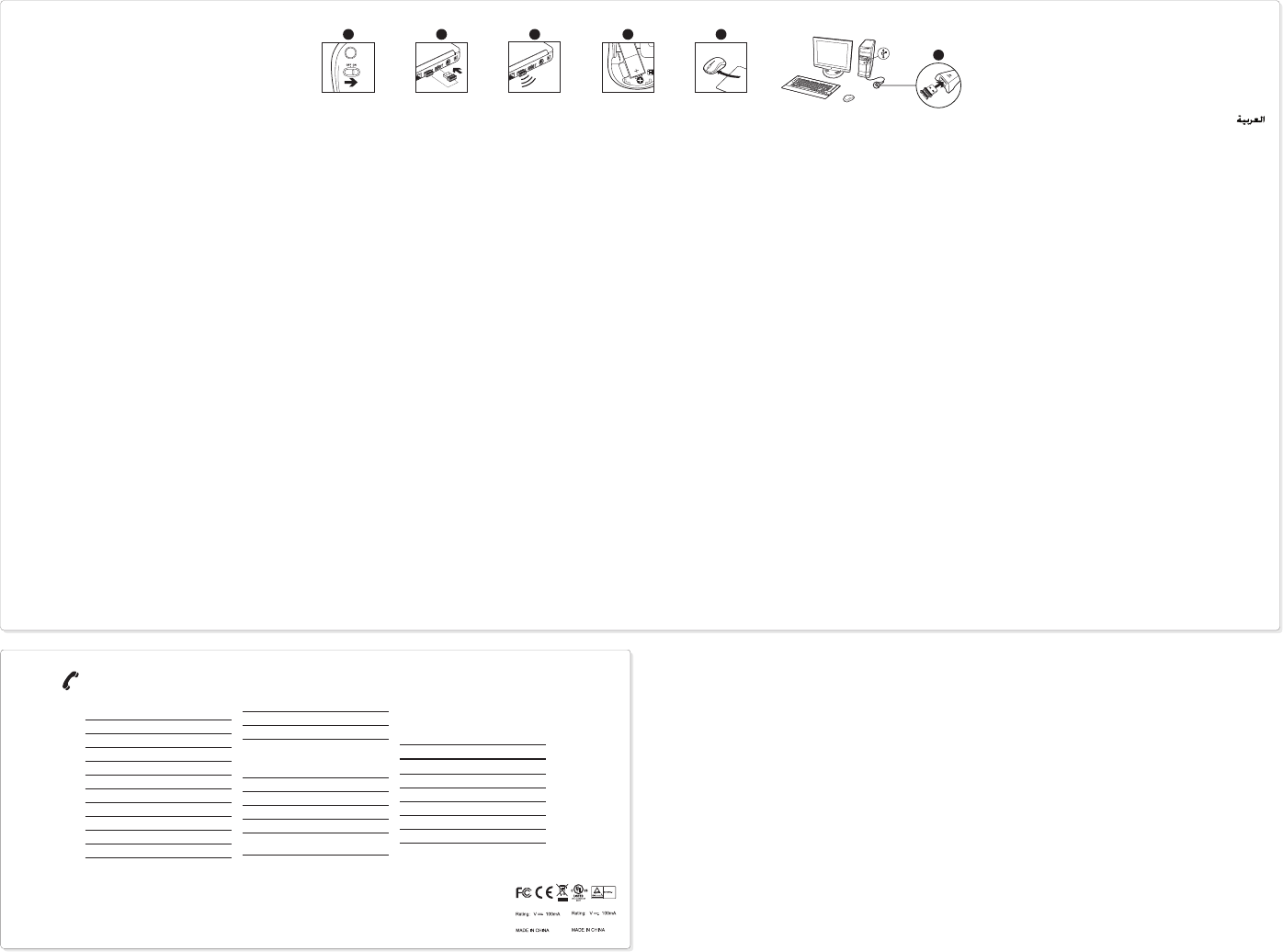
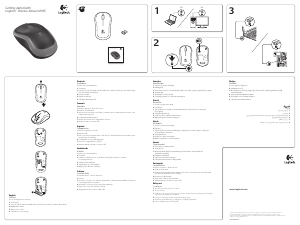
Help with setup: Mouse is not working
1. Is the mouse powered on?
2. Is the Nano receiver securely plugged into a USB port?
Try changing USB ports.
3. If the Nano receiver is plugged into a USB hub, try plugging it
directly into a USB port on your computer.
4. Check the orientation of the battery inside the mouse.
5. Try a different surface. Remove metallic objects between
the mouse and the Nano receiver.
6. Try moving the Nano receiver to a USB port closer to the
mouse. If you are using a tower PC, go to www.logitech.com/
usbextender for a USB extender.
7. For Windows® operating systems, reconnect the mouse
with the Nano receiver by launching the Connect utility from
www.logitech.com/connect_utility.
Deutsch
Probleme bei der Einrichtung:
Die Maus funktioniert nicht
1. Ist die Maus eingeschaltet?
2. Ist der Nano-Empfänger fest in einen USB-Anschluss eingesteckt?
Verwenden Sie einen anderen USB-Anschluss.
3. Wenn der Nano-Empfänger an einen USB-Hub angeschlossen ist,
stecken Sie ihn direkt in einen USB-Anschluss des Computers ein.
4. Überprüfen Sie die Ausrichtung der Batterie in der Maus.
5. Versuchen Sie es mit einer anderen Unterlage. Entfernen Sie
Metallgegenstände zwischen der Maus und dem Nano-
Empfänger.
6. Stecken Sie den Nano-Empfänger in einen USB-Anschluss,
der sich näher bei der Maus befindet. Wenn Sie einen Tower-PC
verwenden, können Sie auf www.logitech.com/usbextender
ein USB-Verlängerungskabel bestellen.
7. Unter Windows® können Sie das Dienstprogramm Connect
Utility von www.logitech.com/connect_utility herunterladen,
um die Verbindung mit der Maus wiederherzustellen.
Français
Aide à la configuration : La souris ne fonctionne pas
1. La souris est-elle sous tension ?
2. Le Nano-récepteur est-il branché sur un port USB ?
Réessayez en changeant de port USB.
3. Si le nano-récepteur est branché dans un hub USB, branchez-le
directement sur l’ordinateur.
4. Vérifiez l’orientation de la pile dans la souris.
5. Essayez une autre surface. Déplacez tout objet métallique
se trouvant entre la souris et le nano-récepteur.
6. Branchez le Nano-récepteur sur un port USB plus proche
de la souris. Si vous utilisez un PC tour, accédez au site
www.logitech.com/usbextender pour vous procurer
une extension USB.
7. Pour les systèmes d’exploitation Windows®, rebranchez la souris
avec la Nano-récepteur en lançant l’utilitaire Connect à partir de
www.logitech.com/connect_utility.
Español
Ayuda con la instalación: El ratón no funciona
1. ¿Ha encendido el ratón?
2. ¿Está el nano receptor conectado correctamente
a un puerto USB? Pruebe otros puertos USB.
3. Si el nano receptor está conectado a un concentrador USB,
conéctelo directamente a un puerto USB del ordenador.
4. Compruebe la orientación de la pila dentro del ratón.
5. Pruebe el ratón en otra superficie. Retire cualquier objeto
metálico situado entre el ratón y el nano receptor.
6. Lleve el nano receptor a un puerto USB más cercano al ratón.
Si utiliza una torre de PC, en www.logitech.com/usbextender
encontrará un extensor USB.
7. En los sistemas operativos Windows®, vuelva a conectar
el ratón con el nano receptor iniciando la Utilidad de conexión
desde www.logitech.com/connect_utility.
Nederlands
Hulp bij de set-up: De muis werkt niet
1. Staat de muis aan?
2. Is de nano-ontvanger goed aangesloten op een USB-poort?
Probeer een andere USB-poort.
3. Als de Nano-ontvanger op een USB-hub is aangesloten,
sluit de ontvanger dan eens direct op een USB-poort van
uw computer aan.
4. Controleer of de batterij correct in de muis is geplaatst.
5. Probeer een ander oppervlak. Verwijder metalen objecten tussen
de muis en de nano-ontvanger.
6. Verplaats de nano-ontvanger naar een USB-poort die zich
dichter bij de muis bevindt. Gebruikt u een pc, ga dan naar
www.logitech.com/usbextender voor een USB-extender.
7. Op een Windows®-besturingssysteem kunt u de muis
opnieuw verbinden met de nano-ontvanger door het
verbindingshulpprogramma te starten via www.logitech.com/
connect_utility.
Italiano
Problemi di installazione: il mouse non funziona
1. Verificare che il mouse sia acceso.
2. Il ricevitore Nano è collegato correttamente a una porta USB?
Provare a utilizzare un’altra porta USB.
3. Se il ricevitore Nano è collegato a un hub USB, provare a collegarlo
direttamente al computer.
4. Controllare il posizionamento della batteria all’interno del mouse.
5. Provare a utilizzare una superficie diversa. Rimuovere eventuali
oggetti metallici presenti nella traiettoria tra il mouse e
il ricevitore Nano.
6. Provare a spostare il ricevitore Nano su un’altra porta USB
più vicina al mouse. Se si utilizza un PC da tavolo, ordinare una
prolunga USB all’indirizzo www.logitech.com/usbextender.
7. Per i sistemi operativi Windows®, riconnettere il mouse al ricevitore
Nano avviando l’utilità di connessione da www.logitech.com/
connect_utility.
Svenska
Installationshjälp: Musen fungerar inte
1. Är musen påslagen?
2. Är nanomottagaren ansluten till en USB-port? Prova att ansluta
till en annan port.
3. Om nanomottagaren är ansluten till en USB-hubb kan du försöka
ansluta den direkt till en USB-port på datorn istället.
4. Kontrollera att musens batterier har satts i på rätt sätt.
5. Prova på ett annat underlag. Ta bort metallföremål som finns
mellan musen och nanomottagaren.
6. Flytta nanomottagaren till en USB-port närmare musen.
Om du behöver en USB-förlängare till en upprättstående dator
kan du skaffa den på www.logitech.com/usbextender.
7. Om du använder Windows® kan du återansluta musen med
anslutningsverktyget på www.logitech.com/connect_utility.
Dansk
Hjælp til installationen: Musen virker ikke
1. Er musen tændt?
2. Er nanomodtageren sluttet til en USB-port? Prøv at bruge
en anden USB-port.
3. Hvis nanomodtageren er sluttet til en USB-hub, kan du prøve
at sætte den direkte i en USB-port på computeren.
4. Sørg for at batterierne er vendt rigtigt i musen.
5. Prøv at bruge musen på et andet underlag. Fjern eventuelle
metalgenstande som er placeret mellem musen og
nanomodtageren.
6. Prøv at slutte modtageren til en anden USB-port – helst én
der er tættere på musen. Hvis computeren har et højt
kabinet, kan du få tilsendt en USB-forlænger ved at besøge
www.logitech.com/usbextender.
7. Hvis du bruger Windows®, kan du genetablere forbindelsen
mellem musen og nanomodtageren ved at køre
forbindelsesværktøjet fra www.logitech.com/connect_utility.
Norsk
Hjelp med konfigureringen: Musen fungerer ikke
1. Er musen slått på?
2. Er nanomottakeren satt helt inn i en usb-port? Prøv en annen
usb-port.
3. Hvis nanomottakeren er koplet til en usb-hub, kan du prøve
å kople mottakeren direkte til datamaskinen i stedet.
4. Kontroller at batteriet i musen er satt inn riktig.
5. Prøv å bruke musen på en annen overflate. Flytt metallobjekter
som befinner seg mellom musen og nanomottakeren.
6. Prøv å sette nanomottakeren inn i en usb-port nærmere musen.
Hvis du bruker en stasjonær pc, gå til www.logitech.com/
usbextender for en usb-forlenger.
7. I Windows® oppretter du en ny forbindelse mellom musen
og nanomottakeren ved å starte tilkoplingsverktøyet
på www.logitech.com/connect_utility.
Suomi
Vinkkejä käyttöönottoon: hiiri ei toimi
1. Onko hiireen kytketty virta?
2. Onko nanovastaanotin liitetty tiukasti USB-liitäntään?
Kokeile eri USB-liitäntää.
3. Jos nanovastaanotin on liitetty USB-keskittimeen, yritä liittää
vastaanotin suoraan tietokoneen USB-liitäntään.
4. Tarkista, että paristot on asetettu oikein päin hiireen.
5. Kokeile käyttää hiirtä eri alustalla. Poista metalliset esineet
hiiren ja nanovastaanottimen väliltä.
6. Siirrä nanovastaanotin lähempänä hiirtä olevaan USB-liitäntään.
Jos käytät tornitietokonetta, voit hankkia USB-jatkojohdon
osoitteesta www.logitech.com/usbextender.
7. Windows®-käyttöjärjestelmissä kytke hiiri uudelleen
nanovastaanottimeen käynnistämällä yhteysapuohjelma
(www.logitech.com/connect_utility).
Português
Ajuda com a configuração: O rato não funciona
1. O rato está ligado?
2. O nano-receptor está ligado a uma porta USB? Experimente
mudar de porta USB.
3. Se o Nano-receptor estiver ligado a um concentrador USB,
tente ligá-lo directamente a uma porta USB no seu computador.
4. Verifique a orientação da pilha do rato.
5. Experimente uma superfície diferente. Remova objectos
metálicos entre o rato e o Nano-receptor.
6. Experimente deslocar o nano-receptor para uma porta USB
mais próxima do rato. Se estiver a um PC de torre,
aceda a www.logitech.com/usbextender para obter
uma extensão USB.
7. Nos sistemas operativos Windows®, ligue novamente
o rato com o nano-receptor iniciando o utilitário de ligação
em www.logitech.com/connect_utility.
Ελληνικά
Βοήθεια με την εγκατάσταση: Το ποντίκι δεν λειτουργεί
1. Είναι το ποντίκι σας ενεργοποιημένο;
2. Είναι ο νανοδέκτης συνδεδεμένος σε μία θύρα USB; Δοκιμάστε
να αλλάξετε θύρα USB.
3. Εάν ο νανοδέκτης είναι συνδεδεμένος σε ένα διανομέα USB,
δοκιμάστε να τον συνδέσετε απευθείας σε μια θύρα USB του
υπολογιστή σας.
4. Ελέγξτε τον προσανατολισμό της μπαταρίας που βρίσκεται μέσα στο
ποντίκι.
5. Δοκιμάστε το ποντίκι σε διαφορετική επιφάνεια. Απομακρύνετε τυχόν
μεταλλικά αντικείμενα ανάμεσα στο ποντίκι και το νανοδέκτη.
6. Δοκιμάστε να μεταφέρετε το νανοδέκτη σε μια θύρα USB που
βρίσκεται πιο κοντά στο ποντίκι. Εάν το κουτί του υπολογιστή
σας είναι πύργος, μεταβείτε στη διεύθυνση www.logitech.com/
usbextender για να προμηθευτείτε μια προέκταση USB.
7. Σε λειτουργικό σύστημα Windows®, συνδέστε ξανά το ποντίκι με το
νανοδέκτη, χρησιμοποιώντας το βοηθητικό πρόγραμμα Connect που
θα βρείτε στη διεύθυνση www.logitech.com/connect_utility.
Türkçe
Kurulum yardımı: Fare çalışmıyor
1. Fare açık mı?
2. Nano alıcı USB bağlantı noktasına takılı mı? USB bağlantı noktalarını
değiştirmeyi deneyin.
3. Nano alıcı USB hub’ına takılıysa, doğrudan bilgisayarınızdaki bir USB
bağlantı noktasına takmayı deneyin.
4. Farenin içindeki pilin yönünü kontrol edin.
5. Farklı bir yüzey deneyin. Fareyle Nano alıcı arasındaki metal
nesneleri kaldırın.
6. Nano alıcıyı fareye yakın bir USB bağlantı noktasına taşımayı deneyin.
Tower PC kullanıyorsanız USB uzatıcı için www.logitech.com/
usbextender adresini ziyaret edin.
7. Windows® işletim sistemleri için www.logitech.com/connect_
utility adresinden Connect yardımcı programını başlatarak fareyle
Nano alıcı arasında tekrar bağlantı kurun.
USB
1 2 3 4
5
6
België/Belgique Dutch: +32-(0)2 200 64 44;
French: +32-(0)2 200 64 40
Česká Republika +420 239 000 335
Danmark +45-38 32 31 20
Deutschland +49-(0)69-51 709 427
España +34-91-275 45 88
France +33-(0)1-57 32 32 71
Ireland +353-(0)1 524 50 80
Italia +39-02-91 48 30 31
Magyarország +36-177-74-853
Nederland +31-(0)-20-200 84 33
Norge +47-(0)24 159 579
Österreich +43-(0)1 206 091 026
Polska 00800 441 17 19
Portugal +351-21-415 90 16
Россия +7(495) 641 34 60
Schweiz/Suisse D +41-(0)22 761 40 12
Svizzera F +41-(0)22 761 40 16
I +41-(0)22 761 40 20
E +41-(0)22 761 40 25
South Africa 0800 981 089
Suomi +358-(0)9 725 191 08
Sverige +46-(0)8-501 632 83
Türkiye 00800 44 882 5862
United Arab 8000 441-4294
Emirates
United Kingdom +44-(0)203-024-81 59
European, English: +41-(0)22 761 40 25
Mid. East., & Fax: +41-(0)21 863 54 02
African Hq.
Morges,
Switzerland
Eastern Europe English: 41-(0)22 761 40 25
United States +1 646-454-3200
Argentina +0800 555 3284
Brasil +0800 891 4173
Canada +1-866-934-5644
Chile +1230 020 5484
Latin America +55 11 3444 6761
Mexico +001 800 578 9619
:
1 .
2 . USB Nano
.USB
3 . USB Nano
. USB
4 ..
5 . .
. Nano
6 . . USB Nano
www.logitech.com/
.USB usbextender
7 . Nano Windows®
www.logitech.com/ Connect
.connect_utility




Join the conversation about this product
Here you can share what you think about the Logitech M185 Wireless Mouse. If you have a question, first carefully read the manual. Requesting a manual can be done by using our contact form.
reply | This was helpful (26) (Translated by Google)
reply | This was helpful (13) (Translated by Google)
reply | This was helpful (7) Read more (Translated by Google)
This was helpful (10) (Translated by Google)
reply | This was helpful (5) (Translated by Google)
reply | This was helpful (3) (Translated by Google)
Loading…
reply | This was helpful (1) (Translated by Google)
reply | This was helpful (0) (Translated by Google)
reply | This was helpful (0) (Translated by Google)
reply | This was helpful (0) (Translated by Google)
reply | This was helpful (0) (Translated by Google)