www.tchibo.de/instructions
(Please enter the product number in the box labelled
“Bedienungsanleitungssuche” and click on “Suchen”)
Tchibo GmbH D-22290 Hamburg · 12580905X06XII · 2022-05
Keyboard
en
Instructions for use
Dear Customer
Your new keyboard is the ideal addition to a notebook, tablet or smartphone,
and can of course also be used with desktop PCs. A keyboard offers more
comfort than the virtual keyboards of many touchscreen devices, especially
if you have to write a lot of text.
You can wirelessly connect the keyboard with 2 Bluetooth
®
devices
simultaneously, and with a further device via 2.4 GHz using the USB dongle
provided.
We hope you enjoy using this product.
Your Tchibo Team
Safety warnings
Read the safety warnings carefully and only use the product as described in
these instructions to avoid accidental injury or damage. Keep these instruc-
tions for future reference. If you give this product to another person, remember
to also include these instructions.
Intended use
This keyboard is intended for use as an input device in conjunction with a
notebook, tablet, smartphone or desktop PC.
It is designed for private use and is not suitable for commercial purposes.
System requirements
Wireless 2.4 GHz connection
• Desktop PCs and laptops: Windows 7 – 11
• MAC OS equipped with a USB-A socket for the dongle
Bluetooth
®
• Desktop PCs and laptops: Windows 8 – 11 or
MAC OS 10.9.5 or higher, or
LMP6.X = BT4.0 or higher
• iPhones: IOS 13.0 or higher
• other smartphones
and tablets: devices equipped with Android 4.0 or higher and
that support BT4.0 or higher
If using with MAC OS, iOS or Android then, for system-specific reasons,
some special characters will not be available or will appear differently
on the screen.
Danger to children
• Children are not aware of the risks involved when electrical devices are
handled incorrectly. Therefore, keep children away from the product.
• Keep the packaging materials out of the reach of children. They pose several
risks, including the risk of suffocation!
• Keep the USB dongle out of the reach of children. It poses a choking risk!
• Swallowing batteries can be fatal. If a battery is swallowed, it can cause severe
internal chemical burns and even death within 2 hours. Therefore, keep both
new and old batteries and the product out of the reach of children. If you
think that a battery has been swallowed or has got into the body in any other
way, seek medical advice immediately.
Danger due to electricity
• Do not make any modifications to the product. Only have repairs to the
product carried out by a specialist workshop.
Danger of fire/explosion
• Batteries must not be charged, taken apart, thrown into fire or short-circuited.
• Clean the contacts on the batteries and device as required before inserting
them. Risk of overheating!
• There is a risk of fire or explosion if the battery is replaced with a battery of
the wrong type.
Risk of injury
• If a battery leaks, avoid contact with skin, eyes and mucous membranes.
If necessary, rinse the affected areas with water and consult a doctor
immediately.
Material damage
• Protect batteries from intense heat. Remove the battery from the product
when it is flat or if you do not intend to use the product for a longer period of
time. This will prevent damage caused by leakage.
• Ensure that the polarity (+/–) is correct when inserting the battery.
• Do not immerse the product in water or other liquids.
• Protect the product from heat (direct sunlight, heaters, etc.) as well as from
dust and moisture.
• In certain circumstances, installing new hardware on your computer can lead
to system crashes and data losses. Close all open programs and files before
installation.
• Do not use any caustic chemicals, or aggressive or abrasive detergents or
sharp/pointed objects for cleaning.
• Modern furniture is often coated with various varnishes and plastics and
treated with a number of different substances. Some of these substances may
contain components that react adversely to and soften the material from
which the keyboard's feet are made. If necessary, place a non-slip mat under
the product.
• Observe any notices and symbols that prohibit the use of radios in
certain environments, e.g. in hospitals or in potentially explosive
atmospheres.
Further notes
• iPad and iPhone are trademarks of Apple Inc., registered in the U.S. and other
countries.
Inserting / replacing the battery
When the battery is flat and requires replacing, the battery indicator
light will flash.
1. Place your thumb in the recess on the battery compartment lid, then
carefully slide the battery compartment lid towards OPEN and remove it.
2.
OPEN
Insert or replace the battery
as illustrated inside the battery
compartment. Ensure that the
polarity is correct (+/–).
The battery indicator light
will light up for approx. 3 seconds.
3. Fit the battery compartment lid by inserting the latches on the lid into the
recesses on the battery compartment. Press the lid until you hear and feel
it click into place.
Changing keyboard height
You can use the keyboard at two different heights: Lying flat or slightly raised
at the top.
M To raise the height of the keyboard, fold out the feet on its underside.
M To use the keyboard in a flat position, simply fold the feet back in.
Connecting with a Bluetooth
®
device
• These instructions cannot be applicable to every device available
on the market. The process of connecting the keyboard is therefore
described using an iPad as an example.
Connecting the keyboard to an iPhone works in the same way.
• Do not use the 1, 2 or 3 keys on the numeric pad.
• Always observe the instructions for use of your device.
• If using with Android, you will have to select the German keyboard
layout if necessary. The English keyboard will otherwise remain
activated.
1. Switch the iPad on.
2. If necessary, set the corresponding language on your iPad:
M Open Settings.
M Select General.
M Select Keyboard.
M Select Keyboards and set the desired language.
3. Activate the Bluetooth
®
function of the iPhone or iPad as follows:
M Open Settings.
M Select Bluetooth
®
.
M Set Bluetooth
®
to On.
The iPhone or iPad will immediately start searching for available Bluetooth
®
devices. As soon as it has found available devices, it will display these.
4. Press and hold the left Ctrl key on the keyboard.
5. Also press the 1 key for approx. 3 seconds.
During the connection process, the battery indicator light will flash.
The keyboard is ready-to-receive. This can take up to 10 minutes.
When the keyboard is connected to the iPad, the battery indicator light
will go out.
6. The iPhone or iPad finds the keyboard and displays it under Devices as
TCM 652091.
7. You can immediately start typing text with the keyboard.
If you want to connect the keyboard to a second Bluetooth
®
device,
press and hold the left Ctrl key.
Also press the 2 key for approx. 3 seconds.
Wirelessly connecting the keyboard with a device
via 2.4 GHz
1. Switch on the device with which you want to connect the keyboard.
2. Remove the USB dongle from the receptacle on the underside of the
keyboard.
3. Plug it into the USB port of the device you want to connect the keyboard
with.
Switching between several connected devices
Do not use the 1, 2 or 3 keys on the numeric pad.
M Press the left Ctrl key on the keyboard once and at the same time ...
... the 1 key to control the first Bluetooth
®
device,
... the 2 key to control the second Bluetooth
®
device and
... the 3 key to control the third device (which is connected via 2.4 GHz)
via the keyboard.
During the connection process, the battery indicator light will illuminate
for approx. 3 seconds and then go out.
General notes on connection and use
Do not use the 1, 2 or 3 keys on the numeric pad.
• If the connection fails, repeat the procedure.
After pressing the left Ctrl key and the 1, 2 or 3 key, make sure that the
battery indicator light is actually flashing. Reposition the devices if
necessary.
• When not in use, the keyboard switches to power-saving mode. Press any
button to cancel the power saving mode.
Special keys / keys with additional functions
Switch the caps lock key on or off.
The Caps indicator light will light up for 6 seconds and then go out
if no key is pressed during this time. You can reactivate the Caps
indicator light by pressing any key except the Caps button.
Activate or deactivate the numeric keypad.
The Num indicator light will light up for 6 seconds and then go out
if no key is pressed during this time. You can reactivate the Num
indicator light by pressing any key except the Num key.
Press Alt Gr and the key with the desired additional function to
type the symbol or character in question. Keys with additional
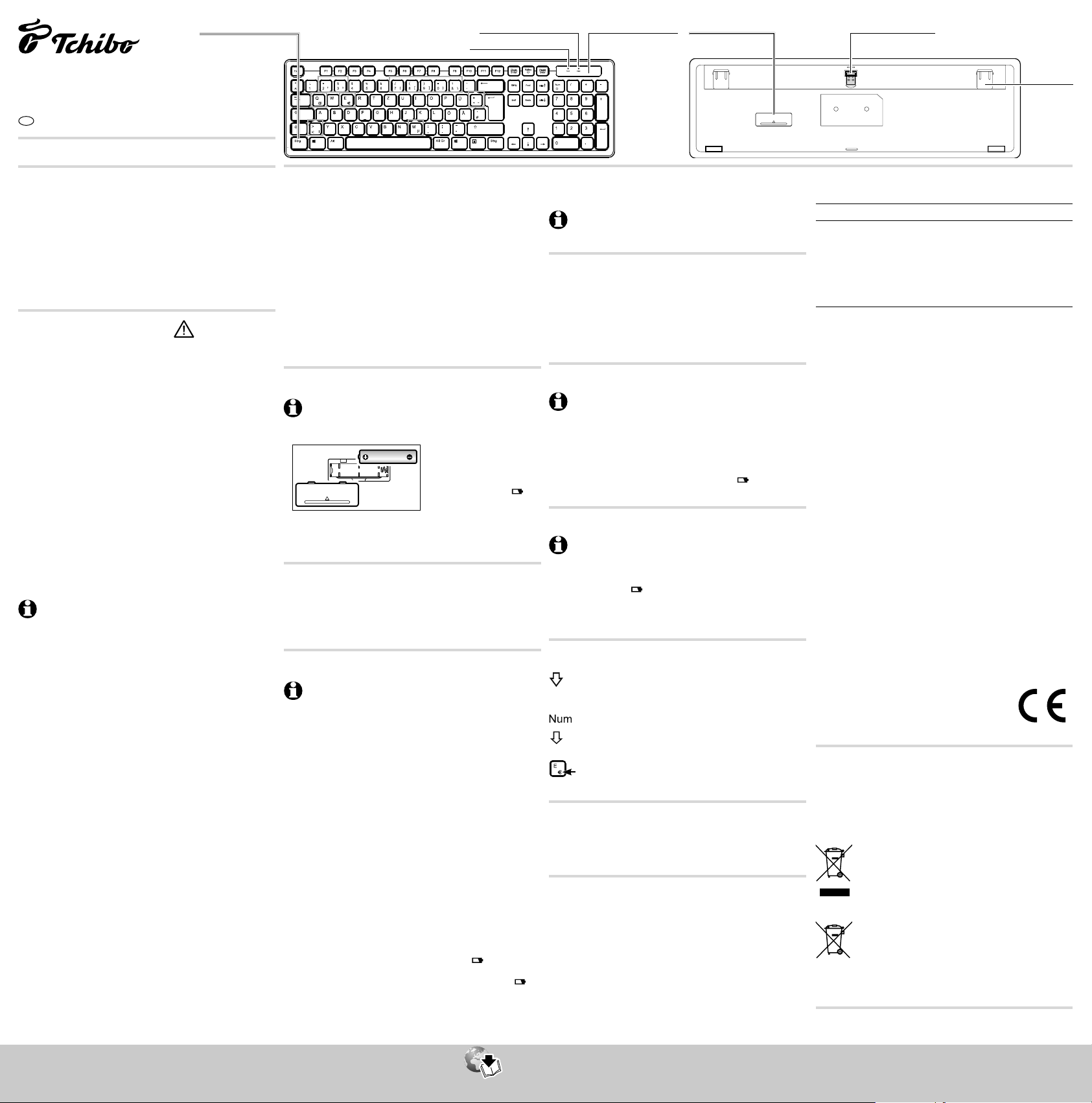
functions are framed in grey in the overview above.
Cleaning and storage
M Clean the keyboard as required with a soft, slightly damp cloth.
M If the keyboard is not going to be used for a longer period, it should be
stored in a dry location at normal room temperature.
Declaration of conformity
Tchibo GmbH hereby declares that this product is in compliance with the essen-
tial requirements and other relevant provisions of Directive 2014/53/EU and
2011/65/EU (RoHS) at the time of its being placed on the market. The complete
text of the EU Declaration of Conformity can be found by entering the product
number (652 091) at www.tchibo.de/anleitungen.
Problems / solutions
Not working. • Has the battery been inserted?
No connection to
the selected
device.
• Is the battery flat?
• Is the Bluetooth
®
function of the device to be
connected actually activated? Refer to that device's
instructions for use.
• Position the devices closer to each other.
• Have you selected the correct keyboard layout on
the iPhone or iPad?
Technical specifications
Model: 652 091
Battery: 1x LR3 (AAA)/1.5 V (ZnMnO2)
Radio connection: Bluetooth
®
5.2 or
2.4 GHz via nano USB dongle
Operating systems:
Wireless 2.4 GHz connection:
Desktop PCs and laptops: Windows 7 – 11 or
MAC OS equipped with a USB-A socket
for the dongle
Bluetooth
®
connection:
Desktop PCs and laptops: Windows 8 – 11 or
MAC OS 10.9.5 or higher, or
LMP6.X = BT4.0 or higher
iPhones: IOS 13.0 or higher
other smartphones
and tablets: devices equipped with Android 4.0 or higher
and that support BT4.0 or higher
Bluetooth
®
frequency band: 2402 – 2480 MHz
Bluetooth
®
transmit power: < 10 dBm
2.4 GHz frequency band: 2402 – 2480 MHz
2.4 GHz transmit power: < 10 dBm
Ambient temperature: +10 to +40 °C
Made exclusively for: Tchibo GmbH, Überseering 18,
22297 Hamburg, Germany
In the course of product improvement, we reserve the right to make technical
and optical modifications to the product.
Disposal
The product, its packaging and the battery provided have been manufactured
from valuable materials that can be recycled. Recycling reduces the amount of
refuse and preserves the environment.
Dispose of the packaging at a recycling point that sorts materials by type.
Make use of the local facilities provided for collecting paper, cardboard and
lightweight packaging.
Devices marked with this symbol must not be disposed of along
with normal household waste!
You are legally obliged to dispose of old devices separately from
household waste. Electronic devices contain hazardous substances
and, if stored or disposed of improperly, can cause harm to health
and the environment. Information about collection points where old devices
can be disposed of free of charge is available from your local authorities.
Single-use and rechargeable batteries must not be disposed of
along with normal household refuse! You are legally obliged to
dispose of all flat single-use and rechargeable batteries at a local
authority collection point or to return them to a battery retailer.
Product number: 652 091
OPEN
USB dongle
Fold-out foot
Battery compartmentCaps indicator light
Num indicator light
Battery indicator light
Left Ctrl key
Made exclusively for:
Tchibo GmbH, Überseering 18,
22297 Hamburg, Germany






Join the conversation about this product
Here you can share what you think about the Tchibo 652 091 Keyboard. If you have a question, first carefully read the manual. Requesting a manual can be done by using our contact form.