Manual Targus THZ500PT VersaType Keyboard

Need a manual for your Targus THZ500PT VersaType Keyboard? Below you can view and download the PDF manual for free in English. This product currently has 2 frequently asked questions, 0 comments and has 0 votes. If this is not the manual you want, please contact us.

Is your product defective and the manual offers no solution? Go to a Repair Café for free repair services.

Manual

Loading…
2
Targus Pivoting Bluetooth
®
Keyboard Case for iPad
®
Air 2
1
Targus Pivoting Bluetooth
®
Keyboard Case for iPad
®
Air 2
Introduction
Thank you for purchasing the Targus Pivoting Hard Shell Keyboard case
for iPad
®
Air 2. The keyboard uses Bluetooth
®
technology which provides a
seamless connection up to 33 feet (10m) away and features a pivoting screen
which allows you to adapt the case to a variety of functions.
Contents
• Pivoting Hard Shell Keyboard Case
• USB Charging Cable
System Requirements
Hardware
• iPad
®
Air 2
Establishing a Connection with iPad
®
Air 2
1. Switch on the Bluetooth keyboard. (Turn on the power by sliding the
ON/OFF switch to the right). The blue LED will remain lit for 3 minutes.
2. While the blue LED is lit, go to your iPad
®
’s Bluetooth
®
settings and select
“Targus Pivoting Keyboard”.
3. Enter the password that’s provided and press “enter”.
4. The Bluetooth
®
keyboard is now connected to your iPad
®
.
5. If the pairing process takes longer than 3 minutes and the blue LED turns
off, reset the power switch (“OFF” and “ON”) and follow steps 2 through 4.
Or manually press “Fn” + “Caps Lock”, wait for the blue LED to light and
then follow steps 2 through 4.
Reconnecting the iPad
®
Air 2
If another Bluetooth
®
device has recently been connected to your iPad
®
,
follow steps 1 and 2 to reconnect. The blue LED will remain lit while the
keyboard is reconnecting.
Charging the Bluetooth
®
Keyboard
The Bluetooth
®
Keyboard requires charging when the low battery red LED
beginsashing.
1. Connect the keyboard to a USB power source with the USB charging
cable.
2. The charging red LED will remain lit until the keyboard is fully charged.
3. Under normal conditions, the fully charged keyboard provides 130 hours
of battery life.
Bluetooth
®
Connection and Battery Charging
Indicators
Pairing-blueLEDashesuntilkeyboardispaired
Charging - red LED remains lit while charging
Low Battery - redLEDashesuntilchargingbegins
Troubleshooting Guide
• EnsuretheBluetooth
®
keyboard is fully charged.
• IftheredLEDstartsblinkingwhilethekeyboardisinuse,itisindicating
that the battery is low and needs to be charged.
• OnyouriPad
®
, click on the Bluetooth
®
icon within the system preferences
pane. Refer to the Apple Bluetooth
®
helpletoensureBluetooth
®
is
working properly.
• MakesuretherearenootherBluetooth
®
devices in close proximity.
• IfyouriPad
®
is connected to other Bluetooth
®
devices, you may need to
disconnect some devices before you can connect to the keyboard.
• Ifthekeyboardisstillnotrecognized,makesurethecorrectversionof
software is installed. Verify the iOS version for compatibility.
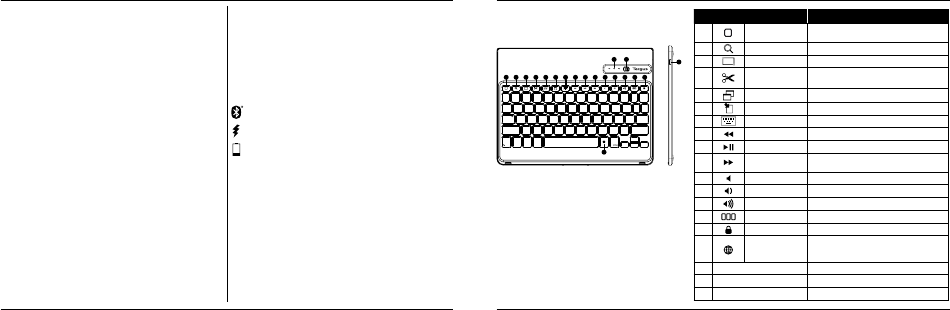
Hot Key functions
Key
Functions
1
Home Screen
Go back to the Home screen. Hold down to activate
Siri.
2
Search Search iPad
®
Air 2
3
Select all Select all
4
Cut
Removes the current selection and places it on the
Clipboard.
5
Copy Copy selected item(s) to the Clipboard.
6
Pae Pae copied item(s).
7
On Screen Keyboard Show and hide the keyboard on your display.
8
Previous Track Rewind or go to previous song, movie, or slideshow.
9
Play/Pause Play or pause songs, movies, or slideshows.
10
Next Track
Fa Forward or go to next song, movie, or
slideshow.
11
Mute Mute the sound on the iPad.
12
Volume Down Decrease the volume on the iPad.
13
Volume Up Increase the volume on the iPad.
14
Apps Display Display recently opened apps.
15
Lock Lock your display.
16
Language Shift
Select a display language. This feature is available only
when you have selected 2 languages or more in your
devices language settings.
17
Blue LED Indicators Indicates pairing / charging / low battery atus.
18
Power Switch Switch the Bluetooth keyboard between ON/OFF.
19
Micro USB Charger Port Connect to USB charging source.
1 2 3 4 5 6 7 8 9 10 11 12 13 14 15
16
17 18
19
Download manual in English (PDF, 1.15 MB)
(Consider the environment and only print this manual if it is really necessary)

Loading…

Rating

Let us know what you think about the Targus THZ500PT VersaType Keyboard by leaving a product rating. Want to share your experiences with this product or ask a question? Please leave a comment at the bottom of the page.
Are you satisfied with the Targus THZ500PT VersaType Keyboard?
Yes No
Be the first to rate this product
0 votes

Join the conversation about this product

Here you can share what you think about the Targus THZ500PT VersaType Keyboard. If you have a question, first carefully read the manual. Requesting a manual can be done by using our contact form.

More about this manual

We understand that it’s nice to have a paper manual for your Targus THZ500PT VersaType Keyboard. You can always download the manual from our website and print it yourself. If you would like to have an original manual, we recommend you contact Targus. They might be able to provide an original manual. Are you looking for the manual of your Targus THZ500PT VersaType Keyboard in a different language? Choose your preferred language on our homepage and search for the model number to see if we have it available.

Specifications

Brand Targus
Model THZ500PT VersaType
Category Keyboards
File type PDF
File size 1.15 MB

All manuals for Targus Keyboards
More manuals of Keyboards

Frequently Asked Questions about Targus THZ500PT VersaType Keyboard

Our support team searches for useful product information and answers to frequently asked questions. If you find an inaccuracy in our frequently asked questions, please let us know by using our contact form.

The letters on the keyboard are not in the places that I am used to, why is that? Verified

Most keyboards use a QWERTY layout, standing for the first six letters on the keyboard. However, there are different keyboard layouts, matching the specific needs of a certain language. It is also possible that the keyboard keys have been swapped. Especially with older keyboards this is easy to do.

This was helpful (1365) Read more

What is the best way to clean my keyboard Verified

Never insert objects between the edges of the keys, as this will mainly push dirt in and damage the keyboard. It is best to clean the keyboard with compressed air while keeping the keyboard upside down. The top of the keys can be cleaned with a slightly damp cloth.

This was helpful (204) Read more
Manual Targus THZ500PT VersaType Keyboard

Related products

Related categories

×
Download