
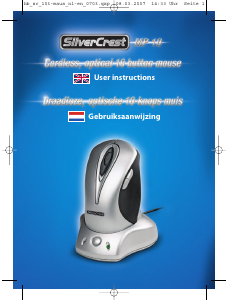
Manual SilverCrest RF-1002 Mouse
Need a manual for your SilverCrest RF-1002 Mouse? Below you can view and download the PDF manual for free in English. This product currently has 5 frequently asked questions, 0 comments and has 0 votes. If this is not the manual you want, please contact us.
Is your product defective and the manual offers no solution? Go to a Repair Café for free repair services.
Manual
Loading…
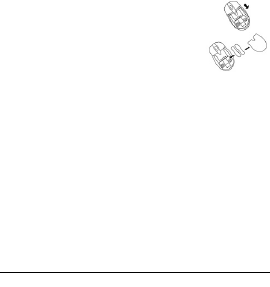

Loading…
Rating
Let us know what you think about the SilverCrest RF-1002 Mouse by leaving a product rating. Want to share your experiences with this product or ask a question? Please leave a comment at the bottom of the page.More about this manual
We understand that it’s nice to have a paper manual for your SilverCrest RF-1002 Mouse. You can always download the manual from our website and print it yourself. If you would like to have an original manual, we recommend you contact SilverCrest. They might be able to provide an original manual. Are you looking for the manual of your SilverCrest RF-1002 Mouse in a different language? Choose your preferred language on our homepage and search for the model number to see if we have it available.
Specifications
| Brand | SilverCrest |
| Model | RF-1002 |
| Category | Mice |
| File type | |
| File size | 0.65 MB |
All manuals for SilverCrest Mice
More manuals of Mice
Frequently Asked Questions about SilverCrest RF-1002 Mouse
Our support team searches for useful product information and answers to frequently asked questions. If you find an inaccuracy in our frequently asked questions, please let us know by using our contact form.
What is the model number of my SilverCrest product? Verified
Although some SilverCrest products have an alternative model number, all of them have an IAN number with which the product can be identified.
This was helpful (3787) Read moreWhat is the best surface to use a mouse on? Verified
A traditional trackball mouse will work best on a padded surface such as a mouse pad. An optical mouse will work on almost any flat surface, with the exception of transparent or reflective surfaces. Surfaces with a printed repetitive pattern might interfere with the functioning of the mouse.
This was helpful (129) Read moreWhat is an ergonomic mouse? Verified
Daily use of a regular mouse over long periods of time can result in pain in the arm and wrist. This is also called RSI (Repetitive Strain Injury). An ergonomic mouse is shaped to reduce these issues or prevent them.
This was helpful (61) Read moreWhat is the difference between a normal mouse and a gaming mouse? Verified
Every gaming mouse can be used asa regular mouse. However, a gaming mouse often has additional buttons in specific places to make gaming easier. There even are gaming mice that have buttons that are meant to better play a specific game.
This was helpful (59) Read moreWhat size mouse is best for my hand? Verified
This partially depends on personal preference and necessity, but in general a mouse should be around 60% of the size of your hand. This is the most comfortable and most ergononical.
This was helpful (55) Read more
Join the conversation about this product
Here you can share what you think about the SilverCrest RF-1002 Mouse. If you have a question, first carefully read the manual. Requesting a manual can be done by using our contact form.