
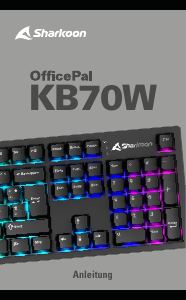
Manual Sharkoon OfficePal KB70W Silent Keyboard
Need a manual for your Sharkoon OfficePal KB70W Silent Keyboard? Below you can view and download the PDF manual for free in English. This product currently has 2 frequently asked questions, 0 comments and has 0 votes. If this is not the manual you want, please contact us.
Is your product defective and the manual offers no solution? Go to a Repair Café for free repair services.
Manual
Loading…


Loading…
Rating
Let us know what you think about the Sharkoon OfficePal KB70W Silent Keyboard by leaving a product rating. Want to share your experiences with this product or ask a question? Please leave a comment at the bottom of the page.More about this manual
We understand that it’s nice to have a paper manual for your Sharkoon OfficePal KB70W Silent Keyboard. You can always download the manual from our website and print it yourself. If you would like to have an original manual, we recommend you contact Sharkoon. They might be able to provide an original manual. Are you looking for the manual of your Sharkoon OfficePal KB70W Silent Keyboard in a different language? Choose your preferred language on our homepage and search for the model number to see if we have it available.
Specifications
| Brand | Sharkoon |
| Model | OfficePal KB70W Silent |
| Category | Keyboards |
| File type | |
| File size | 10.69 MB |
All manuals for Sharkoon Keyboards
More manuals of Keyboards
Frequently Asked Questions about Sharkoon OfficePal KB70W Silent Keyboard
Our support team searches for useful product information and answers to frequently asked questions. If you find an inaccuracy in our frequently asked questions, please let us know by using our contact form.
The letters on the keyboard are not in the places that I am used to, why is that? Verified
Most keyboards use a QWERTY layout, standing for the first six letters on the keyboard. However, there are different keyboard layouts, matching the specific needs of a certain language. It is also possible that the keyboard keys have been swapped. Especially with older keyboards this is easy to do.
This was helpful (1359) Read moreWhat is the best way to clean my keyboard Verified
Never insert objects between the edges of the keys, as this will mainly push dirt in and damage the keyboard. It is best to clean the keyboard with compressed air while keeping the keyboard upside down. The top of the keys can be cleaned with a slightly damp cloth.
This was helpful (202) Read more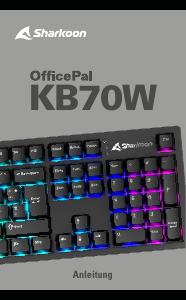
Join the conversation about this product
Here you can share what you think about the Sharkoon OfficePal KB70W Silent Keyboard. If you have a question, first carefully read the manual. Requesting a manual can be done by using our contact form.