
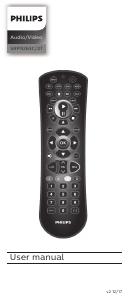
Manual Philips SRU4105 Remote Control
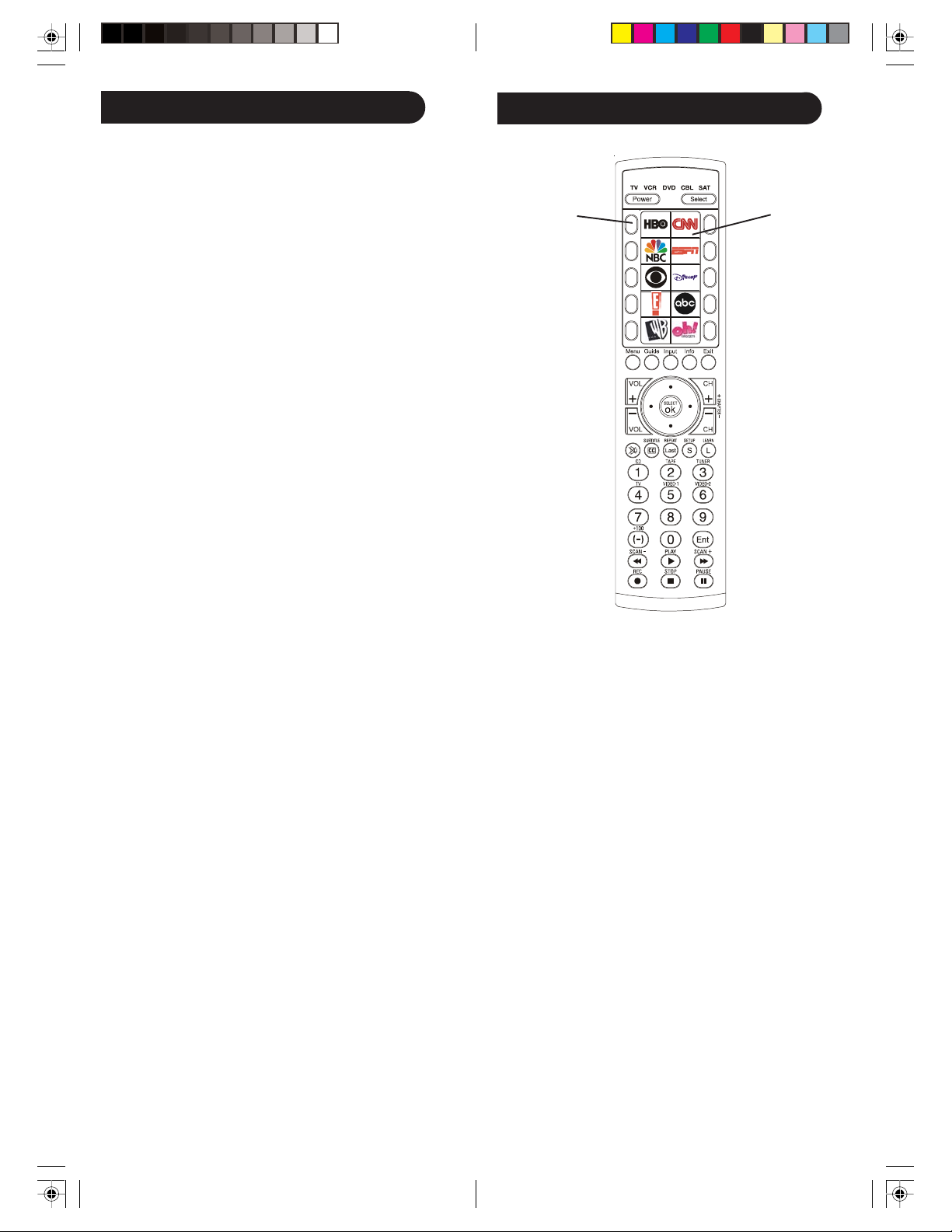
Need a manual for your Philips SRU4105 Remote Control? Below you can view and download the PDF manual for free in English. This product currently has 6 frequently asked questions, 0 comments and has 0 votes. If this is not the manual you want, please contact us.
Is your product defective and the manual offers no solution? Go to a Repair Café for free repair services.
Manual
Loading…

Loading…
Rating
Let us know what you think about the Philips SRU4105 Remote Control by leaving a product rating. Want to share your experiences with this product or ask a question? Please leave a comment at the bottom of the page.More about this manual
We understand that it’s nice to have a paper manual for your Philips SRU4105 Remote Control. You can always download the manual from our website and print it yourself. If you would like to have an original manual, we recommend you contact Philips. They might be able to provide an original manual. Are you looking for the manual of your Philips SRU4105 Remote Control in a different language? Choose your preferred language on our homepage and search for the model number to see if we have it available.
Specifications
| Brand | Philips |
| Model | SRU4105 |
| Category | Remote Controls |
| File type | |
| File size | 0.63 MB |
All manuals for Philips Remote Controls
More manuals of Remote Controls
Frequently Asked Questions about Philips SRU4105 Remote Control
Our support team searches for useful product information and answers to frequently asked questions. If you find an inaccuracy in our frequently asked questions, please let us know by using our contact form.
How do I connect a universal remote control to my television? Verified
To connect your universal remote control, you need the model number and brand name of both the remote control and the television. There is a list of codes for brands and model numbers in the manual of the remote control .
This was helpful (7994) Read moreWhy are there letters next to the numbers on the remote control? Verified
Certain television settings may require you to enter letters. There are usually three letters or other characters on a button. When letter input is required, you can press that button once for the first letter, press twice for the second letter and press 3 times for the third letter. This way, text can be written with a minimum number of buttons.
This was helpful (682) Read moreWill my remote control also work on other television models of the same brand? Verified
Often a remote control of a television will also work on similar models of the same brand. However, it is unusual that it will work on all models of that brand. Universal remote controls are more suited to do this.
This was helpful (524) Read moreWhat is the average range of an infrared remote control? Verified
An average infrared remote control had a range of around 3 to 6 meters. Also, the further away the device is, the harder it will be to aim.
This was helpful (412) Read moreA battery in my device is oxidized, can I still safely use it? Verified
Ja, the device can still be safely used. Firstly, remove the oxidizd battery. Never use bare hands to do this. Then clean the battery compartment with a cotton swab dipped in vinegar or lemon juice. Let it dry and insert new batteries.
This was helpful (372) Read moreCan I leave a replacable battery in a device for a long time? Verified
Replacable batteries can remain in a device for a long time if the device is in use. When a device is being stored for a long time it is advisable to remove the batteries to prevent oxidation.
This was helpful (271) Read more
Join the conversation about this product
Here you can share what you think about the Philips SRU4105 Remote Control. If you have a question, first carefully read the manual. Requesting a manual can be done by using our contact form.