Manual Panasonic TC-P50V10 Viera Plasma Television

Need a manual for your Panasonic TC-P50V10 Viera Plasma Television? Below you can view and download the PDF manual for free in English. This product currently has 12 frequently asked questions, 0 comments and has 0 votes. If this is not the manual you want, please contact us.

Is your product defective and the manual offers no solution? Go to a Repair Café for free repair services.

Manual

Loading…
34 35
Advanced
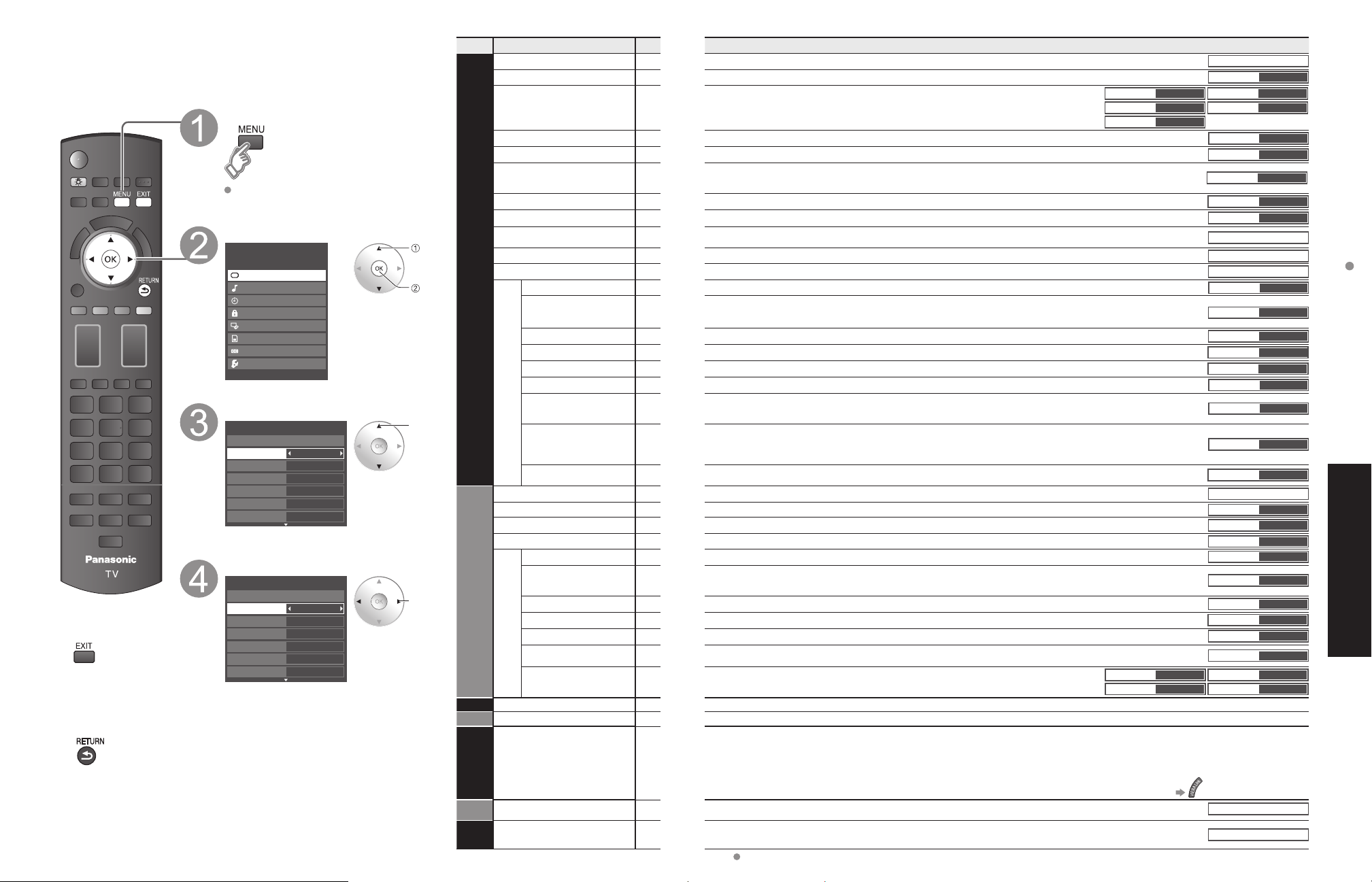
How to Use Menu Functions
(picture, sound quality, etc.)
Menu
Item
Adjustments/Configurations (alternatives)
Picture
Reset to defaults
Resets all picture adjustments to factory default settings except for “Advanced picture”.
Reset to defaults
Picture mode
Basic picture mode (Vivid/Standard/Studio ref/THX/Game/Custom) (p. 59)
Picture mode
Vivid
Contrast, Brightness,
Color, Tint, Sharpness
Adjusts color, brightness, etc. for each picture mode to suit your taste
Display range
Contrast/Brightness/Color/Sharpness: 0 - 100
Tint: -50 - +50
Contrast
+20
Brightness
0
Color
0
Tint
0
Sharpness
0
Color temp.
Selects a choice of Cool(blue), Normal, or Warm(red) color. (Cool 2/Cool 1/Normal/Warm 1/Warm 2)
Color temp.
Normal
Color mgmt.
On: Enhances green and blue color reproduction, especially outdoor scenes. (On/Off)
Color mgmt.
On
Digital cinema color
Auto
: Automatically adjusts the color gamut of the input image to the color gamut of the panel.
On: Shows an expanded display of the input image color gamut.
Off: Displays the color gamut of the input image as is. (Auto/On/Off)
Digital cinema color
Auto
C.A.T.S.
Adjusts the brightness and gradation according to the ambient lighting condition. (Off/On)
C.A.T.S.
Off
Video NR
Reduces noise, commonly called snow. Leave it off when receiving a strong signal. (Off/Weak/Medium/Strong)
Video NR
Off
Pro setting
Adjust the “Picture mode” setting in more detail. (p. 59)
(This setting can be adjusted only when “Custom” or ”Photo” is selected.)
Pro setting
Zoom adjustments
Adjusts vertical alignment and size when aspect setting is “ZOOM” (p. 57)
Zoom adjustments
PC adjustments
Sets PC display (p. 32)
PC adjustments
Advanced picture
3D Y/C filter
Minimizes noise and cross-color in the picture. (On/Off)
3D Y/C filter
On
Color matrix
Selects image resolution of component-connected devices (HD/SD)
SD: Standard Definition HD: High Definition
Only 480p signal accepted; regular TV (NTSC) is not available.
Color matrix
SD
Block NR
Reduces noise of specific digital signals of DVD, STB, etc. (On/Off)
Block NR
Off
Mosquito NR
Reduces HDTV flicker noise in the contoured sections of an image (Off/On)
Mosquito NR
Off
Black level
Selects Dark or Light. Valid only for external input signals. (Dark/Light)
Black level
Light
3:2 pulldown
Adjust the picture recorded in 24 fps for optimum quality. (On/Off)
3:2 pulldown
Off
24p Direct in
96Hz/48Hz: Achieves more cinematic playback by reproducing the movie contents at 2 or 4 times the
speed of 24 frames per second. (96Hz/60Hz/48Hz)
If flicker is seen using 48Hz, please use 60Hz or 96Hz.
24p Direct in
60 Hz
HD size
Selects between 95 % (Size 1) or 100 % (Size 2) for the scanning area with High-definition signal. (Size 1/ Size 2)
Select “Size 1” if noise is generated on the edges of the screen.
Size 1: Selected item for “HD size”. Scanning 95%
Size 2: Selected item for “HD size”. Scanning 100%
HD size
Size1
H size
Adjust horizontal display range to reduce noise of both side edges of an image. (Size 1/Size 2)
Size 2: Adjust image size according to aspect mode for reducing noise. (p. 60)
H size
Size 1
Audio
Reset to defaults
Resets Bass, Treble and Balance adjustments to factory default settings.
Reset to defaults
Bass
Increases or decreases the bass response.
Bass
0
Treble
Increases or decreases the treble response.
Treble
0
Balance
Emphasizes the left / right speaker volume.
Balance
0
Advanced audio
A.I. sound
Equalizes overall volume levels across all channels and external inputs. (On/Off)
A.I. sound
On
BBE ViVA
BBE ViVA HD3D (High-Definition 3D) Sound provides musically accurate natural 3D image with Hi-Fi sound. The clarity of the sound
is improved by BBE while the width, depth and height of sound image are expanded by BBE’s proprietary 3D sound process. BBE
ViVA HD3D Sound is compatible with all TV programs including news, music, dramas, movies, sports and electronic games. (On/Off)
BBE ViVA
On
BBE
BBE High Definition Sound restores clarity and presence for better speech intelligibility and musical realism. (On/Off)
BBE
On
Surround
Enhances audio response when listening to stereo. (On/Off)
Surround
Off
Volume leveler
Minimizes volume disparity after switching to external inputs.
Volume leveler
0
TV speakers
Switch to “Off” when using external speakers (On/Off)
“A.I. sound”, “BBE ViVA”, “BBE”, “Surround” and “Volume leveler” do not work if “Off” is selected.
TV speakers
On
HDMI 1 in, HDMI 2 in,
HDMI 3 in, HDMI 4 in
The default setting is “Digital” for HDMI connection. (Digital input signal)
Select audio input terminal when DVI cable is connected. (Analog audio input
signal) (Digital/Component 1/Component 2/Video 1/Video 2)
HDMI1 in
Digital
HDMI2 in
Digital
HDMI3 in
Digital
HDMI4 in
Digital
Timer
Sleep, Timer 1-5
The TV can automatically turn On/Off at the designated date and time (p. 54)
Lock
Locks the channels and programs (p. 48)
VIERA Link
Record now
Stop recording
VIERA Link control
Speaker output
[Record now/Stop recording]
Records programs on the recorder immediately with the TV’s remote control (p. 42-43).
[VIERA Link control]
Selects equipment to access and operate. (Recorder/Home theater/Player/Camcorder/LUMIX/Network Camera) (p. 42-43)
[Speaker output]
Selects an audio output. (Home theater/TV) (p. 42-43)
VIERA Link menu is accessible directly by pressing the VIERA Link button on the remote control. (p. 42)
SD card
SD card
[Photo viewer] To view the still picture. (p. 24)
[Movie player] To view moving pictures recorded in MPEG 2 or AVCHD format. (p. 22)
SD card
Closed
caption
Closed caption
Displays subtitles (Closed caption) (p. 52)
Closed caption
In AV mode, the Audio menu and Setup menu give fewer options.
Menu list
Various menus allow you to make settings for the picture, sound, and
other functions so that you can enjoy watching TV best suited for you.
Press to exit from
a menu screen
Press to return
to the previous
screen
Display menu
Displays the functions that can be set
(varies depending on the input signal)
Select the menu
Menu
VIERA Link
Picture
Audio
Timer
Lock
SD card
Closed caption
Setup
select
next
Select the item
0
0
0
0
0
Vivid
Picture 1/2
Brightness
Color
Tint
Sharpness
Picture mode
Contrast
Reset to defaults
(example: Picture menu)
select
Adjust or select
0
0
0
0
0
Vivid
Picture 1/2
Brightness
Color
Tint
Sharpness
Picture mode
Contrast
Reset to defaults
(example: Picture menu)
adjust
or
select
How to Use Menu Functions
Download manual in English (PDF, 3.54 MB)
(Consider the environment and only print this manual if it is really necessary)

Loading…

Rating

Let us know what you think about the Panasonic TC-P50V10 Viera Plasma Television by leaving a product rating. Want to share your experiences with this product or ask a question? Please leave a comment at the bottom of the page.
Are you satisfied with the Panasonic TC-P50V10 Viera Plasma Television?
Yes No
Be the first to rate this product
0 votes

Join the conversation about this product

Here you can share what you think about the Panasonic TC-P50V10 Viera Plasma Television. If you have a question, first carefully read the manual. Requesting a manual can be done by using our contact form.

More about this manual

We understand that it’s nice to have a paper manual for your Panasonic TC-P50V10 Viera Plasma Television. You can always download the manual from our website and print it yourself. If you would like to have an original manual, we recommend you contact Panasonic. They might be able to provide an original manual. Are you looking for the manual of your Panasonic TC-P50V10 Viera Plasma Television in a different language? Choose your preferred language on our homepage and search for the model number to see if we have it available.

Specifications

Brand Panasonic
Model TC-P50V10 Viera
Category Plasma Televisions
File type PDF
File size 3.54 MB

All manuals for Panasonic Plasma Televisions
More manuals of Plasma Televisions

Frequently Asked Questions about Panasonic TC-P50V10 Viera Plasma Television

Our support team searches for useful product information and answers to frequently asked questions. If you find an inaccuracy in our frequently asked questions, please let us know by using our contact form.

I want to connect a speaker to my plasma television with HDMI, which port should I use? Verified

You need to use the HDMI-ARC port, which is specifically made for connecting audio equipment.

This was helpful (166) Read more

How do I connect a universal remote control to my television? Verified

To connect your universal remote control, you need the model number and brand name of both the remote control and the television. There is a list of codes for brands and model numbers in the manual of the remote control .

This was helpful (113) Read more

How can I prevent my Plasma television from burning in? Verified

The burning in of a Plasma television happens when the same image stays on the screen for a longer time. To prevent burning in, never keep the same image on the screen for longer than 2 minutes.

This was helpful (63) Read more

How do I measure the inches of my Plasma television? Verified

Measuring the inches on your Plasma television is done by measuring the diagonal distance between for example the upper left corner and the lower right corner of the screen (not the edge). One inch equals 2,54 centimeter, so when you measure 99 centimeter, this means your Plasma television is 39 inches.

This was helpful (48) Read more

Does it matter to which HDMI port I connect my device? Verified

In general you can connect a device like a blu-ray player or game console to any HDMI port. The device can then be used by selecting the corresponding HDMI channel on your television.

This was helpful (47) Read more

Can I repair a dead pixel myself? Verified

There is a difference between a dead pixel and a stuck pixel. A stuck pixel is still coloured and might be fixed by applying light pressure exactly onto the pixel until it restores itself. A dead pixel is always black or white and can't be repaired by yourself.

This was helpful (27) Read more

What does HDMI stand for? Verified

HDMI stands for High-Definition Multimedia Interface. HDMI is a connection to send high quality video and audio from one device to another.

This was helpful (22) Read more

Will my remote control also work on other television models of the same brand? Verified

Often a remote control of a television will also work on similar models of the same brand. However, it is unusual that it will work on all models of that brand. Universal remote controls are more suited to do this.

This was helpful (16) Read more

How can I properly clean my plasma television? Verified

Turn off the television and wipe dust and dirt off the screen with a microfiber cloth. Do not use paper, this can cause scratches. Do not apply too much pressure or you might cause damage to pixels. Use a specialized detergent or make one by mixing 1 part vinegar with 1 part water. Moisten the cloth with the detergent and clean the screen. Make sure the cloth is not too wet. Remove stains by making rotating movements. Dry the screen with a second microfiber cloth to prevent stripes.

This was helpful (15) Read more

What is the contrast ratio? Verified

The contrast ratio tells how far the whitest white is from the blackest black. A contrast ratio of for example 400:1 means that the blackest black on screen is 400 times darker than the whitest white. A high contrast ratio contributes to the sharpness of the image.

This was helpful (15) Read more

What is the optimal viewing distance for my television? Verified

This partially depends on personal preference, but as a rule of thumb the optimal viewing distance is about 3x the diagonal screen size of the television. For a television of 60 inch (152cm) the optimal viewing distance would be 180 inch or about 4.5 meter.

This was helpful (11) Read more

Why are there letters next to the numbers on the remote control? Verified

Certain television settings may require you to enter letters. There are usually three letters or other characters on a button. When letter input is required, you can press that button once for the first letter, press twice for the second letter and press 3 times for the third letter. This way, text can be written with a minimum number of buttons.

This was helpful (11) Read more
Manual Panasonic TC-P50V10 Viera Plasma Television

Related products

Related categories

×
Download