1
ON
2
Installation
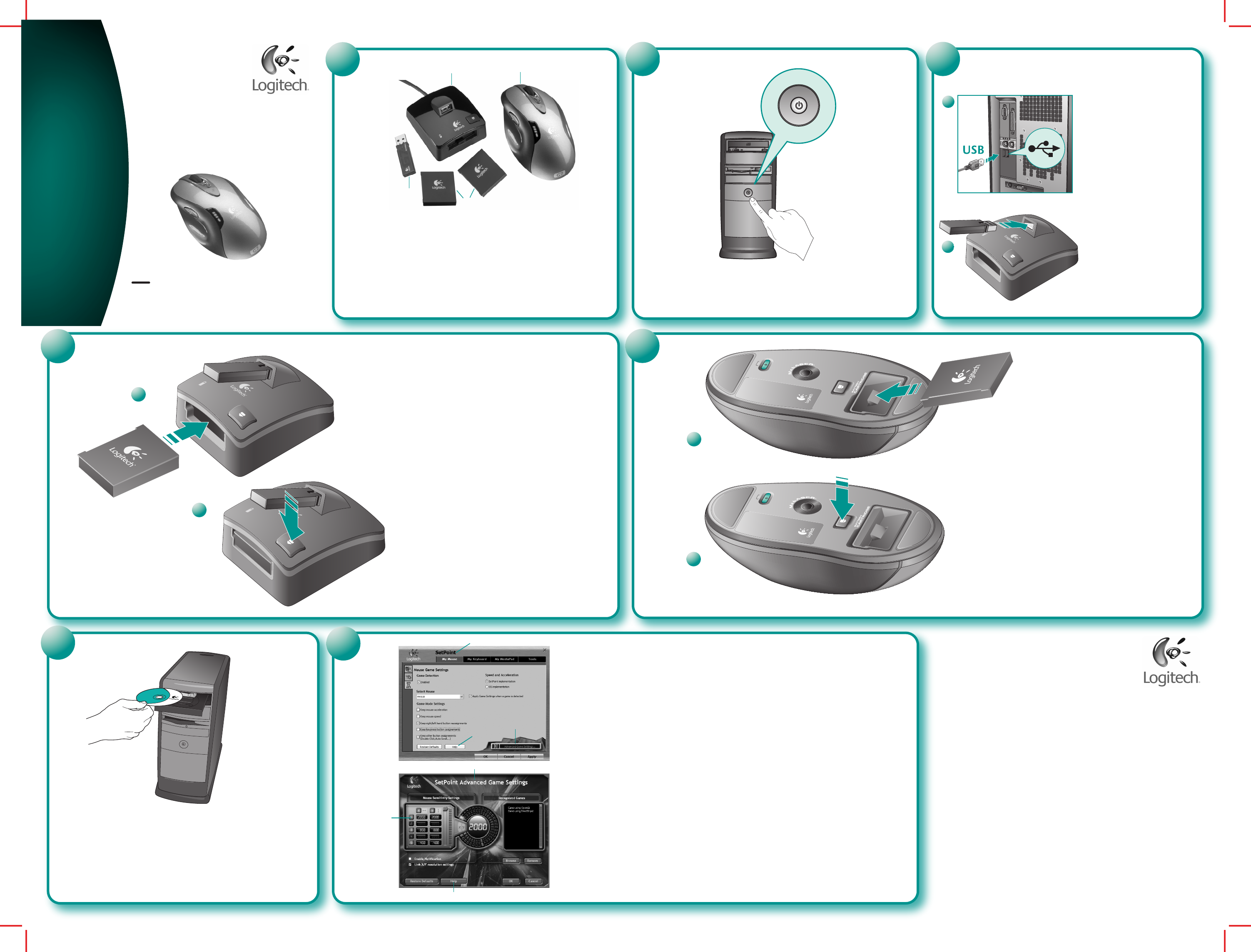
English Turn ON computer.
Español Encienda el ordenador.
Français Mettez l’ordinateur sous tension.
Português Ligue o computador.
4
3
www.logitech.com
7
Logitech
®
G7
TM
Cordless Laser Mouse
Souris laser sans fil
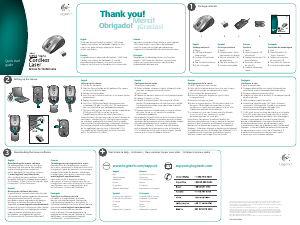
English 1. Cordless laser mouse. 2. Charging station. 3. Two Lithium-ion rechargeable batteries.
4. Wireless mini-receiver.
Español
1. Ratón láser inalámbrico. 2. Estación de carga. 3. Dos pilas de ion litio recargables.
4. Minirreceptor inalámbrico.
Français 1. Souris laser sans fil. 2. Base de rechargement. 3. Deux batteries rechargeables au lithium-ion.
4. Minirécepteur sans fil.
Português 1. Rato laser sem fios. 2. Estação de carregamento. 3. Duas baterias de iões de lítio recarregáveis.
4. Mini-receptor sem fios.
1
2
3
4
1
2
English 1. Plug charging station’s USB
cable into computer’s USB port. Place
charging station away from electrical
devices, and avoid metallic surfaces.
2. Plug wireless mini-receiver into charging
station.
Español
1. Conecte el cable USB
de la estación de carga al puerto USB
del ordenador. No coloque la estación
de carga cerca de dispositivos eléctricos
o sobre superficies metálicas. 2. Conecte
el minirreceptor inalámbrico a la estación
de carga.
Français 1. Branchez le câble USB
de la base de chargement sur le port USB
de l'ordinateur. Eloignez la base
de chargement des autres appareils
électriques et évitez les surfaces
métalliques. 2. Branchez le minirécepteur
sans fil sur la base de chargement.
Português 1. Ligue o cabo USB
da estação de carregamento à porta USB
do computador. Coloque a estação
de carregamento longe de aparelhos
eléctricos e evite superfícies metálicas.
2. Ligue o mini-receptor sem fios à estação
de carregamento.
1
2
English 1. Insert battery into charging station. Charging time in Normal
mode is 10 hours, and in Boost mode, 2 hours. Boost mode works best
when charging station is connected to computer or powered USB hub.
(See Section i4 on back.) 2. To remove battery press the Battery Eject button.
Español
1. Coloque la pila en la estación de carga. Una carga tarda
10 horas en modo normal y 2 horas en modo intensivo. El modo intensivo
funciona mejor con la estación de carga conectada al ordenador
o a un concentrador USB con alimentación propia. Consulte la sección
i4
en el reverso. 2. Para sacar la pila, pulse el botón de extracción de pila.
Français 1. Insérez la batterie dans la base de chargement. La durée
de chargement est de 10 heures en mode normal et de 2 heures en mode
d'amplification. Le mode d'amplification fonctionne plus efficacement lorsque
la base de chargement est connectée à l'ordinateur ou alimentée par hub
USB (voir la section
i4 au dos). 2. Pour retirer la batterie, appuyez sur le bouton
d'éjection.
Português 1. Introduza a bateria na estação de carregamento.
O tempo de carregamento no Modo normal é 10 horas e no Modo de reforço
é 2 horas. O Modo de reforço funciona melhor se ligar a estação de
carregamento ao computador ou ao concentrador USB alimentado. (Consulte
a Secção i4 no verso.) 2. Para retirar a bateria, prima o botão Ejectar bateria.
5
1
2
English 1. Insert charged battery into mouse. 2. To remove
spent battery press the Battery Eject button on bottom of mouse.
Español 1. Coloque la pila cargada en el ratón. 2. Para sacar
la pila gastada, pulse el botón de extracción de pila, en la parte inferior
del ratón.
Français 1. Insérez la batterie chargée dans la souris. 2. Pour retirer
la batterie usagée, appuyez sur le bouton d'éjection situé sous la souris.
Português 1. Introduza a bateria carregada no rato. 2. Para
retirar a bateria gasta, prima o botão Ejectar bateria na parte inferior
do rato.
6
English To enjoy all the features of the mouse,
you must install the software.
Español Para disponer de todas las funciones
del ratón, debe instalar el software.
Français Pour profiter pleinement de toutes
les fonctions de la souris, vous devez installer le
logiciel.
Português Para utilizar todas as funções do
rato, deve instalar o software.
© 2005 Logitech. All rights reserved. Logitech, the Logitech logo, and other Logitech marks are owned
by Logitech and may be registered. All other trademarks are the property of their respective owners.
Logitech assumes no responsibility for any errors that may appear in this manual. Information contained
herein is subject to change without notice.
© 2005 Logitech. Tous droits réservés. Logitech, le logo Logitech et les autres marques Logitech sont
la propriété exclusive de Logitech et sont susceptibles d’être des marques déposées. Toutes les autres
marques sont la propriété exclusive de leurs détenteurs respectifs. Logitech décline toute responsabilité
en cas d'erreurs dans ce manuel. Les informations énoncées dans le présent document peuvent faire
l’objet de modifications sans avis préalable.
623840-0403.A
1
2
2
3
4
4
English In-play Sensitivity Switching. The mouse has out-of-box access to three levels of tracking
sensitivity — 2,000 dpi, 800 dpi, and 400 dpi. 800 dpi is the default setting. Use the SetPoint software that comes
with the mouse (1) and its Advanced Game Settings feature (2) to configure up to five personalized sensitivity
levels between 400 dpi and 2,000 dpi. Sensitivity levels require an ascending order (3). Refer to the software help
system (4) to learn how to choose sensitivity levels and program XY sensitivity independently and to learn more
about the mouse and its software
.
Español Ajuste de sensibilidad durante el juego. De forma predeterminada, este ratón ofrece acceso
directo a tres niveles de sensibilidad de seguimiento: 2.000 dpi, 800 dpi y 400 dpi. La opción predeterminada
es 800 dpi. Utilice el software SetPoint incluido con el ratón (1) y su función Configuración de juego avanzada
(2) para configurar hasta cinco niveles de sensibilidad personalizada entre 400 dpi y 2.000 dpi. Los niveles
de sensibilidad requieren un orden ascendente (3). Consulte el sistema de ayuda del software (4) para aprender
a elegir los niveles de sensibilidad, programar independientemente la sensibilidad XY y obtener información
adicional sobre el ratón y su software.
Français Changement de la sensibilité en cours de partie. La souris offre un accès immédiat à trois
niveaux de sensibilité de suivi: 2 000 ppp, 800 ppp et 400 ppp. La valeur par défaut est de 800 ppp. Utilisez
le logiciel SetPoint livré avec la souris (1) ainsi que sa fonction de paramètres de jeu avancés (2) pour configurer
un maximum de cinq niveaux de sensibilité personnalisés, compris entre 400 ppp et 2 000 ppp. Les niveaux
de sensibilité doivent être définis par ordre croissant (3). Reportez-vous au système d'aide en ligne du logiciel
(4) pour savoir comment sélectionner les niveaux de sensibilité et programmer la sensibilité XY de façon
indépendante, et pour découvrir la souris et son logiciel de façon plus détaillée.
Português
Alteração da sensibilidade no jogo. O rato tem acesso imediato a três níveis de sensibilidade
de rastreio — 2.000 ppp, 800 ppp e 400 ppp. 800 ppp é a predefinição. Utilize o software SetPoint que vem com
o rato (1) e a funcionalidade Definições de jogo avançadas (2) para configurar até cinco níveis de sensibilidade
personalizada entre 400 ppp e 2.000 ppp. Os níveis de sensibilidade exigem uma ordem ascendente (3).
Consulte o sistema de ajuda do software (4) para obter informações sobre como seleccionar os níveis
de sensibilidade e programar a sensibilidade XY independentemente, e sobre o rato e o respectivo software.




Join the conversation about this product
Here you can share what you think about the Logitech G7 Mouse. If you have a question, first carefully read the manual. Requesting a manual can be done by using our contact form.