Manual Logik LHDAB14 Radio

Need a manual for your Logik LHDAB14 Radio? Below you can view and download the PDF manual for free in English. This product currently has 2 frequently asked questions, 0 comments and has 0 votes. If this is not the manual you want, please contact us.

Is your product defective and the manual offers no solution? Go to a Repair Café for free repair services.

Manual

Loading…
Unpacking
Remove all items from the packaging. Retain the packaging. If
you dispose of it please do so according to local regulations.
The following items are included:
• MainUnit •Earphones(Aerial)
• USBCable •InstructionManual
Product Overview
First Charge / Recharge the Battery
Theunithasabuilt-inrechargeableLithium(Li)battery.
The battery is charged automatically whenever the unit is
connected to a computer or a USB charging device with the
USB cable. When the unit is switched on, the screen display
will show a charging symbol to indicate the unit is in charging.
The charging symbol will appear full when finished.
Using Earphones (Aerial)
Turn down the volume before connecting
theearphones(aerial).Beforeswitching
on the unit, make sure that the earphones
(aerial)isfullyextendedandcompletely
insertedintothesocket.Afterswitchingon
the unit, slowly raise the volume with the
earphones(aerial)onuntilyoureachyour
desired volume.
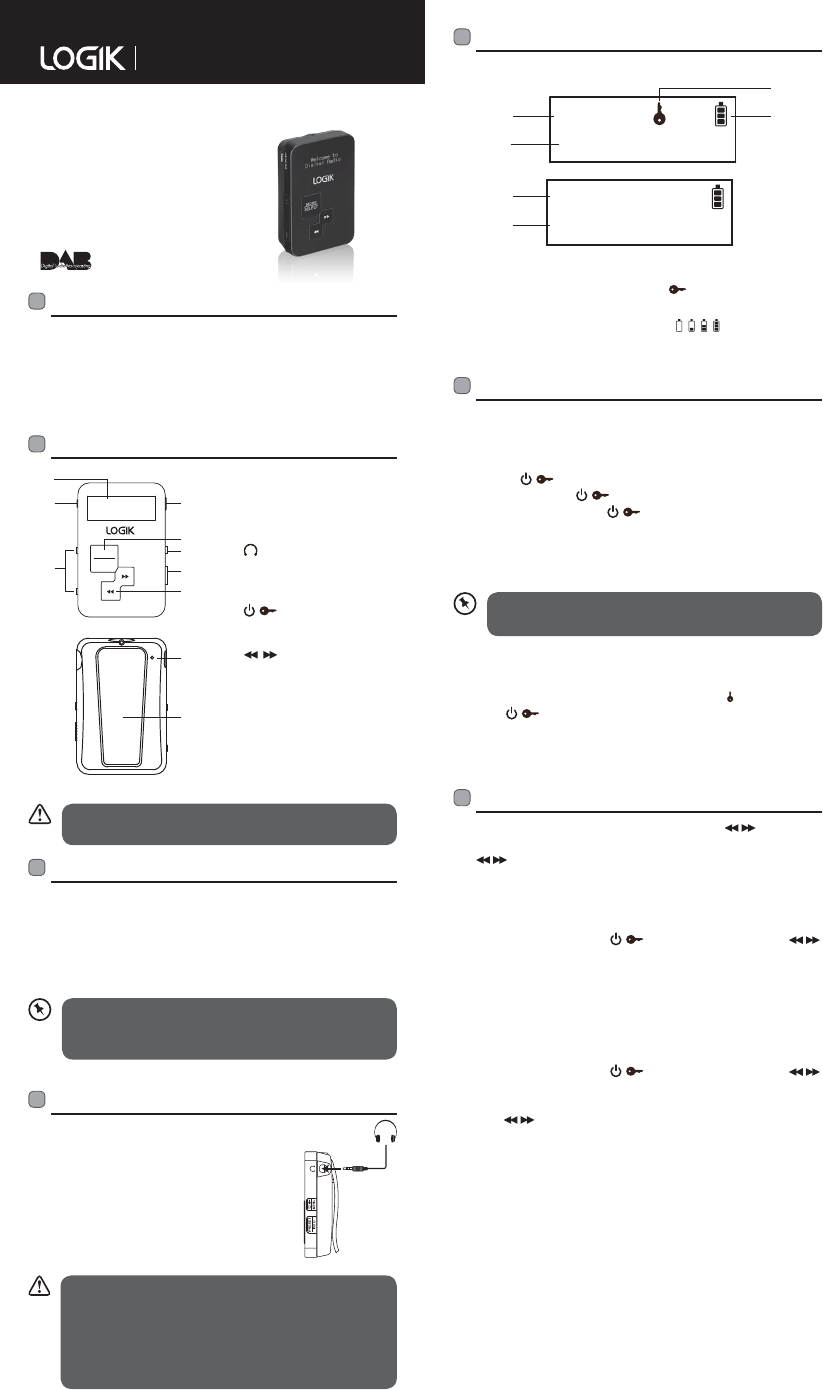
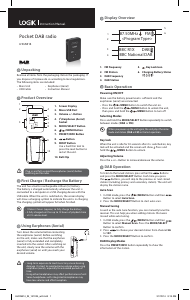
1. Screen Display
2. Micro USB Port
3. Volume +/– Button
4. Earphones (Aerial)
Socket
5. MODE/SELECT Button
6. / /MENU Button
7. PRESET/INFO Button
8. Button
9. RESET Button
Use a hard thin tool to
press the reset button to
restart the unit.
10. Belt Clip
Instruction Manual
Pluginandfullyextendtheearphones(aerial)before
switching on the radio.
• Long-termexposuretoloudmusicmaycausehearing
damage.Itisbesttoavoidextremevolumewhenusing
earphones(aerial),especiallyforextendedperiodsof
time.
• Using other headphones may affect performance of unit.
Some headphones with integrated microphones may
have low volume and affect reception.
• Ittakes3hours(approx.)tofullychargethebattery.
• Afullychargedunithasupto12hoursofplaybacktime
at2/3volumelevel.
MODE
SELECT
FM
87.50MHz
<Program Type>
DAB
BBC R1X
BBC National DAB
2
1
4
6
5
7
8
9
10
3
Pocket DAB radio
LHDAB14
Basic Operation
Powering ON/OFF
Make sure the battery power level is sufficient and the
earphones(aerial)areconnected.
• Press the / /MENU Button to switch the unit on.
• Press and hold the / /MENU Button to unlock the unit,
then press and hold the / /MENU Button to turn off.
Selecting Modes
Press and hold the MODE/SELECT Button repeatedly to switch
betweenmodes(DAB or FM).
Display Overview
When you power up the unit again, the unit plays the same
modeandstation(DAB or FM)asthelastoperation.
Key lock
Whentheunitisidlefor30secondsafteritisswitchedon,key
lock will be activated and the screen will show . Press and
hold the / /MENU Button to unlock.
Adjusting Volume
Press the + or Buttontoincrease/decreasethevolume.
DAB Operation
To listen to the tuned stations press either the Buttons
and press the MODE/SELECTButton.Eachtimeyoupress
the Buttons,youwillskiptothepreviousornextstored
station(includingprimaryandsecondarystation).Theunitwill
display the station name.
Auto Scan
1. InDABmode,pressthe / /MENU Button and then
Button to select Auto Scan.
2. Press the MODE/SELECT Button to start auto scan.
Manual tuning
Aswellastheautotunefunction,youcanmanuallytunethe
receiver. This can help you when adding stations that were
missed while auto tuning.
1. InDABmode,pressthe / /MENU Button and then
Button to select Manual Scan. Press the MODE/SELECT
Button to confirm.
2. Press to choose your desired station from channel 5A
to 13F.
3. Press the MODE/SELECT Button to confirm.
DAB Display Modes
Press the PRESET/INFO button repeatedly to show the
information of the station.
1. FM Frequency
2. FM Station
3. DAB Frequency
4. DAB Station
1
3
4
5
6
2
5. Key Lock Icon
6. Charging Battery Status
( , , , )
LHDAB14_IB_141024_will.indd 1 31/10/14 9:15 AM
Download manual in English (PDF, 0.89 MB)
(Consider the environment and only print this manual if it is really necessary)

Loading…

Rating

Let us know what you think about the Logik LHDAB14 Radio by leaving a product rating. Want to share your experiences with this product or ask a question? Please leave a comment at the bottom of the page.
Are you satisfied with the Logik LHDAB14 Radio?
Yes No
Be the first to rate this product
0 votes

Join the conversation about this product

Here you can share what you think about the Logik LHDAB14 Radio. If you have a question, first carefully read the manual. Requesting a manual can be done by using our contact form.

More about this manual

We understand that it’s nice to have a paper manual for your Logik LHDAB14 Radio. You can always download the manual from our website and print it yourself. If you would like to have an original manual, we recommend you contact Logik. They might be able to provide an original manual. Are you looking for the manual of your Logik LHDAB14 Radio in a different language? Choose your preferred language on our homepage and search for the model number to see if we have it available.

Specifications

Brand Logik
Model LHDAB14
Category Radios
File type PDF
File size 0.89 MB

All manuals for Logik Radios
More manuals of Radios

Frequently Asked Questions about Logik LHDAB14 Radio

Our support team searches for useful product information and answers to frequently asked questions. If you find an inaccuracy in our frequently asked questions, please let us know by using our contact form.

What is DAB+? Verified

DAB+ is the successor of the FM signal and stands for Digital Audio Broadcasting. It is a digital signal that allows for more channels within the same bandwidth and allows for easier switching between channels.

This was helpful (306) Read more

What is the difference between FM and AM? Verified

FM and AM are both forms of modulation used to transmit a signal. FM stands for Frequency Modulation and AM stands for Amplitude Modulation. AM is the oldest form of modulation. The biggest difference is that the FM signal is much stronger than the AM signal.

This was helpful (246) Read more
Manual Logik LHDAB14 Radio

Related products

Related categories

×
Download