Manual Genesis Lith 400 RGB Keyboard

Need a manual for your Genesis Lith 400 RGB Keyboard? Below you can view and download the PDF manual for free in English. This product currently has 2 frequently asked questions, 0 comments and has 0 votes. If this is not the manual you want, please contact us.

Is your product defective and the manual offers no solution? Go to a Repair Café for free repair services.

Manual

Loading…
SPECIFICATION
• Keyboard size
• Connector
• Number of key
• Number of multimedia keys
465 x 195 x 25 mm
USB
104
12
PACKAGE CONTENT
• Lith 400 RGB gaming keyboard
• Quick installation guide
warranty
• 2 years limited manufacturer warranty
requirements
• PC or PC compatible device with a USB port
• Windows® XP/Vista/7/8/10, Android, Linux
features
• Ultra-flat and quiet X-Scissors keys
• Anti-ghosting function for 19 keys
• RGB backlight with PRISMO effect
• Gaming software with profile and macro editor
Instalation
Connect your device to the USB port of your computer, it is necessary to wait about 15 seconds for the first connection until the
drivers are fully installed. The keyboard includes software that allows you to set up advanced features, if you want to use these
features, you need to download and install the software from our website www.genesis-zone.com. Open the installation folder
and then double-click the setup.exe file. Follow the installation instructions. After a successful installation, the software icon
appears on the main bottom panel. Double-clicking the icon opens the settings interface.
ARROW FUNCTION CHANGE
Press [ Fn ] + [ W ] to swap arrow function with WASD
keys function.
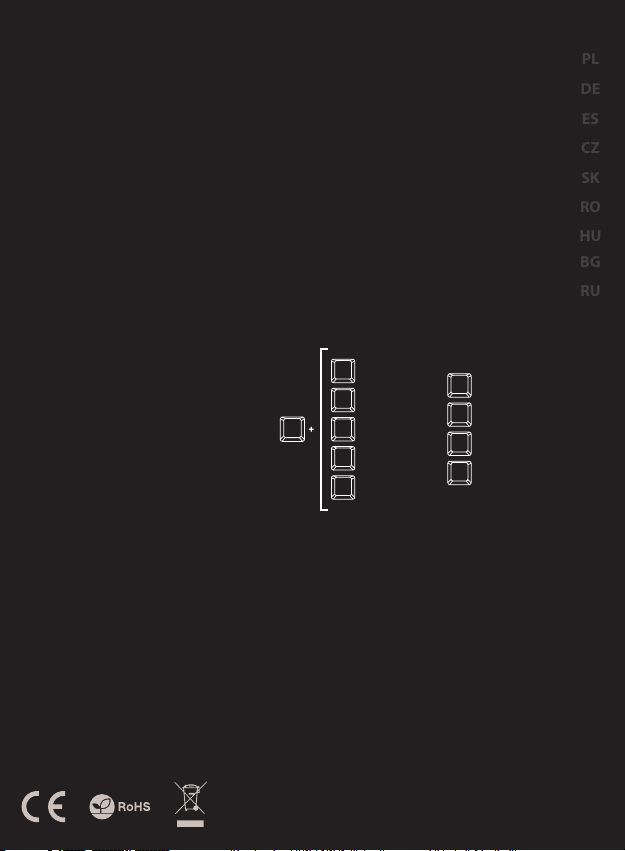
BACKLIGHT MODE CHANGE
Press the keys [ Fn ] + [ 1 ] ... [ 9 ] to change between 9
backlight modes.
SPEED OF BACKLIGHT
EFFECTS
To change the backlight brightness level press keys
[ Fn ] + [ Arrow Up ] / [ Arrow Down ]
Note: This function works only in modes [ Fn ] + [ 1 ],
[ Fn ] + [ 2 ], [ Fn ] + [ 3 ], [ Fn ] + [ 4 ], [ Fn ] + [ 6 ]
and [ Fn ] + [ 8 ]
BACKLIGHT BRIGHTNESS
To change the backlight brightness level press keys
[ Fn ] + [ Page Up ] / [ Page Dn ]
Note: This function works only in modes [ Fn ] + [ 5 ] and
[ Fn ] + [ 7 ]
CUSTOM MODE
Custom mode allows you to set the individual
illumination of each zone:
1. Hold [ Fn ] button and double press button [ 7 ] to
enter into “Custom Mode”.
2. Press the [ Fn ] + arrow Up/Down to change color.
3. Press the [ Fn ] + arrow Right/Left to move
between 6 zones.
4. Hold [ Fn ] button and double press button [ 7 ] to
save settings.
EN
PL
DE
ES
CZ
SK
RO
HU
BG
RU
SAFETY INFORMATION
GENERAL
Use as directed.
Non-authorized repairs or taking the device to pieces make the warranty
void and may cause the product damage.
Avoid to hit or friction with a hard object, otherwise it will lead to grind
surface or other hardware damage.
Do not use the product in low and high temperatures, in strong magnetic
fields and in the damp or dusty atmosphere.
Do not drop, knock, or shake the device. Rough handling can break it.
Slots and openings in the case are provided for ventilation and should not
be obscure. Blocking the vents can cause overheating of the device.
• The safe product, conforming to the EU requirements.
• The product is made in accordance with RoHS European standard.
The WEEE symbol (the crossed-out wheeled bin) using indicates that
this product in not home waste. Appropriate waste management aids
in avoiding consequences which are harmful for people and
environment and result from dangerous materials used in the device,
as well as improper storage and processing. Segregated household
waste collection aids recycle materials and components of which the
device was made. In order to get detailed information about recycling
this product please contact your retailer or a local authority.
Fn
PRISMO effect
1
Wave effect 1
2
7 colors breathing
3
Wave effect 2
4
Single color
5
6
Wave effect 3
7
Custom mode
8
Touch response effect
Sound response effect
9
Download manual in English (PDF, 0.19 MB)
(Consider the environment and only print this manual if it is really necessary)

Loading…

Rating

Let us know what you think about the Genesis Lith 400 RGB Keyboard by leaving a product rating. Want to share your experiences with this product or ask a question? Please leave a comment at the bottom of the page.
Are you satisfied with the Genesis Lith 400 RGB Keyboard?
Yes No
Be the first to rate this product
0 votes

Join the conversation about this product

Here you can share what you think about the Genesis Lith 400 RGB Keyboard. If you have a question, first carefully read the manual. Requesting a manual can be done by using our contact form.

More about this manual

We understand that it’s nice to have a paper manual for your Genesis Lith 400 RGB Keyboard. You can always download the manual from our website and print it yourself. If you would like to have an original manual, we recommend you contact Genesis. They might be able to provide an original manual. Are you looking for the manual of your Genesis Lith 400 RGB Keyboard in a different language? Choose your preferred language on our homepage and search for the model number to see if we have it available.

Specifications

Brand Genesis
Model Lith 400 RGB
Category Keyboards
File type PDF
File size 0.19 MB

All manuals for Genesis Keyboards
More manuals of Keyboards

Frequently Asked Questions about Genesis Lith 400 RGB Keyboard

Our support team searches for useful product information and answers to frequently asked questions. If you find an inaccuracy in our frequently asked questions, please let us know by using our contact form.

The letters on the keyboard are not in the places that I am used to, why is that? Verified

Most keyboards use a QWERTY layout, standing for the first six letters on the keyboard. However, there are different keyboard layouts, matching the specific needs of a certain language. It is also possible that the keyboard keys have been swapped. Especially with older keyboards this is easy to do.

This was helpful (1365) Read more

What is the best way to clean my keyboard Verified

Never insert objects between the edges of the keys, as this will mainly push dirt in and damage the keyboard. It is best to clean the keyboard with compressed air while keeping the keyboard upside down. The top of the keys can be cleaned with a slightly damp cloth.

This was helpful (204) Read more
Manual Genesis Lith 400 RGB Keyboard

Related products

Related categories

×
Download