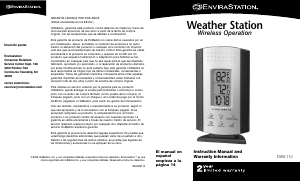
Manual EnviraStation DWS-170 Weather Station

Need a manual for your EnviraStation DWS-170 Weather Station? Below you can view and download the PDF manual for free in English. This product currently has 5 frequently asked questions, 0 comments and has 0 votes. If this is not the manual you want, please contact us.

Is your product defective and the manual offers no solution? Go to a Repair Café for free repair services.

Manual

Loading…
GETTING STARTED
1. IMPORTANT: Insert power supply cord into the home receiver
unit first.
Home Receiver
:
• Insert the AC Adaptor Jack into the back of the unit and insert the cord
into a 120V household outlet.
• As a back up or alternate power source, install 2 alkaline AA batteries
according to the polarity indicated. Close the battery cover.
2. Remote Sensor
: Loosen the 4 screws securing the battery cover with a
small screwdriver (included) and remove. Insert 2 alkaline AA batteries
according to the polarity direction indicated. Replace the cover and
tighten the 4 screws.
3. Place the home receiver as close as possible to the remote sensor.
This will help with synchronization between the two units.
4. REMEMBER: Once you are ready to position your remote sensor and
the home receiver, ensure that the distance is not outside the effective
transmission range (100 feet). Some building materials and location of the
home receiver or remote sensor can affect transmission quality and range.
Try various locations for best results.
NOTE: There are no consumer serviceable parts. All questions or
service request should directed to our consumer relations department.
(See Warranty section for contact information.)
SETTING TIME
RADIO-CONTROLLED CLOCK
The home receiver will start synchronizing the clock after the 1st channel of
the RF thermometer is registered.
1. At normal mode, hold the “ - ” button located on the back of the home
receiver for 3 seconds to force synchronization.
2. The antenna icon will appear during the synchronization process (on the
right side of the time display).
3. If the icon disappears afterwards, radio time signal is not available at that
moment. Try setting the home receiver in other locations. Remember to
place the unit away from sources of interference such as mobile phones,
appliances, TV etc.
4. Antenna icon will appear on screen if the radio time reception is
successful. The radio-controlled clock will have a daily synchronization
at 1:00 am everyday. If previous attempts of reception were
unsuccessful, the home receiver will attempt synchronization
each hour until successful.
5. Each reception cycle is minimum 2 minutes and maximum 10 minutes.
TIME ZONE SELECTION
Press “ - ” button on back of home receiver to select from the following time
zones in the U.S. (zone is displayed in the upper right hand corner of time
display).
P - Pacific Standard Time M - Mountain Standard Time
C - Central Standard Time E - Eastern Standard Time
MANUAL SETTING FOR CLOCK & CALENDAR
1. Hold “SET ” button for 3 seconds to enter clock set.
2. First, select 12 hour or 24 hour setting using the “ + , - ” buttons located
on the back of the home receiver. Press “ SET ” button to confirm.
Now you will select the calendar settings-
3. Select Year - Use the “ + , - ” buttons located on the back of the home
receiver to adjust year setting. Press “ SET ” button to confirm.
4. Select Month - Use the “ + , - ” buttons located on the back of the
home receiver to adjust month setting. Press “ SET ” button to confirm.
5. Select Day - Use the “ + , - ” buttons located on the back of the home
receiver to adjust day setting. Press “ SET ” button to confirm.
6. Select Hour - Use the “ + , - ” buttons located on the back of the home
receiver to adjust hour setting. Press “ SET ” button to confirm.
7. Select Minute - Use the “ + , - ” buttons located on the back of the
home receiver to adjust minute setting. Press “ SET ” button to confirm.
8. DST On/Off (Daylight Savings Time) - Use the “ + , - ” buttons to turn
DST on or off. Press “ SET ” button to confirm.
9. Select Centigrade/Fahrenheit Temperature Readings - Use the
+ , - “ buttons located on the back of the home receiver to select
Fahrenheit or Centigrade. Press “ SET ” button to confirm.
2
3
DWS-170-IB SP\ENG 10/12/04 11:32 AM Page 3
Download manual in English (PDF, 0.56 MB)
(Consider the environment and only print this manual if it is really necessary)

Loading…

Rating

Let us know what you think about the EnviraStation DWS-170 Weather Station by leaving a product rating. Want to share your experiences with this product or ask a question? Please leave a comment at the bottom of the page.
Are you satisfied with the EnviraStation DWS-170 Weather Station?
Yes No
Be the first to rate this product
0 votes

Join the conversation about this product

Here you can share what you think about the EnviraStation DWS-170 Weather Station. If you have a question, first carefully read the manual. Requesting a manual can be done by using our contact form.

More about this manual

We understand that it’s nice to have a paper manual for your EnviraStation DWS-170 Weather Station. You can always download the manual from our website and print it yourself. If you would like to have an original manual, we recommend you contact EnviraStation. They might be able to provide an original manual. Are you looking for the manual of your EnviraStation DWS-170 Weather Station in a different language? Choose your preferred language on our homepage and search for the model number to see if we have it available.

Specifications

Brand EnviraStation
Model DWS-170
Category Weather Stations
File type PDF
File size 0.56 MB

All manuals for EnviraStation Weather Stations
More manuals of Weather Stations

Frequently Asked Questions about EnviraStation DWS-170 Weather Station

Our support team searches for useful product information and answers to frequently asked questions. If you find an inaccuracy in our frequently asked questions, please let us know by using our contact form.

My weather station prediced it would rain, but this didn't happen. Why is that? Verified

The prediction on the weather station is based on air pressure. In general low pressure means bad weather and high pressure means good weather. It's possible the weather pattern develops differently than the air pressure predicts.

This was helpful (1468) Read more

What is the best location for a weather station and its sensors? Verified

The weather station itself is placed inside and needs to be kept away from heat sources such as the kitchen, windows or electrical appliances. A separate outside temperature sensor needs to placed in shadow and at least 1,25m above the ground. A rain sensor needs to be placed in an open area where it can always collect rain. A wind sensor needs to be placed in an open area too, with any obstacles influencing the wind.

This was helpful (394) Read more

My weather station has a rain gauge, can it also measure the amount of snowfall? Verified

Some rain gauges are equipped with a heating element, making the snow melt and allowing it to be measured. Without heating element the rain gauge will clog and no measurement can be performed.

This was helpful (280) Read more

A battery in my device is oxidized, can I still safely use it? Verified

Ja, the device can still be safely used. Firstly, remove the oxidizd battery. Never use bare hands to do this. Then clean the battery compartment with a cotton swab dipped in vinegar or lemon juice. Let it dry and insert new batteries.

This was helpful (279) Read more

Can I leave a replacable battery in a device for a long time? Verified

Replacable batteries can remain in a device for a long time if the device is in use. When a device is being stored for a long time it is advisable to remove the batteries to prevent oxidation.

This was helpful (279) Read more
Manual EnviraStation DWS-170 Weather Station

Related products

Related categories

×
Download