
Manual EC Line EC-520 Printer
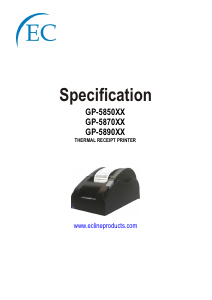
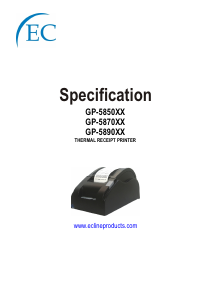
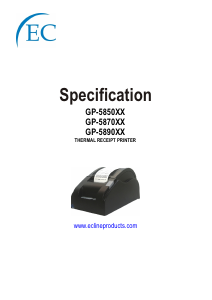
Need a manual for your EC Line EC-520 Printer? Below you can view and download the PDF manual for free in English. This product currently has 10 frequently asked questions, 0 comments and has 0 votes. If this is not the manual you want, please contact us.
Is your product defective and the manual offers no solution? Go to a Repair Café for free repair services.
Manual
Loading…


Loading…
Rating
Let us know what you think about the EC Line EC-520 Printer by leaving a product rating. Want to share your experiences with this product or ask a question? Please leave a comment at the bottom of the page.More about this manual
We understand that it’s nice to have a paper manual for your EC Line EC-520 Printer. You can always download the manual from our website and print it yourself. If you would like to have an original manual, we recommend you contact EC Line. They might be able to provide an original manual. Are you looking for the manual of your EC Line EC-520 Printer in a different language? Choose your preferred language on our homepage and search for the model number to see if we have it available.
Specifications
| Brand | EC Line |
| Model | EC-520 |
| Category | Printers |
| File type | |
| File size | 1.32 MB |
All manuals for EC Line Printers
More manuals of Printers
Frequently Asked Questions about EC Line EC-520 Printer
Our support team searches for useful product information and answers to frequently asked questions. If you find an inaccuracy in our frequently asked questions, please let us know by using our contact form.
My ink cartridge is new, but it won't print, why is that? Verified
New ink cartridges always come with a sticker on the print head, preventing that they dry out inside the packaging. Remove this sticker to make sure ink can come out the cartridge.
This was helpful (443) Read moreI want to print something full-page, but whatever I do, there will always remain a white edge. Why is that? Verified
Most printers are not able to print borderless, because the printer needs a place to hold the paper. Because of this there will always be a white edge.
This was helpful (322) Read moreMy ink cartridge has dried out, what can I do? Verified
There are cartridges with and without print head. Only the cartridges with printhead can be declogged yourself. Take a cotton swab and dip it in luke warm water. Carefully rub over the print head, without making it too wet. Repeat if necessary.
This was helpful (246) Read moreWhat is the difference between an inkjet and a laser printer? Verified
The biggest difference between these two types of printer is the technology. An inkjet printer places extremely small droplets of ink on the paper. Because the ink is liquid, the printhead can dry out over time. Regular printing is needed to prevent this. A laser printer applies toner (black or coloured powder) to the paper. The powder can't dry out, making regular printing unneccesary. Also, on average laser printers work faster than inkjet printers.
This was helpful (207) Read moreCan every printer print on photo paper? Verified
No, this is a special feature that some printers have. This partly due to the thickness of the photo paper.
This was helpful (170) Read moreWhat is paper thickness? Verified
Paper thickness is indicated by weight, for example 80 grams paper. This is the weight of the paper at one square meter. Heavier paper is ticker and sturdier.
This was helpful (103) Read moreThe printed documents are crooked, what can I do? Verified
There are several things that can cause this. The paper could be loaded incorrectly. It is possible that the paper does not have the correct specifications to match this printer. It could be that the selected paper size does not match the actual paper. If none of this solves the problem, contact the manufacturer.
This was helpful (98) Read moreWhat paper thickness can I best use in my printer? Verified
A normal consumer printer generally uses 80 grams paper thickness. Other standard weights that are often used are 120 grams and 160 grams.
This was helpful (83) Read moreWhat does DPI stand for? Verified
DPI stands for Dots Per Inch and indicates how sharp prints will be. More DPI results in sharper prints.
This was helpful (82) Read moreWhat does SD stand for? Verified
SD stands for Secure Digital. SD cards are the standard storage medium for many digital cameras.
This was helpful (62) Read more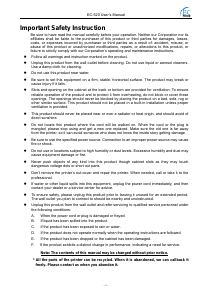
Join the conversation about this product
Here you can share what you think about the EC Line EC-520 Printer. If you have a question, first carefully read the manual. Requesting a manual can be done by using our contact form.