Manual Dicota Branch 2.0 USB Hub

Need a manual for your Dicota Branch 2.0 USB Hub? Below you can view and download the PDF manual for free in English. This product currently has 1 frequently asked question, 0 comments and has 1 vote with an average product rating of 0/100. If this is not the manual you want, please contact us.

Is your product defective and the manual offers no solution? Go to a Repair Café for free repair services.

Manual

Loading…
english
Introduction
This Branch 2.0 lets you add more USB 2.0
peripherals to your desktop computer or
Notebook. The Branch 2.0 has 4 downstream
ports which will connect either the new USB
2.0 high performance peripherals or the
legacy USB 1.1 devices. This means it is fully
“backwards compatible” with all your exist-
ing USB products. The Hub is 100% comp-
liant with the USB 2.0 specifications.
The Branch 2.0 will allow users to add multi-
ple higher performance peripherals such as
high resolution video conferencing cameras,
and next generation of USB 2.0 scanners,
printers, and fast storage devices.
The Hub will allow you to connect up to 127
USB devices to your Notebook and comes
with a USB 2.0 cable.
Features
– CE & FCC approved
– Fully compatible with USB 2.0 Specification
– Fully backward compatible with USB 1.1
Specification
– Supports transfer rates up to 1.5/12/
480 Mbps
– Supports Bus/Self-powered mode
– 500mA each port (self-powered mode) is
reliable at up to 15 feet of transmission
– Supports hot plug & play
– One upstream port and four downstream
ports
– One LED to indicate the Hub is ready
– Downstream ports have automatic con-
nect and speed detection function plus
over-current protection with auto recovery
– Compatible with WIN 98 SE/ME/2000/
XP & Mac OS X
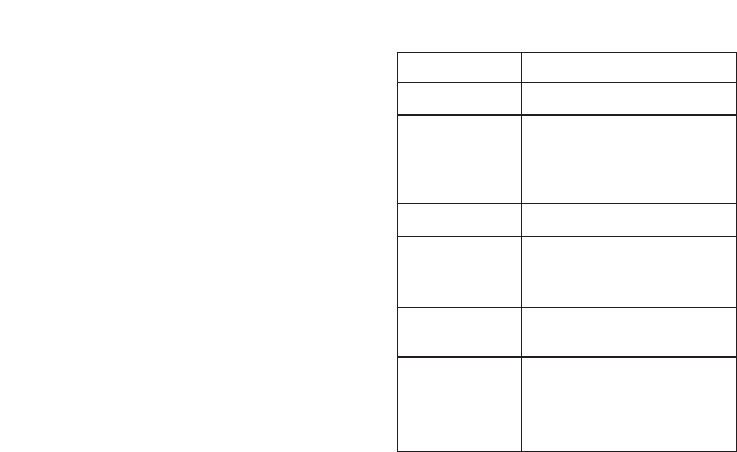
Specifications
Bus interface USB 2.0
Transfer rate 480/12/1.5 Mbps
Connectors Upstream port –
1 B type connector
Downstream port –
4 A type connectors
LED One power LED
Power One mini DC jack
One mini switching power
adapter, + 5 V, 2100 mA
Electrical + 5 V, 500 mA max.
output per port
Operating Temperature from 0°C
requirements to 55°C
Relative humidity 2080%
(Non-condensing)
Hardware Installation
In order to get the USB 2.0 performance,
make sure to properly install the USB 2.0
4-Port Hub to your desktop computer or to
your Notebook.
Step 1:
Connect the USB 2.0 cable to your desktop
computer or Notebook.
Step 2:
Connect the USB 2.0 cable to the Hub.
Step 3:
Plug the power adapter into the AC outlet
of the wall or the power strip (optionally).
Step 4:
Connect the plug of the power adapter to
the Hub (optionally).
Download manual in English (PDF, 0.04 MB)
(Consider the environment and only print this manual if it is really necessary)

Loading…

Rating

Let us know what you think about the Dicota Branch 2.0 USB Hub by leaving a product rating. Want to share your experiences with this product or ask a question? Please leave a comment at the bottom of the page.
Are you satisfied with the Dicota Branch 2.0 USB Hub?
Yes No
0%
100%
1 vote

Join the conversation about this product

Here you can share what you think about the Dicota Branch 2.0 USB Hub. If you have a question, first carefully read the manual. Requesting a manual can be done by using our contact form.

More about this manual

We understand that it’s nice to have a paper manual for your Dicota Branch 2.0 USB Hub. You can always download the manual from our website and print it yourself. If you would like to have an original manual, we recommend you contact Dicota. They might be able to provide an original manual. Are you looking for the manual of your Dicota Branch 2.0 USB Hub in a different language? Choose your preferred language on our homepage and search for the model number to see if we have it available.

Specifications

Brand Dicota
Model Branch 2.0
Category USB Hubs
File type PDF
File size 0.04 MB

All manuals for Dicota USB Hubs
More manuals of USB Hubs

Frequently Asked Questions about Dicota Branch 2.0 USB Hub

Our support team searches for useful product information and answers to frequently asked questions. If you find an inaccuracy in our frequently asked questions, please let us know by using our contact form.

What does USB stand for? Verified

USB stands for Universal Serial Bus. It is a connection standard that is used to connect devices to a computer.

This was helpful (13) Read more
Manual Dicota Branch 2.0 USB Hub

Related products

Related categories

×
Download