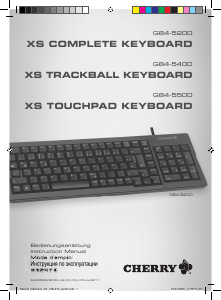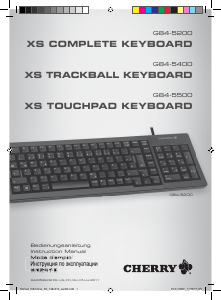
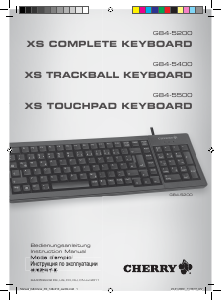
Manual Cherry G84-5500 Keyboard

Need a manual for your Cherry G84-5500 Keyboard? Below you can view and download the PDF manual for free in English. This product currently has 2 frequently asked questions, 0 comments and has 0 votes. If this is not the manual you want, please contact us.

Is your product defective and the manual offers no solution? Go to a Repair Café for free repair services.

Manual

Loading…
3
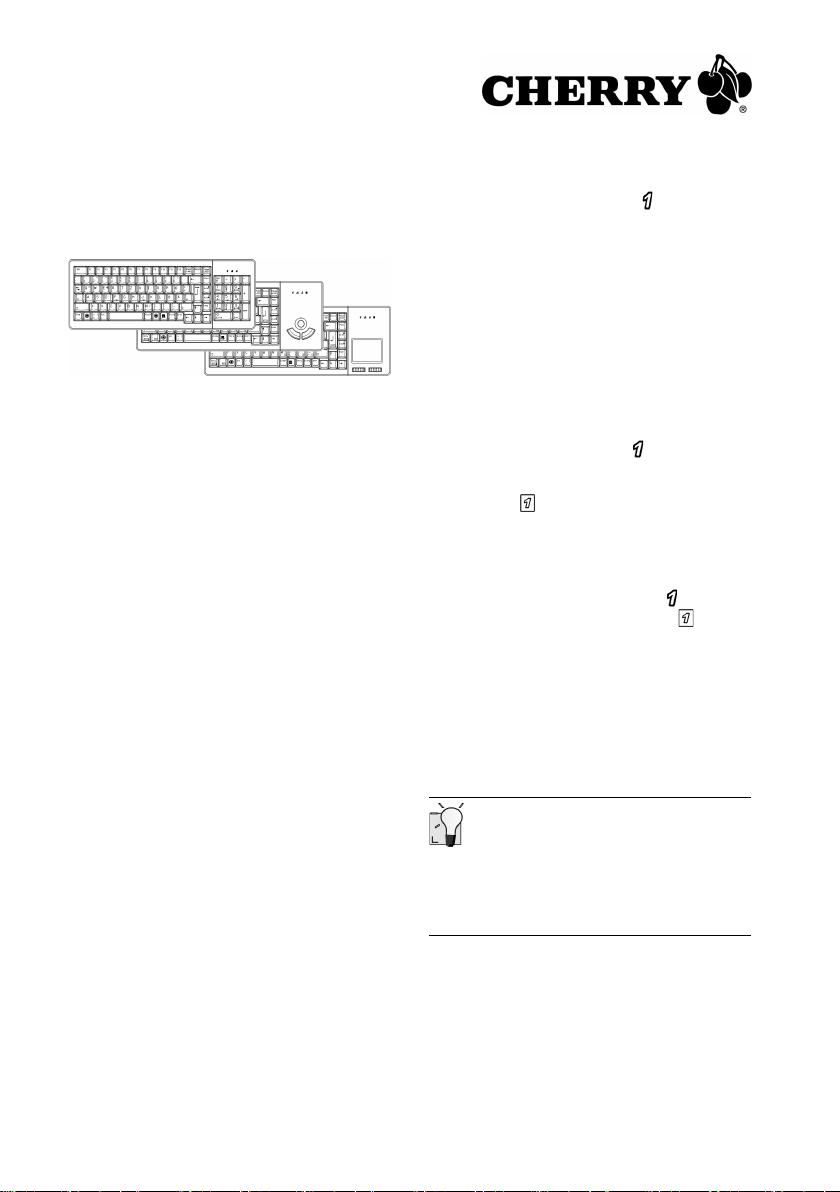
XS Tastaturenfamilie
G84-52xx, -54xx, -55xx
1 Tastatur anschließen
Je nach Variante können Sie die Tastatur an
einem USB- oder PS/2-Anschluss des Systems
anschließen.
1.1 Tastatur an USB-Anschluss
anschließen
1 Stecken Sie den USB-Stecker in einen
beliebigen USB-Anschluss Ihres Systems. Sie
können auch den USB-Anschluss eines Geräts
verwenden, das am System angeschlossen ist.
2 Folgen Sie den Installationsanweisungen am
Bildschirm.
1.2 Tastatur an PS/2-Anschluss
anschließen
1 Schalten Sie den PC aus.
2 Stecken Sie ggf. den beiliegenden USB-PS/2-
Adapter auf das USB-Kabel der Tastatur.
3 Stecken Sie den/die PS/2-Stecker in die
entsprechenden Buchsen am System.
4 Schalten Sie den PC ein.
2 Bedienung des integrierten
Ziffernblocks
(Modelle G84-54xx/-55xx)
Aufgrund des platzsparenden Designs der Tastatur
wurde der Ziffernblock (Numeric Keypad) in den
Bereich der Haupttasten gelegt. So sind zum
Beispiel den Tasten U, I, O und P die Funktionen
"4", "5", "6" und "/" zugeordnet (durch einen
Rahmen gekennzeichnet).
2.1 Sondertaste Fn
Ist Num-Lock eingeschaltet (LED an), so wird
der integrierte Ziffernblock der Tastatur bewusst
noch nicht aktiv geschaltet. Der Ziffernblock wird
erst durch Halten der Taste Fn aktiviert.
Beispiel: Fn + O = "6"
Das gleichzeitige Betätigen der Tasten Fn und O in
der aufgeführten Druckfolge bewirkt die
Bildschirmausgabe "6".
Die Taste Fn schaltet in Kombination mit anderen
Tasten die jeweils durch einen Rahmen
gekennzeichnete Funktion.
2.2 Funktionsebene Pad
Sofern Num-Lock aktiv ist (LED an), schalten
Sie für längere Zahleneingaben mit der
Tastenkombination Fn + F12 die Funktionsebene
Pad ein (LED an).
Die Funktion Pad aktiviert den integrierten
Ziffernblock dauerhaft.
Die Taste O bekommt beispielsweise dauerhaft die
Funktion "6".
Sofern Num-Lock nicht aktiv ist (LED aus) und
Sie die Funktion Pad einschalten (LED an),
arbeitet der integrierte Ziffernblock als Cursor-
Steuerung.
3 Tastenbelegung ändern
Die Programmierung erfolgt über die Software
CHERRY Tools. Die Konfiguration wird als
Software-Makro in einer Datei auf dem Rechner
gespeichert.
Aktuelle Software im Internet
Die Software wird ständig weiterentwickelt. Die
aktuelle Version erhalten Sie im Internet unter:
http://support.cherry.de
Installieren Sie die Software CHERRY Tools.
Über den darin enthaltenen Designer können
Sie alle Funktionen der Tastatur konfigurieren.
Die Bedienung ist in der Direkthilfe der Software
CHERRY Tools beschrieben. Sie bietet Ihnen
Informationen dort, wo Sie diese benötigen und
wird mit F1 aufgerufen.
Bedienungsanleitung
6440539-02 DE, US, FR, RU, CN Jul 2011
Download manual in English (PDF, 1.74 MB)
(Consider the environment and only print this manual if it is really necessary)

Loading…

Rating

Let us know what you think about the Cherry G84-5500 Keyboard by leaving a product rating. Want to share your experiences with this product or ask a question? Please leave a comment at the bottom of the page.
Are you satisfied with the Cherry G84-5500 Keyboard?
Yes No
Be the first to rate this product
0 votes

Join the conversation about this product

Here you can share what you think about the Cherry G84-5500 Keyboard. If you have a question, first carefully read the manual. Requesting a manual can be done by using our contact form.

More about this manual

We understand that it’s nice to have a paper manual for your Cherry G84-5500 Keyboard. You can always download the manual from our website and print it yourself. If you would like to have an original manual, we recommend you contact Cherry. They might be able to provide an original manual. Are you looking for the manual of your Cherry G84-5500 Keyboard in a different language? Choose your preferred language on our homepage and search for the model number to see if we have it available.

Specifications

Brand Cherry
Model G84-5500
Category Keyboards
File type PDF
File size 1.74 MB

All manuals for Cherry Keyboards
More manuals of Keyboards

Frequently Asked Questions about Cherry G84-5500 Keyboard

Our support team searches for useful product information and answers to frequently asked questions. If you find an inaccuracy in our frequently asked questions, please let us know by using our contact form.

The letters on the keyboard are not in the places that I am used to, why is that? Verified

Most keyboards use a QWERTY layout, standing for the first six letters on the keyboard. However, there are different keyboard layouts, matching the specific needs of a certain language. It is also possible that the keyboard keys have been swapped. Especially with older keyboards this is easy to do.

This was helpful (1365) Read more

What is the best way to clean my keyboard Verified

Never insert objects between the edges of the keys, as this will mainly push dirt in and damage the keyboard. It is best to clean the keyboard with compressed air while keeping the keyboard upside down. The top of the keys can be cleaned with a slightly damp cloth.

This was helpful (204) Read more
Manual Cherry G84-5500 Keyboard

Related products

Related categories

×
Download