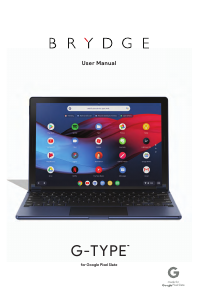
Manual Brydge G-Type Keyboard

Need a manual for your Brydge G-Type Keyboard? Below you can view and download the PDF manual for free in English. This product currently has 2 frequently asked questions, 0 comments and has 0 votes. If this is not the manual you want, please contact us.

Is your product defective and the manual offers no solution? Go to a Repair Café for free repair services.

Manual

Loading…
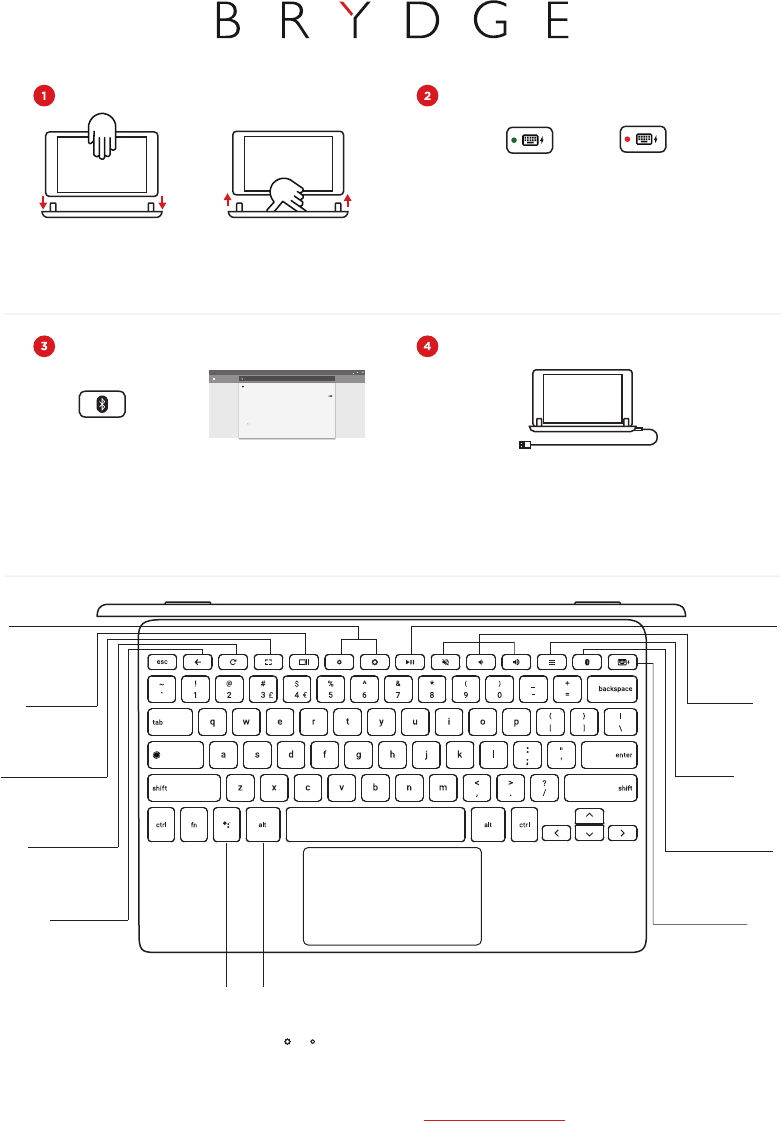
To manually power ON, press and hold the power key (the light will blink
green to indicate the keyboard is on).
To manually power OFF, press and hold the power key for 3 seconds
(the light will blink red to indicate the keyboard is off).
NOTE: To conserve battery, your Brydge will enter sleep mode after 15
minutes of non-use. Your Brydge will also enter sleep mode when both
devices are closed like a laptop. Press any key to turn back on.
POWER
To remove, hold your Pixel Slate
and pull straight up, with one
hand firmly holding your Brydge
against a hard surface.
Place your Brydge on a flat
surface, rotate the hinges
upright to 90º and insert your
Pixel Slate into the hinges.
INSERT/REMOVE
PAIR
Connected
Settings
On
Brydge G-TYPE
Once the keyboard is on, press
and hold the Bluetooth
TM
key for
3 seconds. The power key will
flash blue indicating your
Brydge is ready to pair.
On your Pixel Slate, under the
Bluetooth settings select
Brydge G-Type. The power key
will stop blinking blue when the
pairing is complete.
Settings
Search settings
Bluetooth
On
Paired devices
Unpaired devices
Brydge G-Type
No paired devices
CHARGE
To charge your Brydge insert the supplied USB-C cable into the charging
port on your Brydge.
The battery is charging when the light on the power
key is red; the light will turn off when the battery is fully charged.
VOLUME
Adjust volume
up, down, or
mute
REFRESH
Refresh the
current page
BACK
Jump to the last
page in your
browser
SCREEN
BRIGHTNESS
Adjust screen
brightness up
or down
BACKLIT KEYS
Adjust the your
keyboard backlight by pressing
alt + (or )
MENU
Open the
settings menu
POWER
Turn your
Brydge on or off
PLAY/PAUSE
Play/Pause for
media playback
ASSISTANT
Dedicated
Google Assistant
button
BLUETOOTH
Press to pair your
Brydge and Pixel
Slate
SWITCH
WINDOW
Quickly switch
between open
windows
FULL SCREEN
Make the current
window full screen
Have a question? Contact Brydge directly at
© 2018 Brydge. All Rights Reserved. | Use of Google’s “made for” badge means that this product has been designed by Brydge for use with the Google Chrome OS products and has been certified by Brydge to meet Google’s compatibility standards. Google is
not responsible for the operation of this product or its compliance with any applicable safety or other requirements. | Google, Google’s “made for” badge, G logo and related marks and logos are trademarks of Google LLC. | The Bluetooth
TM
word mark and
logos are owned by Bluetooth SIG Inc. and any use of marks by Brydge is under license. | The Brydge® word mark and logo are registered trademarks of Brydge Global Pte Ltd. The G-Type mark and logo is a trademark of Brydge Global Pte Ltd. | To register
for your Limited Lifetime Warranty visit www.brydge.com/warranty. You must register your product within 30 days of purchase, and provide a proof of purchase, in order to be covered by this Limited Lifetime Warranty. If you purchased your product from
www.brydgekeyboards.com, the product will automatically be registered. All Brydge warranties are non-transferrable and are only available to the original end-user of the product. Warranties do not apply to products purchased from online vendors
unauthorized to sell Brydge-branded product, including on eBay.com. Further warranty information is available at www.brydgekeyboards.com/warranty. To obtain warranty service, contact Brydge using the information on www.brydgekeyboards.com/warran-
ty, or described at [email protected] or +1.435.214.7485. Proof of purchase may be required to verify eligibility.
Find more information at www.brydge.com
Download manual in English (PDF, 11.56 MB)
(Consider the environment and only print this manual if it is really necessary)

Loading…

Rating

Let us know what you think about the Brydge G-Type Keyboard by leaving a product rating. Want to share your experiences with this product or ask a question? Please leave a comment at the bottom of the page.
Are you satisfied with the Brydge G-Type Keyboard?
Yes No
Be the first to rate this product
0 votes

Join the conversation about this product

Here you can share what you think about the Brydge G-Type Keyboard. If you have a question, first carefully read the manual. Requesting a manual can be done by using our contact form.

More about this manual

We understand that it’s nice to have a paper manual for your Brydge G-Type Keyboard. You can always download the manual from our website and print it yourself. If you would like to have an original manual, we recommend you contact Brydge. They might be able to provide an original manual. Are you looking for the manual of your Brydge G-Type Keyboard in a different language? Choose your preferred language on our homepage and search for the model number to see if we have it available.

Specifications

Brand Brydge
Model G-Type
Category Keyboards
File type PDF
File size 11.56 MB

All manuals for Brydge Keyboards
More manuals of Keyboards

Frequently Asked Questions about Brydge G-Type Keyboard

Our support team searches for useful product information and answers to frequently asked questions. If you find an inaccuracy in our frequently asked questions, please let us know by using our contact form.

The letters on the keyboard are not in the places that I am used to, why is that? Verified

Most keyboards use a QWERTY layout, standing for the first six letters on the keyboard. However, there are different keyboard layouts, matching the specific needs of a certain language. It is also possible that the keyboard keys have been swapped. Especially with older keyboards this is easy to do.

This was helpful (1365) Read more

What is the best way to clean my keyboard Verified

Never insert objects between the edges of the keys, as this will mainly push dirt in and damage the keyboard. It is best to clean the keyboard with compressed air while keeping the keyboard upside down. The top of the keys can be cleaned with a slightly damp cloth.

This was helpful (204) Read more
Manual Brydge G-Type Keyboard

Related products

Related categories

×
Download