Manual Brydge 10.2 Keyboard

Need a manual for your Brydge 10.2 Keyboard? Below you can view and download the PDF manual for free in English. This product currently has 2 frequently asked questions, 1 comment and has 0 votes. If this is not the manual you want, please contact us.

Is your product defective and the manual offers no solution? Go to a Repair Café for free repair services.

Manual

Loading…
IMPORTANT
Remove non-Brydge screen protectors before attaching your Brydge keyboard. This will
ensure a perfect fit and eliminate unnecessary pressure to your screen when inserted
into the hinges.
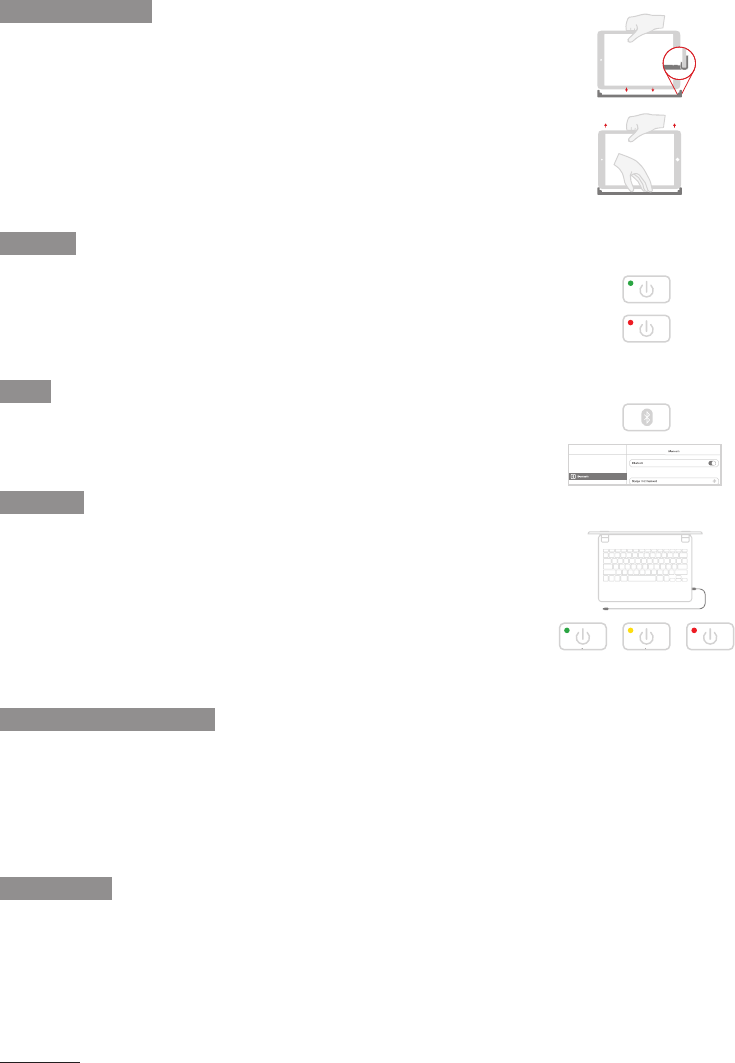
TO INSERT: Place your Brydge on a flat surface and set the hinges upright to 90 degrees.
Insert your iPad into the hinges with the home button on the right, one side at a time.
If your iPad is loose, remove it and gently squeeze the hinges. Repeat this process until
your iPad is held firmly.
TO REMOVE: Ensure your Brydge is on a flat surface.
Place your hand towards the back of the keyboard and pull up, one side at a time.
TO TURN ON: Press the power key for one second until the LED flashes green.
TO TURN OFF: Press and hold the power key for three seconds until the LED flashes red.
NOTE: To conserve battery, your Brydge will enter sleep mode after 20 minutes of
non-use. Press any key to turn back on. Your Brydge will enter sleep mode when both
devices are closed like a laptop.
TO PAIR: Press and hold the Bluetooth key for three seconds until the LED flashes blue.
On your iPad, under Settings > Bluetooth select Brydge 10.2.
When successfully paired, the blue LED will turn off.
TO CHECK BATTERY LIFE: Press and hold the battery key until the LED flashes three
times.
The color of the flash indicates the battery level.
NOTE: If battery life is below 15%, backlit key functionality will be disabled to conserve
battery.
TO CHARGE: Insert the charging cable into the keyboard and plug the other end into a
power source. A solid red LED indicates the Brydge is charging.
When the keyboard is fully charged, the red LED will turn off. A full charge can take up
to three hours.
HAVE A QUESTION? Visit www.brydge.com/support
75-100% 25-74% 10-24%
INSERT/REMOVE
POWER
PAIR
CHARGE
KEYBOARD SHORTCUTS
WARRANTY
Copy
Command + C
Paste
Command + V
Cut
Command + X
Underline
Command + U
Italic
Command + I
Home Screen
Command + H
Switch App
Command + Tab
Show Dock
Command + Option + D
Search
Command + Space
Undo
Command + Z
Switch Language
Ctrl + Shift + Spacebar (Spacebar allows you to toggle through available languages)
Thank you for purchasing a Brydge product. This product comes with a 1-year limited hardware warranty on the terms and conditions
set out in this document and atwww.brydge.com/warranty. All Brydge warranties are non-transferrable and are only available to the
original end-user of the product. Warranties do not apply to products purchased from online vendors unauthorized to sell Brydge-
branded product. If a defect arises during the warranty period, cease using the product and contact Brydge. To obtain warranty
service, visitwww.brydge.com/support or call +1 (435) 604-0481. Brydge, at its sole discretion and option, will (1) repair the product at
no charge using new parts or parts that are equivalent to new in performance and reliability, or (2) replace or exchange the product
with a product of equivalent functionality and value.Brydge offers free return shipping on any approved warranty claims.A shipping
label will be provided to you if you arewithin the United States. If you are outside the United States, Brydge will reimburse your return
shipping to a maximum of US$15.00 after providing a copy of the shipping receipt.
Australia Only: Our goods come with guarantees that cannot be excluded under the Australian Consumer Law. You are entitled to
a replacement or refund for a major failure and compensation for any other reasonably foreseeable loss or damage. You are also
entitled to have the goods repaired or replaced if the goods fail to be of acceptable quality and the failure does not amount to a
major failure.
Brydge Technologies LLC | 1912 Sidewinder Dr., Suite 104, Park City, UT 84060 USA
Connected
Settings
On
Download manual in English (PDF, 0.49 MB)
(Consider the environment and only print this manual if it is really necessary)

Loading…

Rating

Let us know what you think about the Brydge 10.2 Keyboard by leaving a product rating. Want to share your experiences with this product or ask a question? Please leave a comment at the bottom of the page.
Are you satisfied with the Brydge 10.2 Keyboard?
Yes No
Be the first to rate this product
0 votes

Join the conversation about this product

Here you can share what you think about the Brydge 10.2 Keyboard. If you have a question, first carefully read the manual. Requesting a manual can be done by using our contact form.

Lisa Lizottev 03-04-2025
All keys work except the space bar.

reply | This was helpful (0)

More about this manual

We understand that it’s nice to have a paper manual for your Brydge 10.2 Keyboard. You can always download the manual from our website and print it yourself. If you would like to have an original manual, we recommend you contact Brydge. They might be able to provide an original manual. Are you looking for the manual of your Brydge 10.2 Keyboard in a different language? Choose your preferred language on our homepage and search for the model number to see if we have it available.

Specifications

Brand Brydge
Model 10.2
Category Keyboards
File type PDF
File size 0.49 MB

All manuals for Brydge Keyboards
More manuals of Keyboards

Frequently Asked Questions about Brydge 10.2 Keyboard

Our support team searches for useful product information and answers to frequently asked questions. If you find an inaccuracy in our frequently asked questions, please let us know by using our contact form.

The letters on the keyboard are not in the places that I am used to, why is that? Verified

Most keyboards use a QWERTY layout, standing for the first six letters on the keyboard. However, there are different keyboard layouts, matching the specific needs of a certain language. It is also possible that the keyboard keys have been swapped. Especially with older keyboards this is easy to do.

This was helpful (1365) Read more

What is the best way to clean my keyboard Verified

Never insert objects between the edges of the keys, as this will mainly push dirt in and damage the keyboard. It is best to clean the keyboard with compressed air while keeping the keyboard upside down. The top of the keys can be cleaned with a slightly damp cloth.

This was helpful (204) Read more
Manual Brydge 10.2 Keyboard

Related products

Related categories

×
Download