User Manual
1
2
3
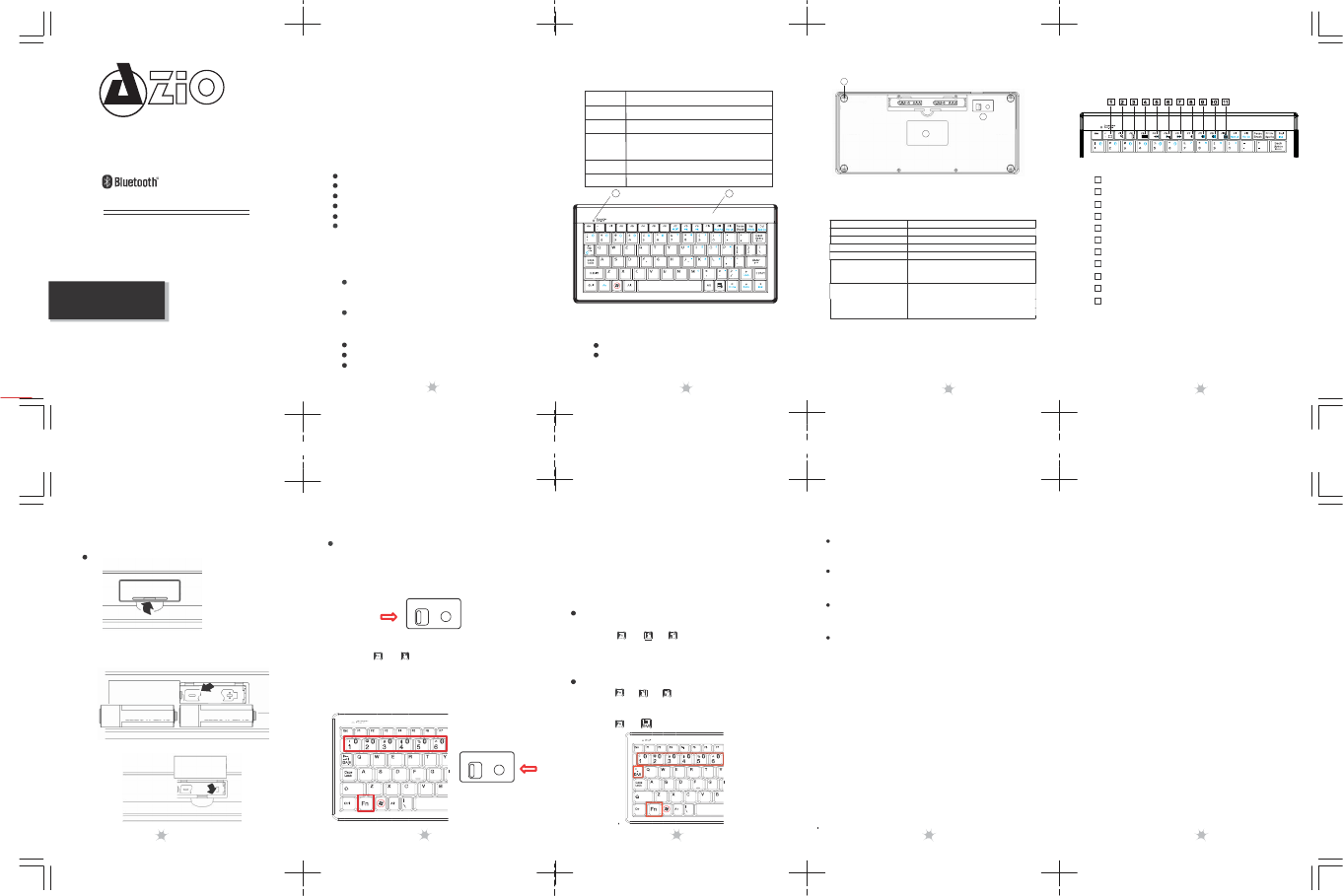
Power switch
and
4
Foot
pads
Pairing mode / activity indicator
Low battery indicator.
KB334B
Introduction
Thank you for purchasing the KB334B wireless
Bluetooth keyboard. For your own record and
convenience, please read this manual thoroughly
before using this product. After you have read this
manual, please keep it in a safe place for future
reference.
Keyboard components
Wireless Keyboard
Features
Bluetooth® 2.0 interface (compliant with Bluetooth 1.0)
Communicate with any Bluetooth HID enabled devices
Media keys & iPad/iPhone functions
Transmission range up to 33ft (10m)
Compact size and low power consumption
Memorize up to six Bluetooth hosts and quickly switch
between each devices.
LED indicator
The LED indicator reports the keyboard’s status
4
ON/OFF Reset
3
5
Package contents
Keyboard x1
User Guide x1
AAA alkaline batteries x2
System requirements
Your device must meet these requirements:
Microsoft Windows 2000, Windows XP,
Windows Vista, Windows 7 (32 or 64 bit)
Mac OS X 10+, iOS 3.2+ Android 3.0+
Bluetooth-enabled device with HID profile
* Some functions and special keys may not work for
all operating systems or devices.
1
2
3
4
Initial Setup
Install the batteries
1. Open the battery cover.
2. Insert the two AAA Alkaline batteries. Make
sure they are properly oriented.
AAA
Installing Your Bluetooth Keyboard
How to install the keyboard on first Bluetooth device or
host
1. Turn on your Bluetooth device or host and make sure
that your Bluetooth device is set to search mode.
2. Switch Bluetooth keyboard power to ON position.
3. Press “ ” + “ ” on the Bluetooth keyboard, and then press
the RESET button to initiate pairing mode for FIRST device (as
profile 1).
Indicator LED on the top of keyboard will blink during paring mode.
ON/OFF Reset
*
4. Launch the Bluetooth program/settings on the host
device (Please refer to its respective user guide).
5. Add (or search) for new devices. You should be able to
find a new Bluetooth Keyboard device.
6. During the pairing process, it will provide a PASS
CODE for entry. Enter the PASS CODE from the keyboard.
7. Wait for pairing to complete, then test the new keyboard
on the system.
Installing Bluetooth keyboard on 2nd through 6th
Bluetooth device or host
1. Press “ ” + “ ” ~ “ ” (one number for each of the
remaining Bluetooth devices), then press RESET to
begin pairing mode.
2. Follow the steps 4-7 as in the first device.
Switching to the desired device
1. Press “ ”+ “ ” ~ “ ” to switch back to the preferred
device associated with that number profile.
or
2. Press “ ” + “ ” to return to the previous device.
.
.
Troubleshooting
Make sure that you have paired your keyboard with
your device. For more information, see “Installing
your Bluetooth keyboard” on page 6.
Make sure that your operating system is compatible
with your keyboard. For more information, see
“System requirements” on page 4.
Make sure that the anode(+) and cathode(–) symbols
on the batteries match the anode(+) and cathode(–)
symbols in the battery compartment.
Low-Battery is indicated by the illumination of the
LED Indicator "Batt.Low." Please replace the battery
when this LED lights up.
Specifications
Dimension: Keyboard : 232.2 (L)* 112.1 (W)* 17.5 (H)
mm
Keys No: Keyboard: 80
keys(US)
Weight: Keyboard: 160+-20g (w/o
battery)
Key
Pitch: 15.9
mm
Interface:
Bluetooth 2.0, Class 2
Media Function Keys
1
Launch Web Browser or Go to Home Screen (iPad)
2
Search Mode
3
Picture Frame Mode (iPad/iPhone Only)
4
Show Onscreen Keyboard (iPad/iPhone Only)
5
Last Track / Rewind
6
Play / Pause
7
Next Track / Fast Forward
8
Mute
9
Volume Down
3. Close the battery cover.
ON/OFF Reset
Compatibility:
Windows XP, Vista, 7 (32 or 64bit) or later
Mac OS X v10.0, iOS 3.2, Android 3.0 or later
10
Volume Up
AAA
Operating Temperature: 32°F ~ 104°F (0°C ~
40°C)
Operating Humidity: 85% RH or
less
Storage Temperature: 5°F ~ 140°F (-15°C ~
60°C)
Storage Humidity: 85% RH or
less
11
Screen Lock (iPad/iPhone Only)
5
6 7 8
9
Service & Warranty
If you need assistance with this product, please visit
our website at www.aziocorp.com for frequently asked
questions and troubleshooting tips. Otherwise, please
contact our dedicated customer care team.
There are several ways to reach us:
By Phone: (866) 468‐1198
On Live Help: http://www.aziocorp.com/support/helpdesk.htm
Lifetime Limited Warranty
AZiO Corporation warrants only to the original purchaser
of this product, when purchased from an AZiO-authorized
reseller or distributor, that this product will be free from
defects in material and workmanship under normal use
and service for the life of the product. AZiO reserves the
right, before having any obligation under this warran¬ty,
to inspect the damaged AZiO product, and initial shipping
costs of sending the AZiO product to the AZiO service
center in Los Angeles, Califronia for inspection shall be
borne solely by the purchaser. In order to keep this
warranty in effect, the product must have been handled
appropriately and must not have been misused in any way.
This warranty does not cover any damage due to accident,
misuse, abuse or negligence. Please retain the dated sales
receipt as evidence of the original purchaser & date of
purchase. You will need it for any warranty service.
In order to claim under this warranty, Purchaser must make
claim to AZiO and obtain an RMA # which is to be used within
15 days of issuance, and must present acceptable proof of
original ownership (such as original receipt) for the product.
AZiO, at its option, shall repair or replace the defective unit
covered by this warranty. This warranty is non-transferable
and does not apply to any purchaser who bought the product
from a reseller or distributor not authorized by AZiO, including
but not limited to purchases from internet auction sites. This
warranty does not affect any other legal rights you may have
by operation of law. Contact AZiO through email, chat, or
through one of the technical support numbers listed for
warranty service procedures.
B-A
1
2



Join the conversation about this product
Here you can share what you think about the AZIO KB334B Bluetooth Keyboard. If you have a question, first carefully read the manual. Requesting a manual can be done by using our contact form.